

Remote
On this page
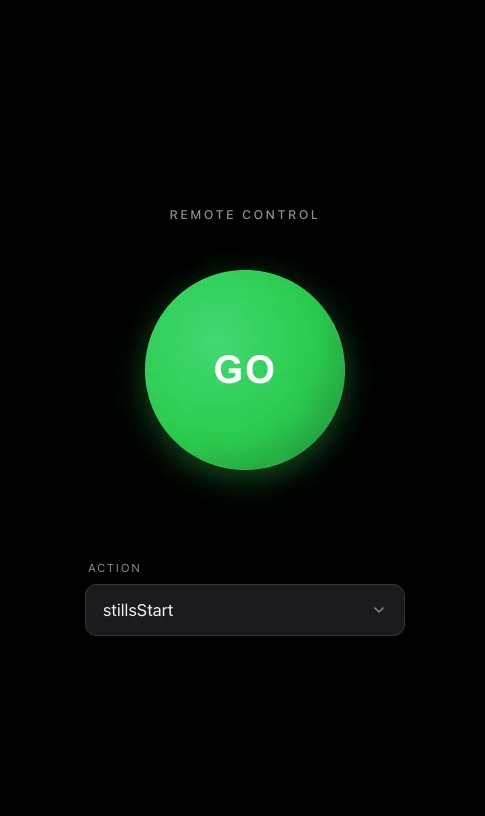
The Remote Control function allows you to control Breeze Booth from a browser. This is useful for triggering touch screen actions without having to be at the photo booth.
How to enable#
Enable the Remote Control in the app Settings > Sharing Station > Enable Remote Control and from there, copy or share the URL to the device you want to view it on. The device must be on the same local network, or, if you are using Tailscale VPN, you can connect remotely over the internet.
How to use#
From the dropdown list, select one of the pre-set touch screen actions and then press the Go button. You can also get a screen shot by select the Take Screen Shot option. To send other actions, select Custom, and then enter the name of the touch screen action you want to send.
For example, you can remotely close the booth to show the closed screen, then reopen it when you're ready.
Need full remote access to the device screen, rather than sending actions? From 4.0.6, Breeze Booth supports CoBrowse.io. See Can I remotely access or support a booth?
Was this page helpful?
Thanks, that helps us improve the guides.