

Breeze Booth App
Breeze Booth Start Screen#
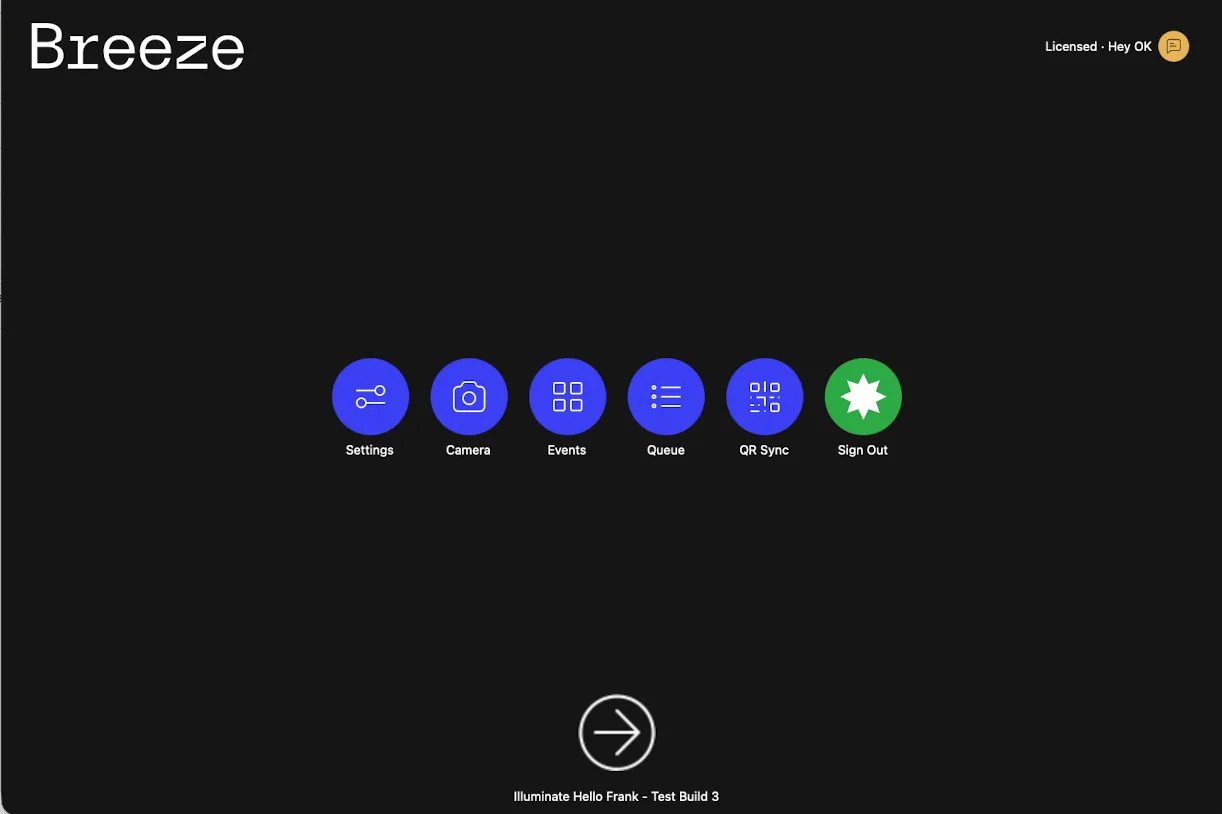
The Start Screen is the main screen displayed when you open Breeze Booth. From here, you can configure the app, manage events, check print and upload queues, and launch your photo booth.
Start Screen Options#
- Settings – Configure printing, sharing, integrations, event syncing and other device settings.
- Camera – Select and configure the camera used by the booth.
- Events – View, download and launch available events.
- Queue – View the status of print, upload and other background jobs.
- QR Sync – Scan a QR code to connect the device to Breeze Studio and sync events.
- Sign Out – Sign out of the current Breeze Cloud account.
- Launch Event – Tap the large arrow to launch the currently selected event.
Customise the Start Screen#
You can customise the appearance of the Start Screen, including its colours, fonts, button labels and background image.
Open Settings > Display & UI > Edit Start Screen.
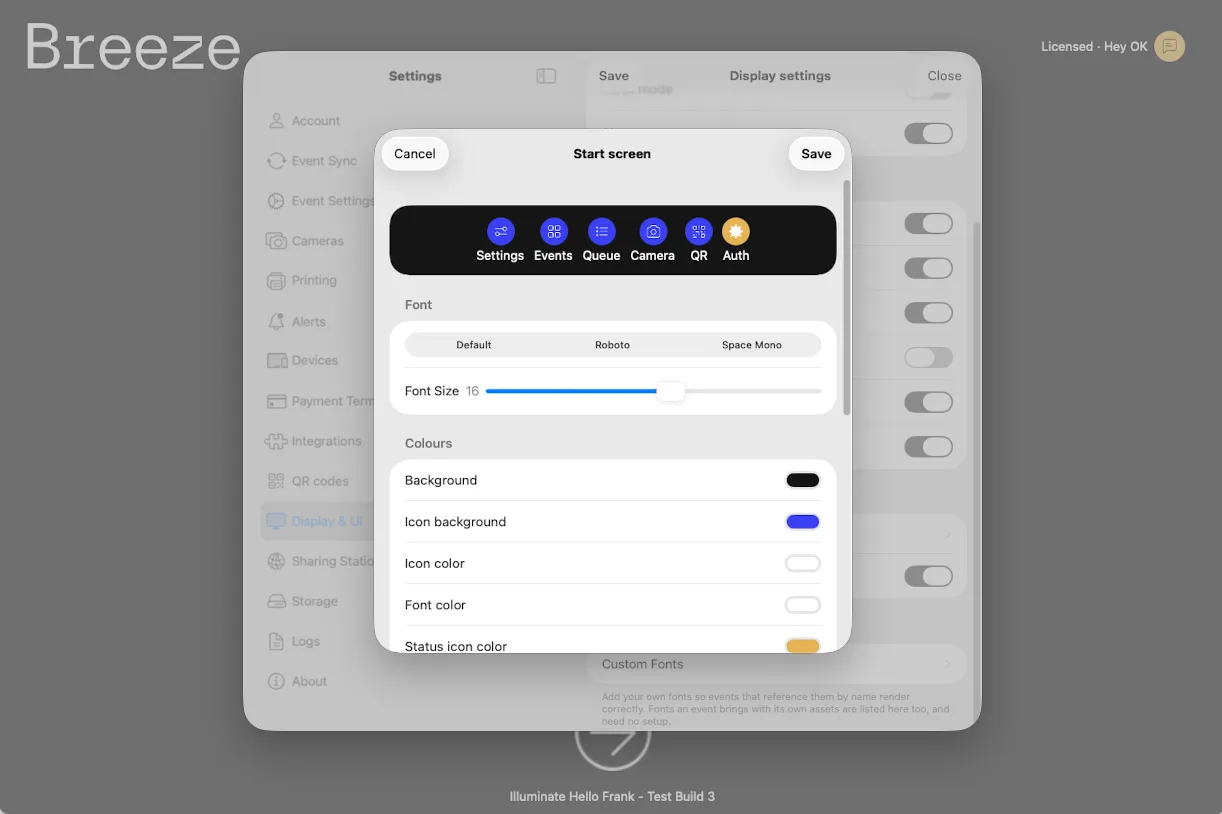
The available options include:
- Font – Choose Default, Roboto or Space Mono.
- Font Size – Adjust the size of the button labels.
- Background – Change the screen background colour.
- Icon Background – Change the colour behind the main icons.
- Icon Colour – Change the icon colours.
- Font Colour – Change the button label colour.
- Status Icon Colour – Change the colour of the status icon.
- Status Message Colour – Change the status message text colour.
- Signed In / Signed Out Icon Colours – Customise the account status button colours.
- Icon Descriptions – Rename the labels displayed beneath the Start Screen icons.
- Background Image – Use your own image as the Start Screen background.
When using a custom background image, it fills the screen and crops the sides as required to fit.
Tap Save to apply your changes.
Was this page helpful?
Thanks, that helps us improve the guides.