

Adding Sound to Burst and Slideshow GIFs
Legacy tutorial (Breeze Booth for iPad): How to add sound tracks to burst and slideshow GIFs shared by Breeze Booth (iPad + iPhone).
On this page
Legacy tutorial. This was written for an older version of Breeze Booth for iPad and the Event Editor, so some menus and screens look different in the current version. For current settings see Sounds.
Screenshots in this tutorial have not been updated for the latest release, and may look a little different from the current versions of the Event Editor and App
Introduction#
Adding an soundtrack to MP4 copies of both slideshow and burst GIFs shared by the App is very simple. First add your chosen MP3 audio file to the event screens folder, then update the event manifest so that the audio is included when the design is transferred to your iPads/iPhone.
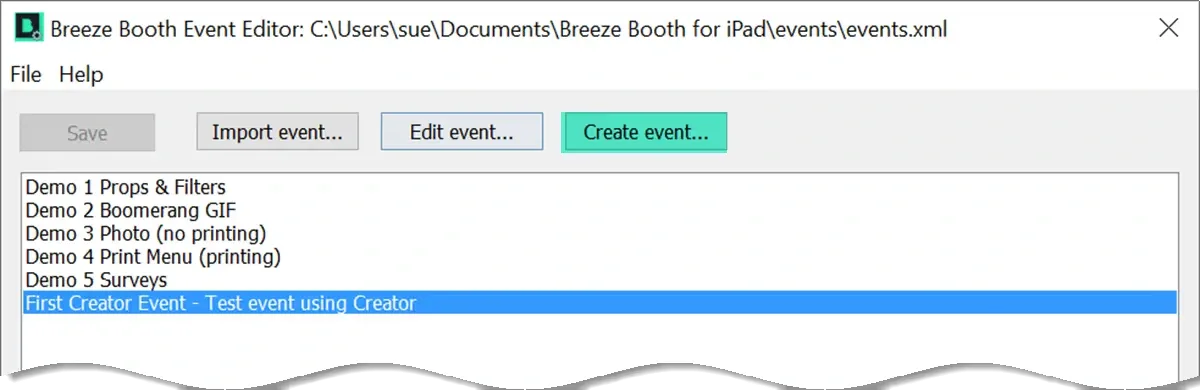
Start the Event Editor and choose which event to edit#
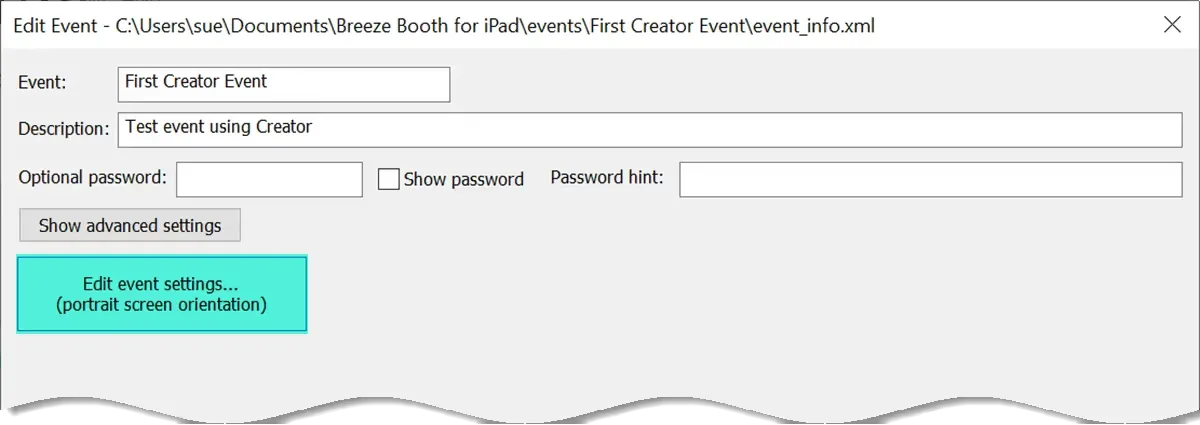
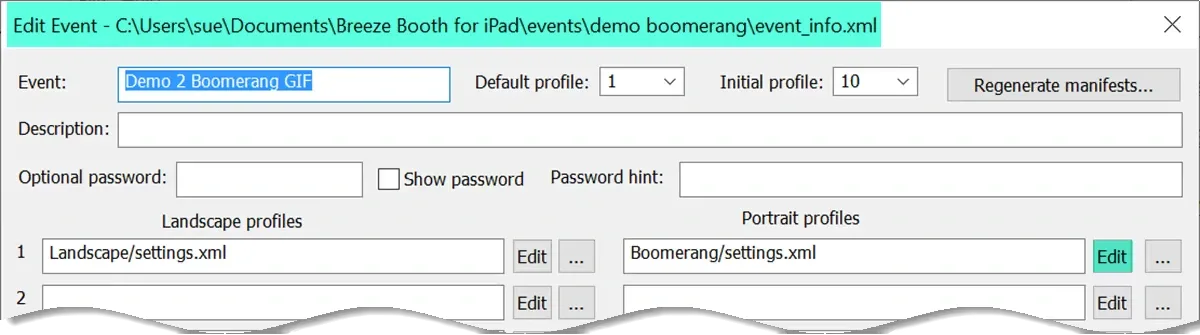
Events with more than one profile#
If the event has several profiles, you need to choose which profile to edit.
Open the screens folder for the event (or individual profile)#
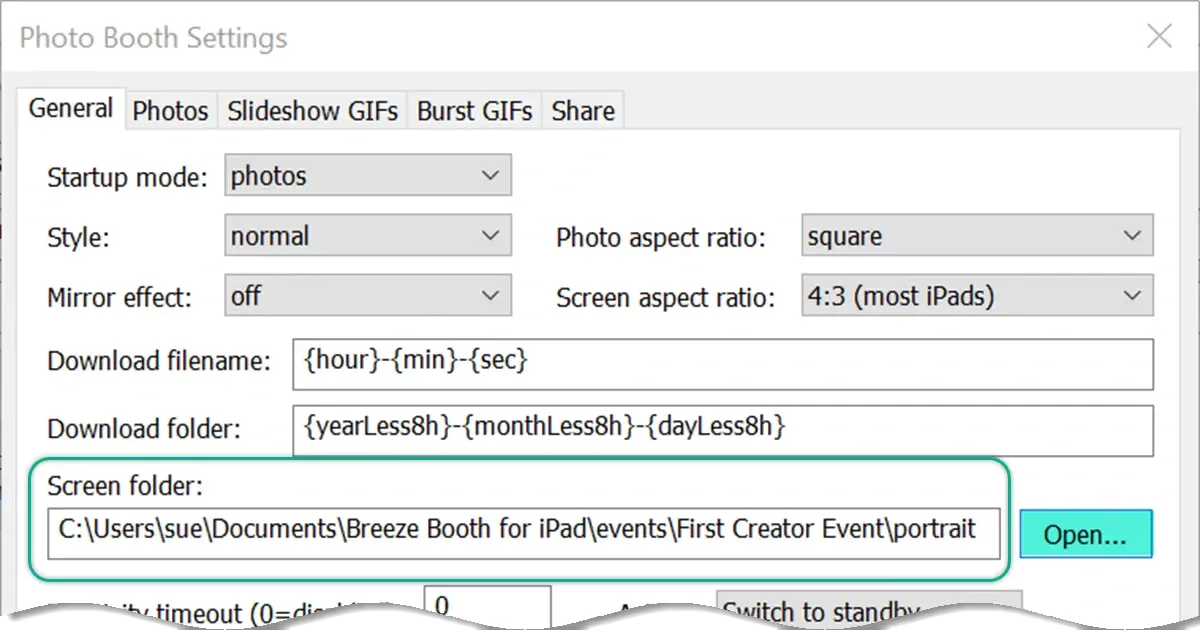
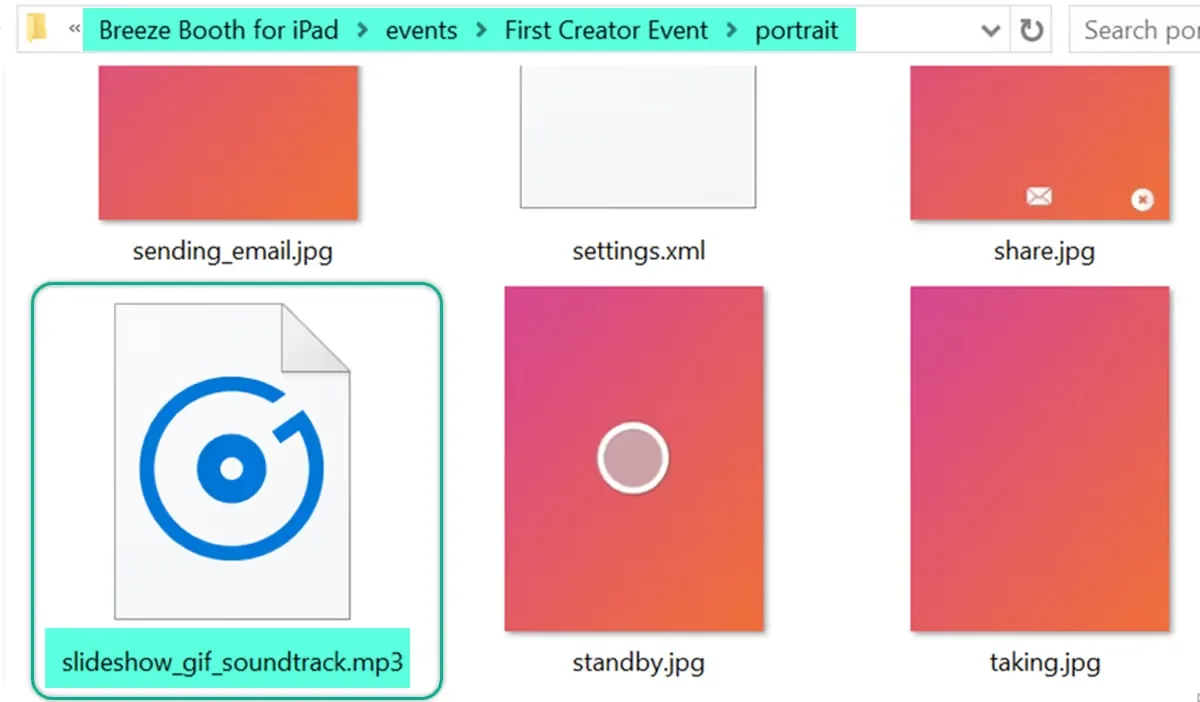
The audio file must be named correctly to be included with your MP4 video:
- for Burst GIFs use gif_soundtrack.mp3
- for Slideshow GIFs use slideshow_gif_soundtrack.mp3
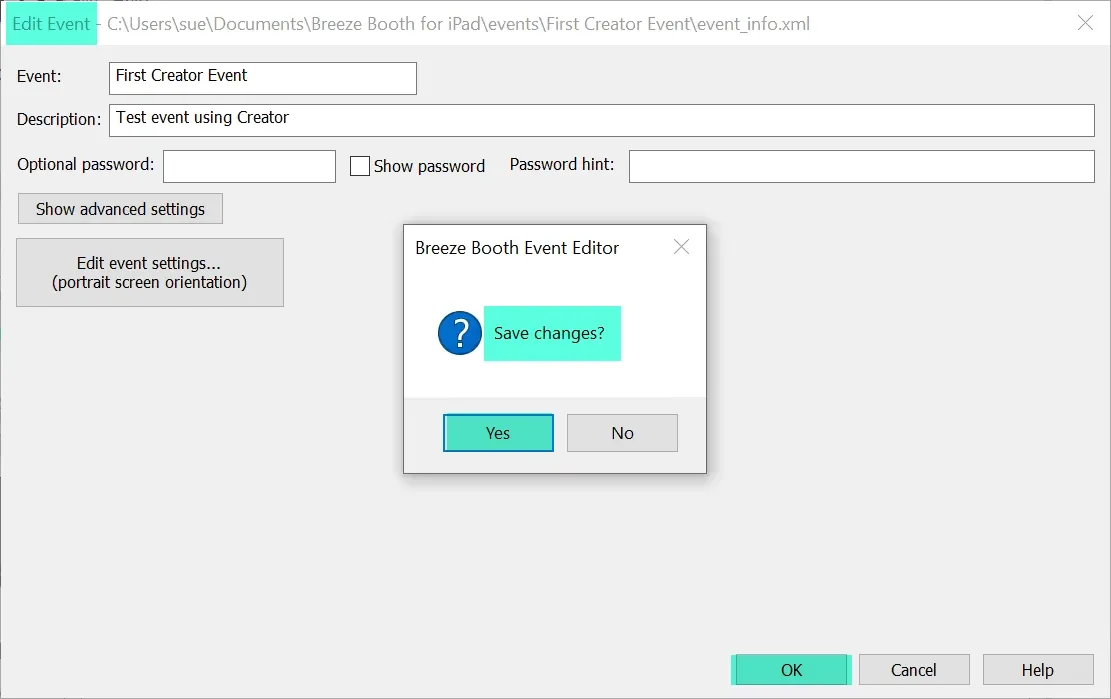
Close the screens window and save your changes before leaving the Event Editor
When is the soundtrack played?#
Audio soundtracks are included in MP4 copies of GIFs when they are shared from the device. The soundtrack does not play in the preview shown within the App itself.
You can only add sound tracks to MP4 copies of your GIFs, because the .GIF format does not support audio.
Finally transfer the new or updated event to your devices#
Update your iPads/iPhones using a local network or the internet. More
Videos#
Adding a sound track to videos
Was this page helpful?
Thanks, that helps us improve the guides.