

Quick Setup for Remote iPads and iPhones
Show Breeze Booth a single QR code to log in and load an event: ideal for fixed installations, drop-off booths and white-label events.
On this page
Quick Setup for Remote iPads and iPhones#
Quick Setup is a fast, simple way to log in and set up Breeze Booth on your own devices and your customers' devices. Show Breeze Booth a single QR code and it logs in, loads the event and is ready to run. It is a great tool for fixed installations, drop-off and unattended booths, white-label and other remote events.
Older version
This guide was written in February 2023 for the Windows Event Editor (version 1.4.1) and the breezebooth.net web app. Breeze Studio was previously called the Event Editor, so some screens look different in the current version. For the current reference, see Event Setup.
What Quick Setup offers#
- A better customer experience for unattended booths
- Simple, secure setup for white-label events
- Automatic log out when the event expires
- A limit on the number of devices used
- Events run securely on customers' own devices
What you need#
Your customers or operators need:
- iPads or iPhones running a supported version of iPadOS or iOS
- Internet access to set up the event and for sharing
You, the vendor, need a Breeze Booth licence or voucher for each device used.
How it works for your customer#
- Download Breeze Booth from the App Store, unless you have done this for them already.
- Open Breeze Booth and select the QR code button on the home screen.
- Show Breeze Booth the unique QR code you sent them.
- Focus on the party.
The first time the app runs on a device, they also confirm that Breeze Booth can access the camera.
What you do#
- Create your event as usual in the Event Editor.
- Upload the event to Dropbox or a folder on your website. Dropbox is the usual choice for events running on your own devices. See Event Sync.
- Create a guest user in your Breeze Booth account.
- Use the Admin QR Code Generator to create a unique QR code to send to your customer or operator.
Set up a guest user#
Log in to your Breeze Booth account and add a guest or white-label user. This guide uses the term guest user; set up a white-label operator in the same way.
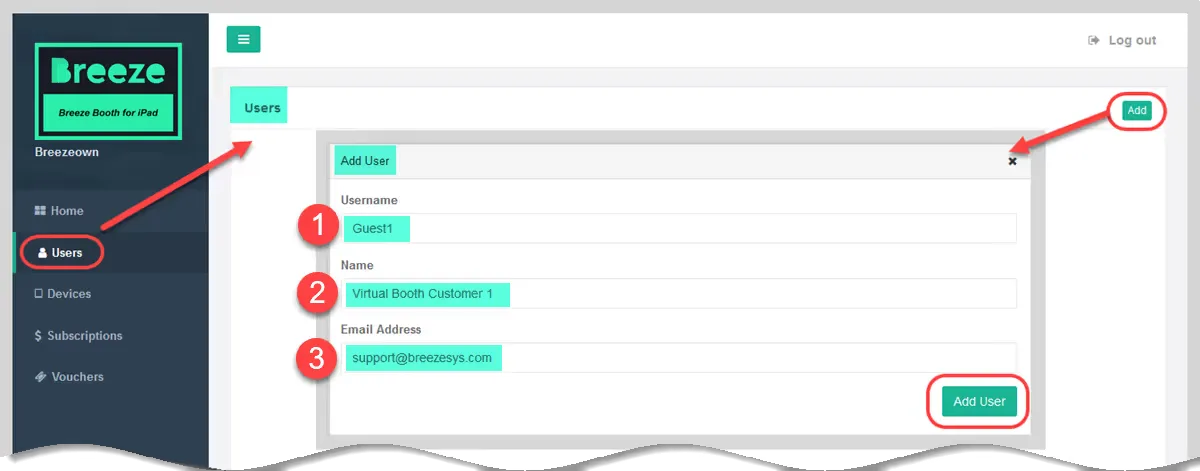
Give guest users only the access they need, and limit the number of devices they can use.
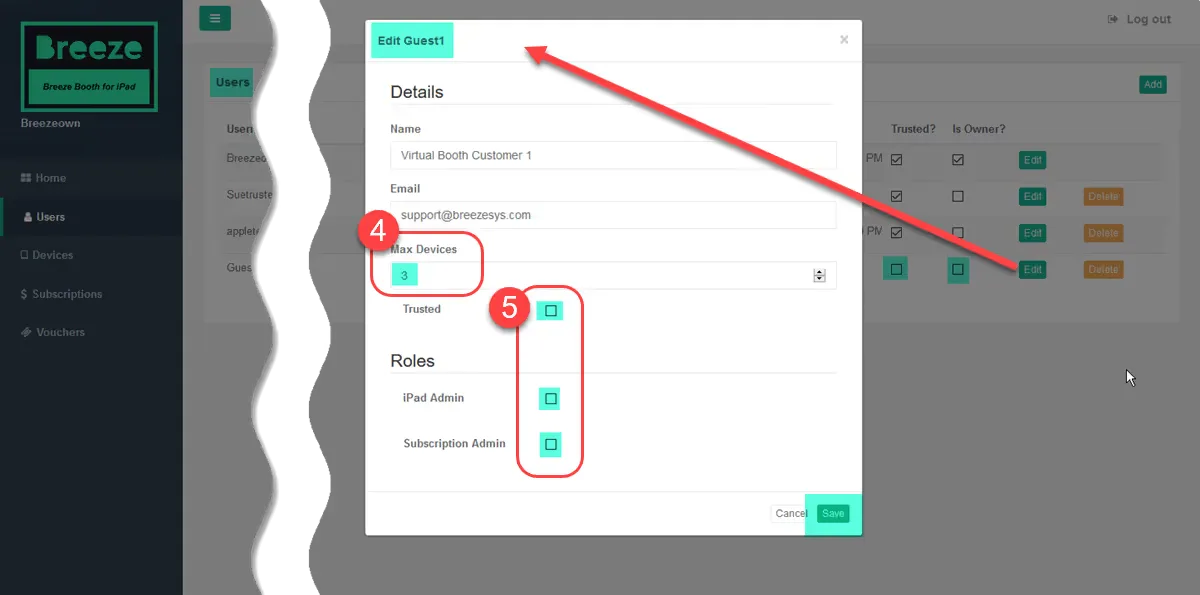
In general, make users with their own devices a trusted user. To restrict users to your own pre-approved devices, leave trusted user unchecked. Do not give customers or white-label operators extra roles they don't need (see Roles).
Guest user email address and password
You don't need a new guest user for every event, and guests don't need to know the password to log in with a QR code. Keep it private by setting up the account under your own email address.
Removing access after the event#
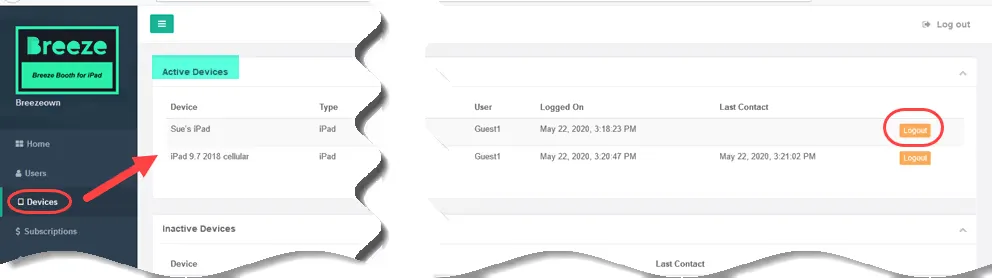
To stop customers and white-label operators using your account after the event, include an expiry date in their QR code. Account owners can also log customers and staff out by deactivating the device.
Create a unique QR code for each event#
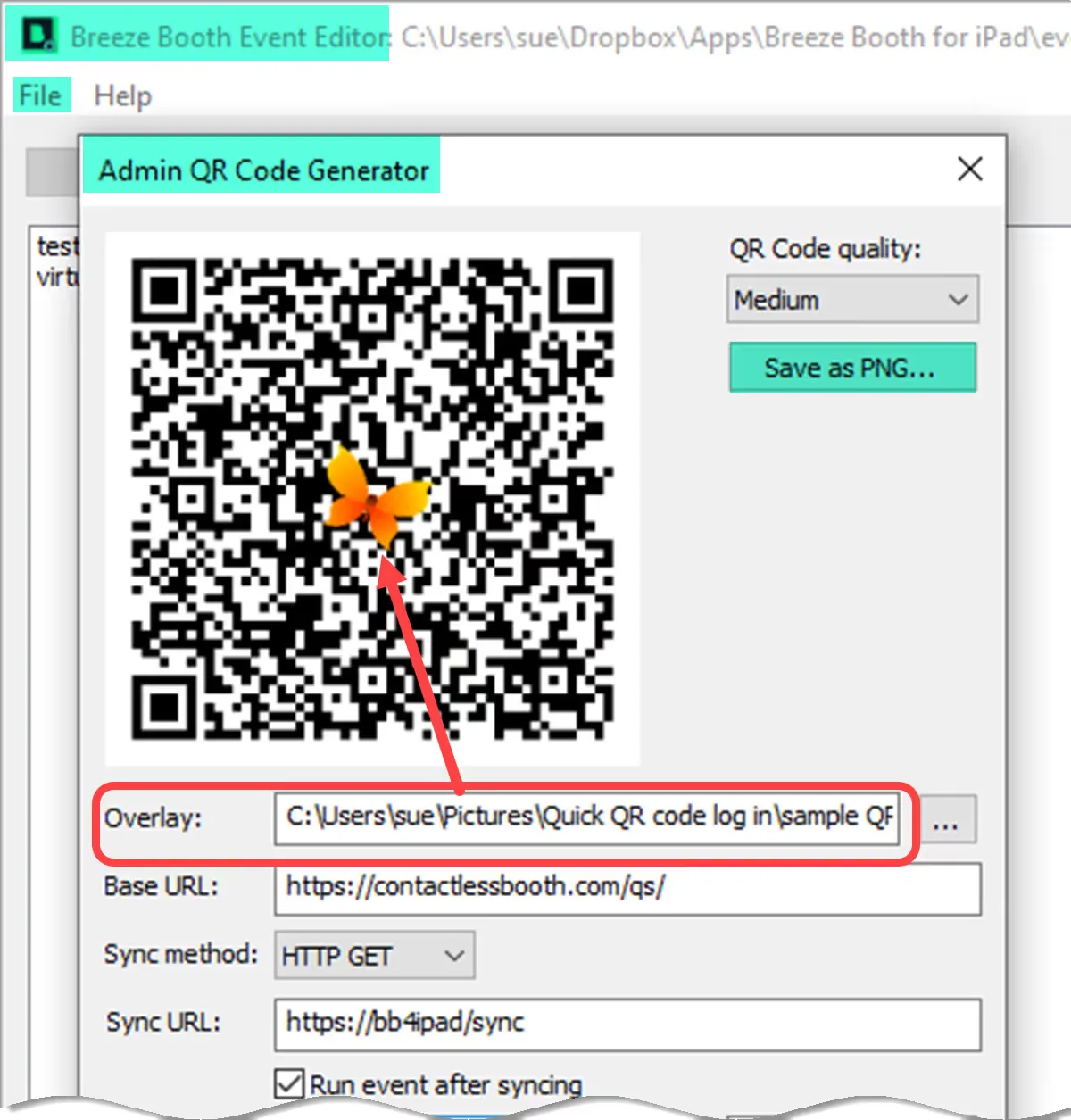
Open the Event Editor on your PC and select File to open the Admin QR Code Generator.
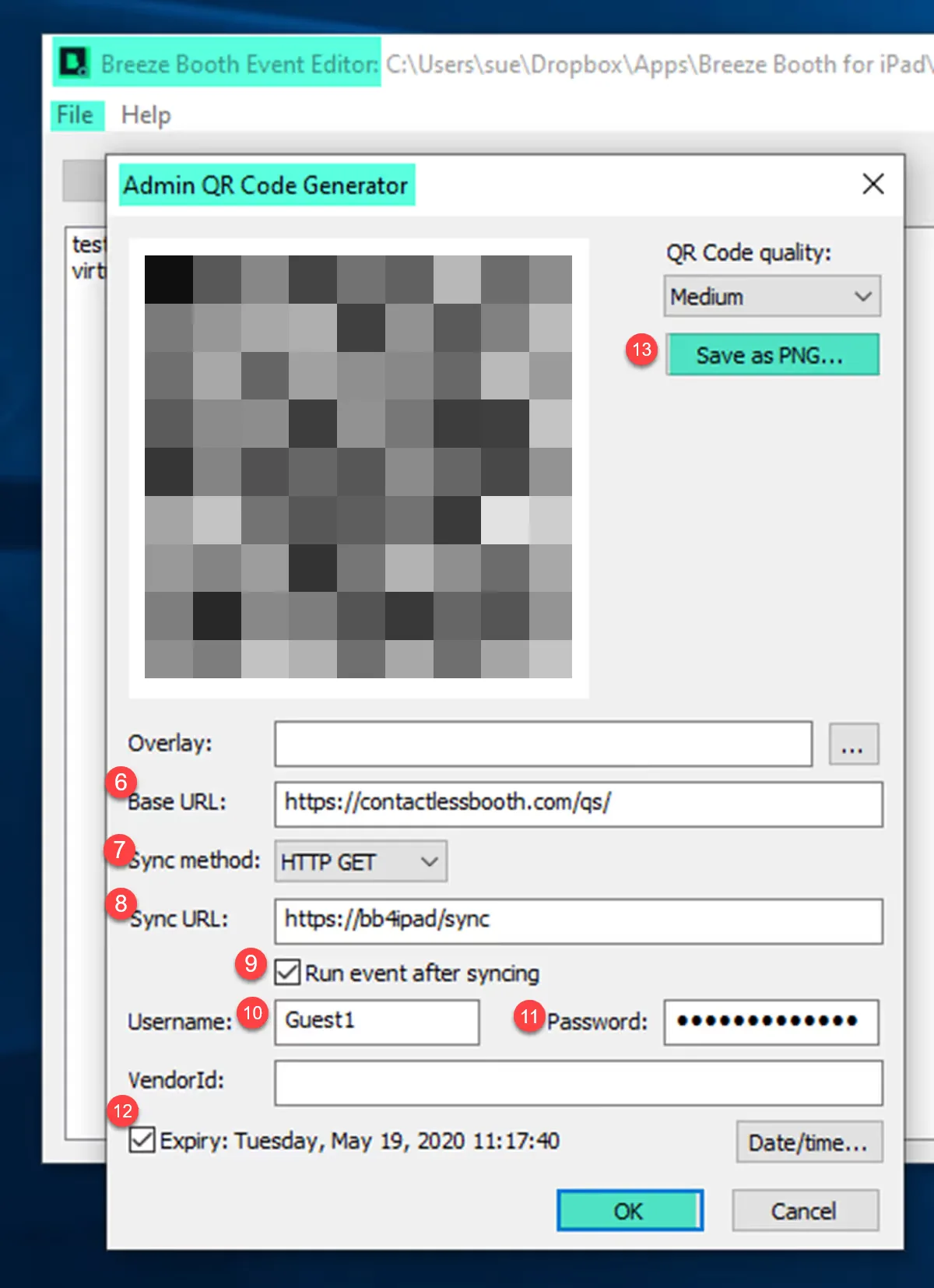
- Guests and operators show this QR code to Breeze Booth to log in. Anyone who scans it with their phone is sent to your Base URL. You can use the default, contactlessbooth.com/qs, which has a short video showing how to log in with the QR code, or replace it with your own page.
- Select Dropbox for devices updated from your Dropbox account, or HTTP GET or HTTP POST for events hosted on a website.
- For events hosted on a website, enter the URL of the events folder.
- Check this box to run the event automatically as soon as the device is logged in and updated.
- The username of the account to log in to, here the guest account created earlier.
- The password for the account. This is hidden from guests.
- An optional expiry date. Devices are logged out automatically when the QR code expires.
- Save the QR code as a PNG image to send to your guest or operator.
Make the QR code more attractive#
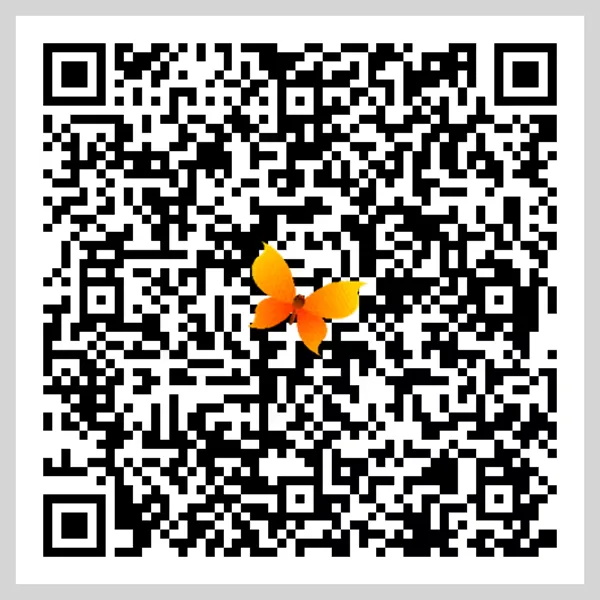
Add a small logo to make the QR code look more appealing. Use a PNG image on a 500 x 500 pixel transparent background.
You can use Quick Setup with#
- Your existing Breeze Booth events
- Contactless events
- Breeze Booth as a pre-registration app (see QR codes)
Was this page helpful?
Thanks, that helps us improve the guides.