

Zebra Barcode Scanners
On this page
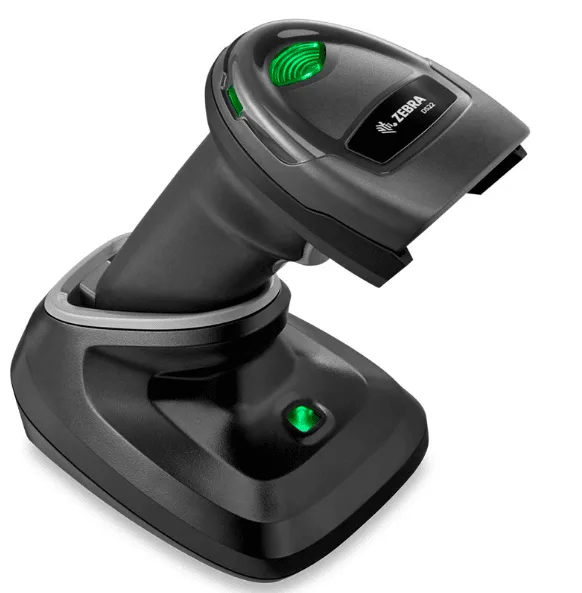
Breeze Booth supports Bluetooth enabled Zebra Barcode Scanners like the DS2278. Ideal for when running QR code enabled events. When connected, scanning a QR code with the Zebra scanner is just the same as scanning it with the camera live view.
Setup#
After the initial setup is complete, the barcode scanner should connect to Breeze every time it is opened. It's important to note that the scanner is specifically paired to the device you first set it up on. To connect the scanner to another device, you may need to forget the device in the Apple Bluetooth settings.
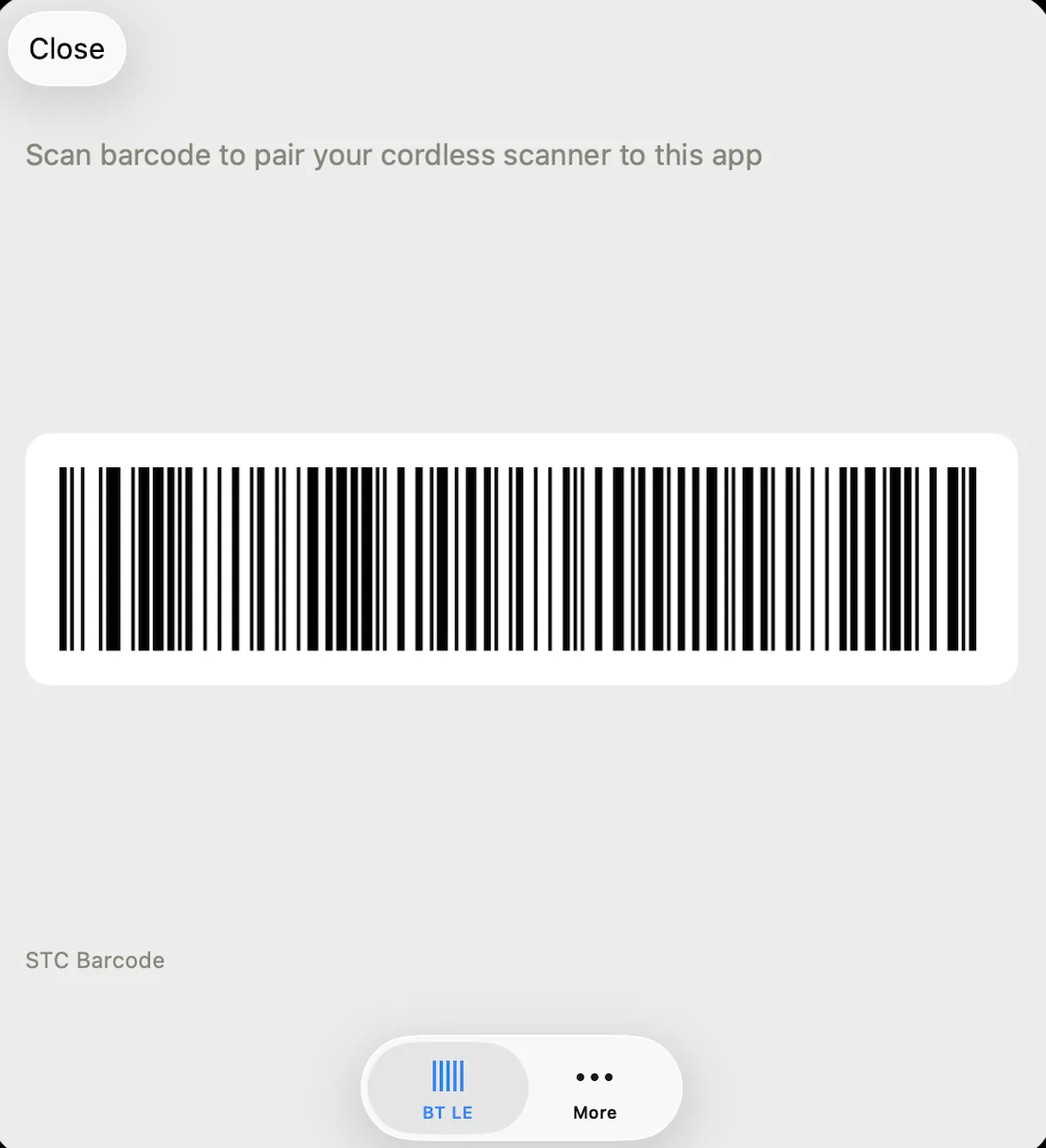
- Go to Breeze Booth > Settings > Devices > Zebra Scanner Setup
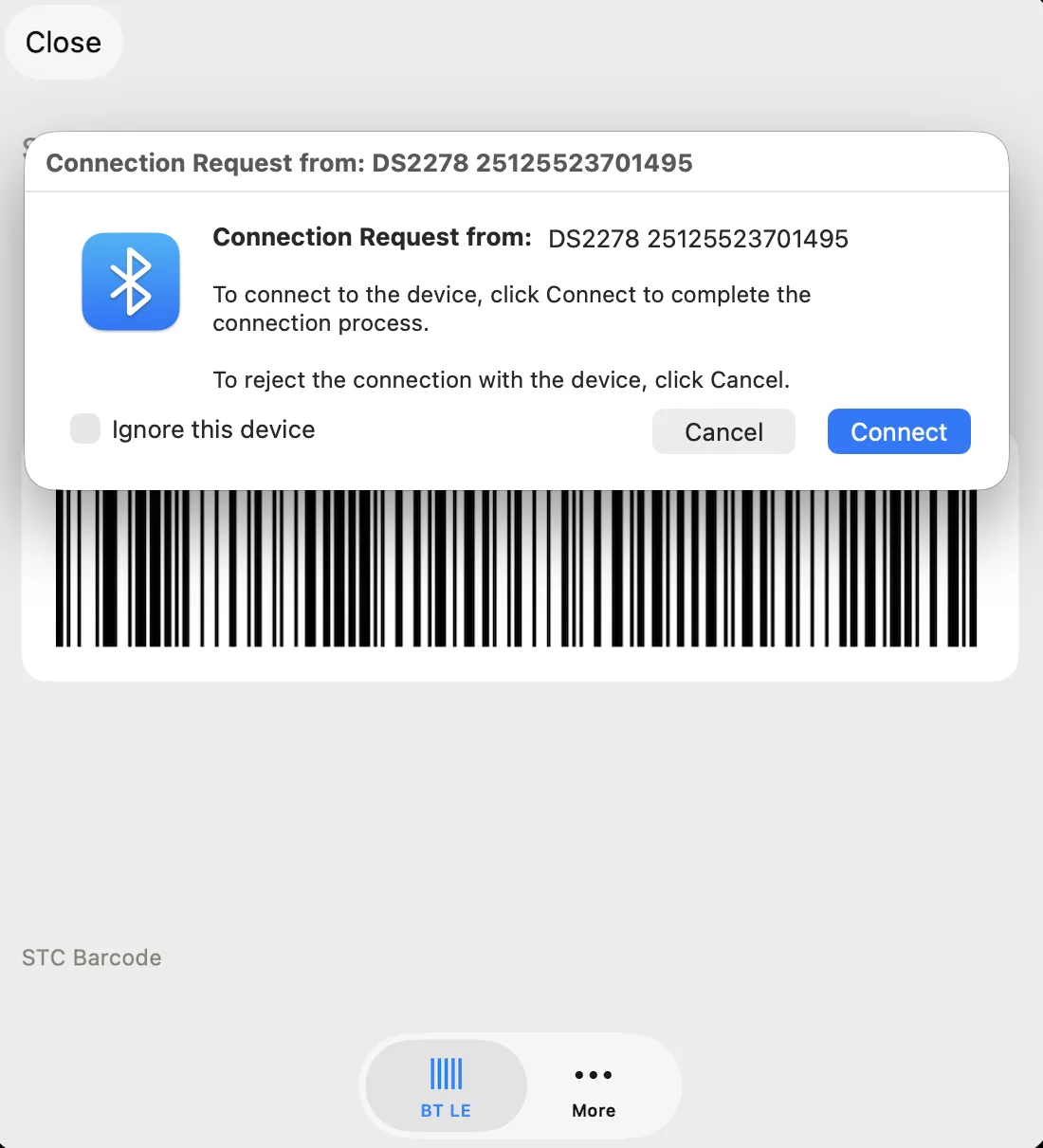
- Scan the setup barcode that appears and wait for Bluetooth connection dialogue
- Approve the Bluetooth connection
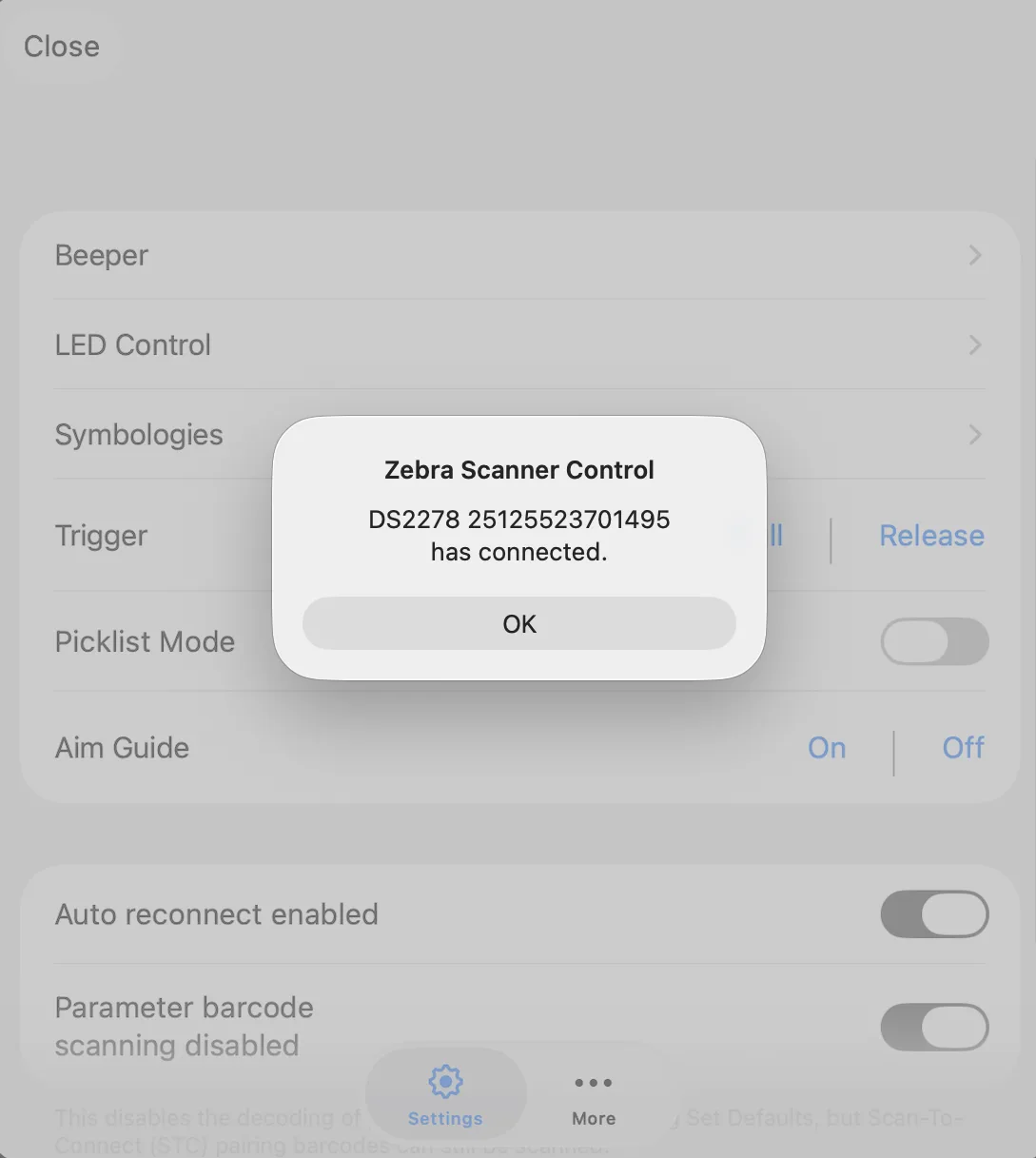
- Close the Device connected dialogue
Scanner Settings#
The scanner comes with some settings you can configure from within Breeze Booth > Settings > Devices > Zebra Scanner Setup > Settings. Most settings can be left as the defaults, but you may like to adjust the Beeper volume and tone.
Connection Troubleshooting#
If you have troubles connecting or reconnecting the scanner check the following:
- That the scanner has adequate power. It may not connect if fully flat and charging.
- That is it not connected to another device
You can try forgetting the device in the Apple Bluetooth settings and retrying the connection process.
Was this page helpful?
Thanks, that helps us improve the guides.