

Integrations
On this page
The Integration Settings are where you connect to external services (eg, Breeze Cloud, Twilio etc). If being used, they need to be configured before they can be enabled in the Event Sync settings.
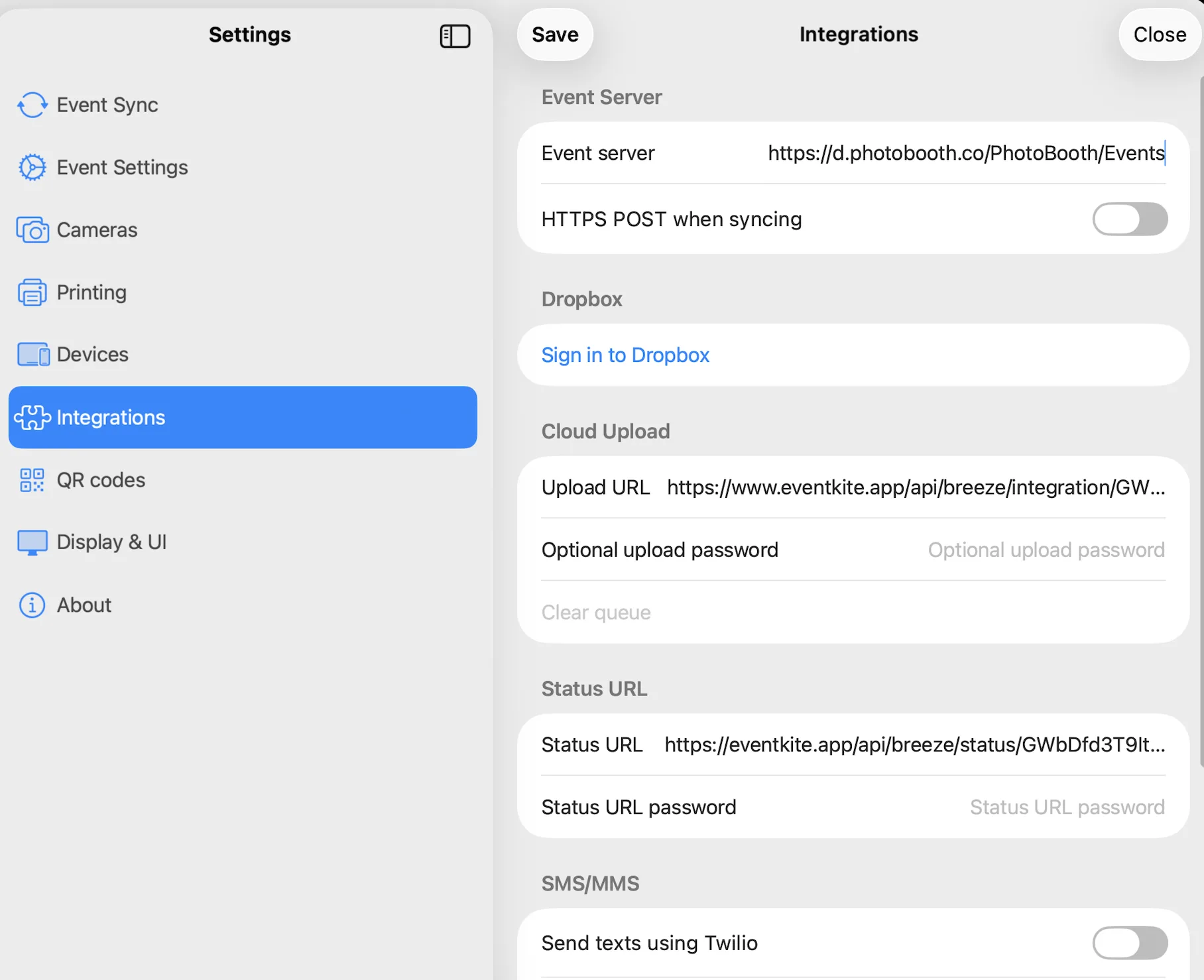
Event Server#
Syncing from a Website#
Set the Events server to the URL of the web site hosting the events. eg: https://yourdomain.com/events. The default URL is https://bb4ipad.com/sync which hosts the example events.
Please note that the web server must be a secure site i.e. starting with https:// not http://.
Fast Downloads#
Uses multi threading to download multiple files at once
HTTPS POST When Syncing#
The default event update method is not secure, as anyone who knows the URL can download your event files. For improved security, enable Use HTTPS POST when syncing and set a password. This ensures that event data is only provided to authorised requests. When using this option, you must also have a compatible server-side script that receives the request, verifies the password, and only then returns the event file.
Please see the guide on Syncing from a Web Server for more details
Syncing from a Local Server#
If the iPad is connected to the same network as the PC running the Event Editor you can use the local syncing option to run a simple web server and sync files to the iPad very quickly. This is only suitable when testing at home or in the office.
See Syncing Events to Breeze Booth for iPad for details of updating events via Local Sync.
Dropbox#
Dropbox can be used to sync events from your PC and to upload captured media (photos, videos etc) to your account.
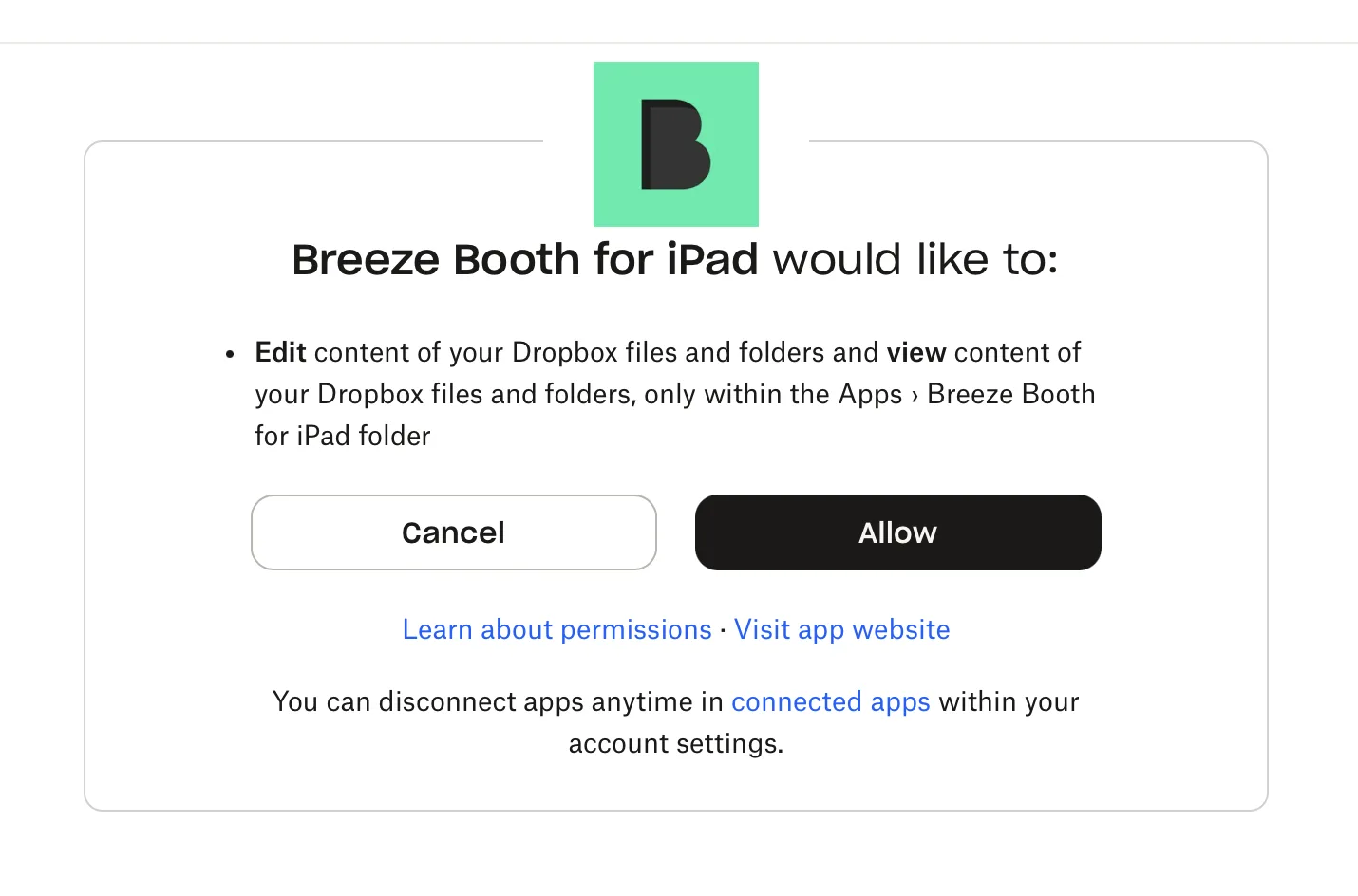
- Press the Sign in to Dropbox button to link your account.
- A browser will open asking you to Allow the connection
- Upon successful sign in, you will be redirected back to Breeze
Enable the Event Sync and/or Upload functions in the Event Sync settings
Cloud Upload#
Captured media (photos, videos etc) can be uploaded to a private website, or services like Breeze Cloud.
- Set your Upload URL
- Set the optional Password.
- Enable the function in the Event Sync settings.
You can find your Breeze Cloud Upload URL in your account settings, under Cloud Upload URL
Custom Upload Script#
To upload media to your own server, see our example PHP Upload Script
Chat with ChatGPT for a detailed explanation on how the upload script works
Status URL#
The Status URL can be used to send regular updates to a web server and receive commands back (for example touch screen actions). This gives you a way to remote monitor and control devices.
- Set Status URL to the endpoint that receives updates.
- Set Interval (seconds) between updates; set to 0 to disable.
- Optional password for extra security.
See Status URL for more details.
SMS/MMS#
To send SMS you need a Twilio account (charges apply). See pricing at twilio.com.
Enter your Twilio message phone number, AccountSID, and AuthToken in settings.
- Set the country prefix (e.g., +1 US/Canada, +44 UK, +49 Germany).
- Users can enter numbers with or without the prefix; the app adds the prefix if missing.
Email#
Default SMTP#
By default, emails are sent using the SMTP service provided with your Breeze Booth subscription. To use the default SMTP, leave the Custom SMPT option unchecked. There is no further configuration required.
- up to 1000 emails/month.
- From address: @@[email protected]@@ or @@[email protected]@@.
- Reply-To can be set via From email address in sharing settings with the Event Editor.
To use your own From, choose Custom SMTP and enter your server details.
Custom SMTP#
To use your own custom SMTP, enable the option.You must then specify:
- SMTP host
- Port
- Username & password
If the Port is set to 0, the app will try secure email and auto-detect the port. Set a specific port if auto-detect fails or your server uses a nonstandard port.
Using Gmail#
To use Gmail to send emails, enable the Custom SMTP option and configure using the following settings:
- SMTP server:
smtp.gmail.com - Port:
0 - SMTP username:
[email protected] - SMTP password: (your 16-digit Google App Password)
You can find your Google App Password here
Using Gmail is not a recommended option due to deliverability issues. Consider using Custom SMTP with PostMark instead
Background Removal#
Enter the API key for the background removal service you wish to use for AI background removal. Tap Check background removal API key and credits to verify the key and credits. See AI Background Removal for more info.
Was this page helpful?
Thanks, that helps us improve the guides.