

DNP & Citizen
On this page
Direct USB Printing#
Breeze Booth supports direct USB printing to compatible Citizen and DNP printers, without requiring a separate Breeze Hub or computer.
Multiple printers can be connected to share print jobs, with automatic load balancing and failover if a printer encounters an error.
Setup#
Open Settings > Printing.
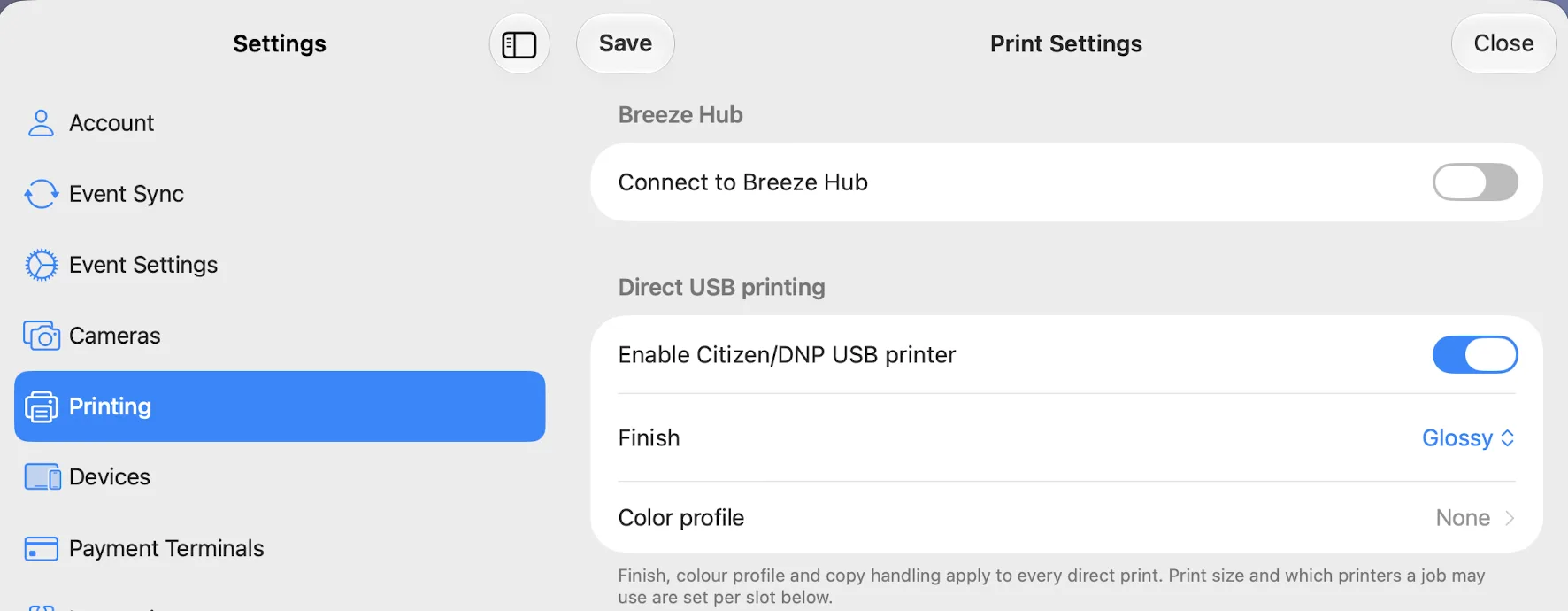
- Enable Citizen/DNP USB printer.
- Connect your printer to the device using USB.
- Select the required Finish (Glossy or Matte).
- Optionally import an ICC Color profile for your printer and media.
- Use Print test page to check the connection.
The Run USB diagnostics option can help troubleshoot printer connection issues.
Printer Driver#
Direct USB printing uses the Citizen and DNP Photo Printer driver on the iPad.
Only one app can hold a USB printer driver at a time. If another photo booth app has its own USB print driver enabled, it may prevent Breeze Booth from connecting to the printer, even if that app is not currently running.
This can include other booth apps such as Snappic, Curator, or any app that installs its own printer driver.
If Breeze Booth cannot find or connect to the printer, check whether another photo booth app has a USB printer driver enabled on the same iPad.
To check the Breeze Booth driver:
- Open the iPad Settings app.
- Go to Apps > Breeze Booth > Drivers.
- Find Citizen and DNP Photo Printer.
- Toggle the driver off and back on.
- Unplug and reconnect the printer.
If another app also has a printer driver installed:
- Open the iPad Settings app.
- Go to Apps.
- Select the other photo booth app, such as Snappic or Curator.
- Open Drivers.
- Disable its USB printer driver.
- Unplug and reconnect the printer.
- Reopen Breeze Booth and test printing again.
The USB diagnostics screen may report a service or driver issue if another app is holding the printer driver.
Print Routing / Pooling#
Breeze Booth supports up to three print routing slots: Default printer, Printer 2 and Printer 3.
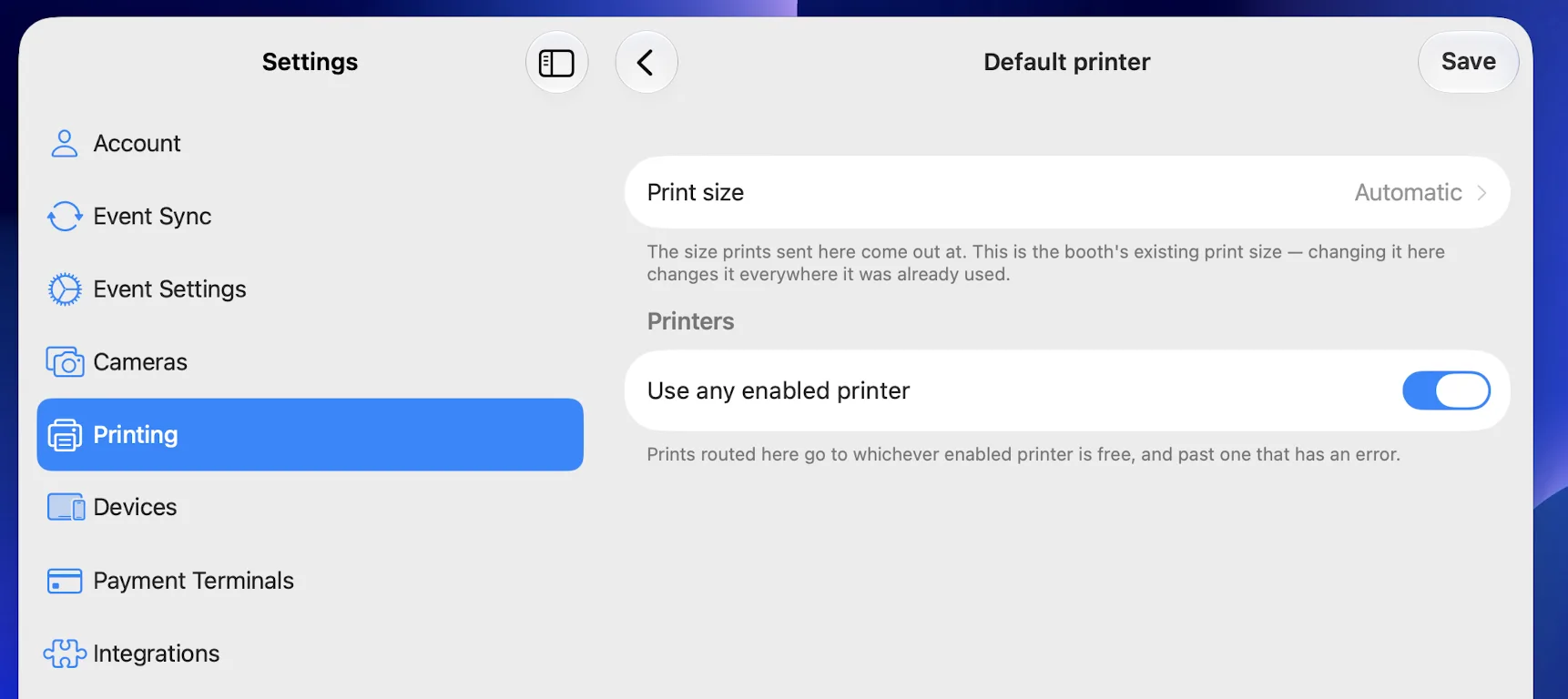
- Print size — Choose the output size or Automatic.
- Use any enabled printer — Automatically sends jobs to an available printer, skipping printers with errors.
- Printer selection — Select which connected printers can be used for each slot.
- Printer ID — Match an event's Printer ID to Printer 2 or Printer 3. Unmatched jobs use the Default printer.
When multiple printers are enabled, print jobs are sent to whichever printer is available.
Printer Alerts#
Open Settings > Printing > Printer alerts to configure notifications.
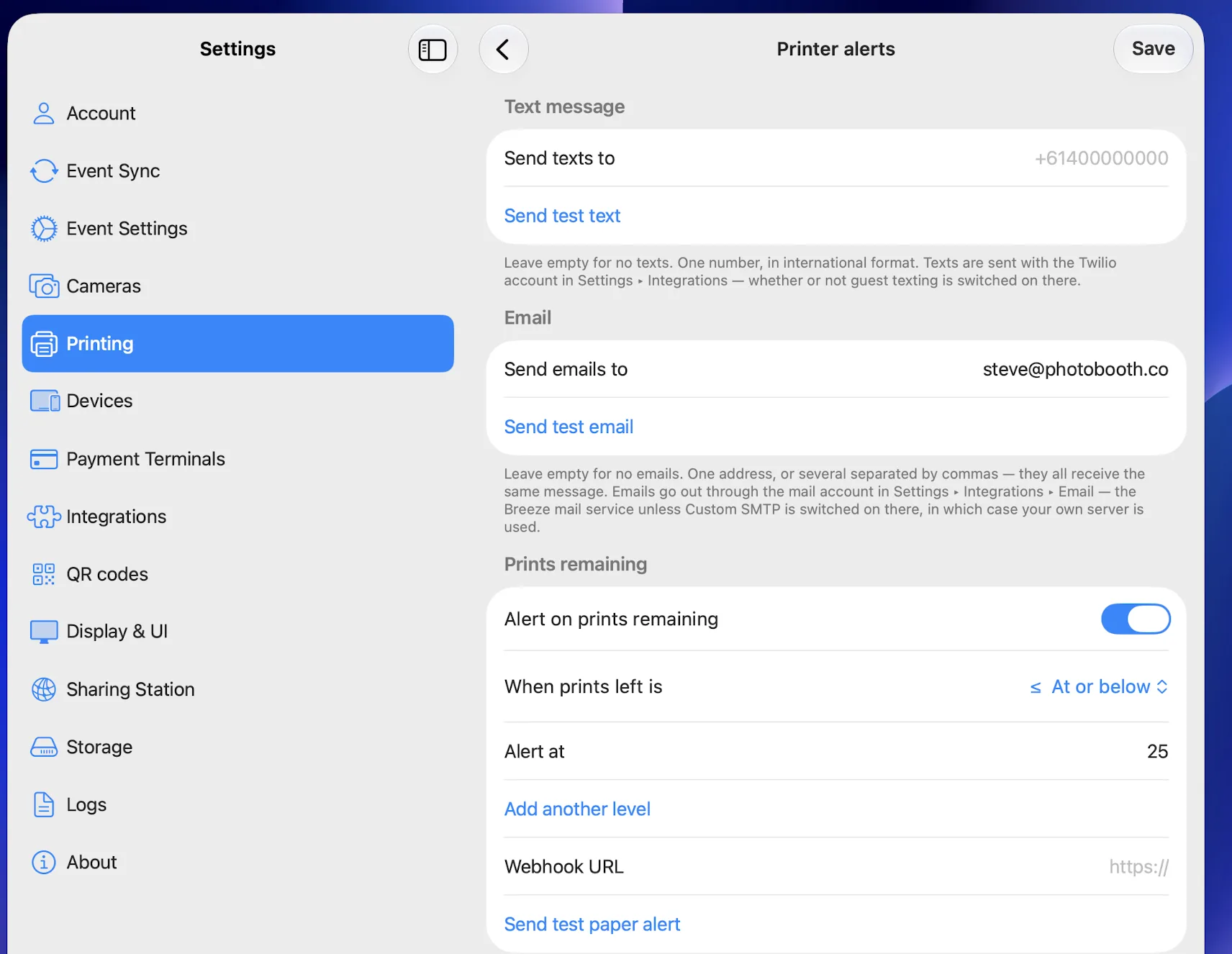
- Prints remaining — Send alerts when paper reaches specified levels. Multiple alert levels are supported.
- Printer errors — Send notifications when a printer reports an error or stops responding, after a configurable delay.
- Notifications — Send alerts by SMS, email or webhook.
- Close the booth — Automatically display
closed.jpgwhen printers run out of paper or encounter errors, preventing new sessions that cannot print. See Closed Screen for how to design it and reopen the booth.
Test options are available for SMS, email, paper alerts and printer errors.
Act as a Print Hub#
A device with a connected printer can act as a print hub for other iPads and Macs on the same network.
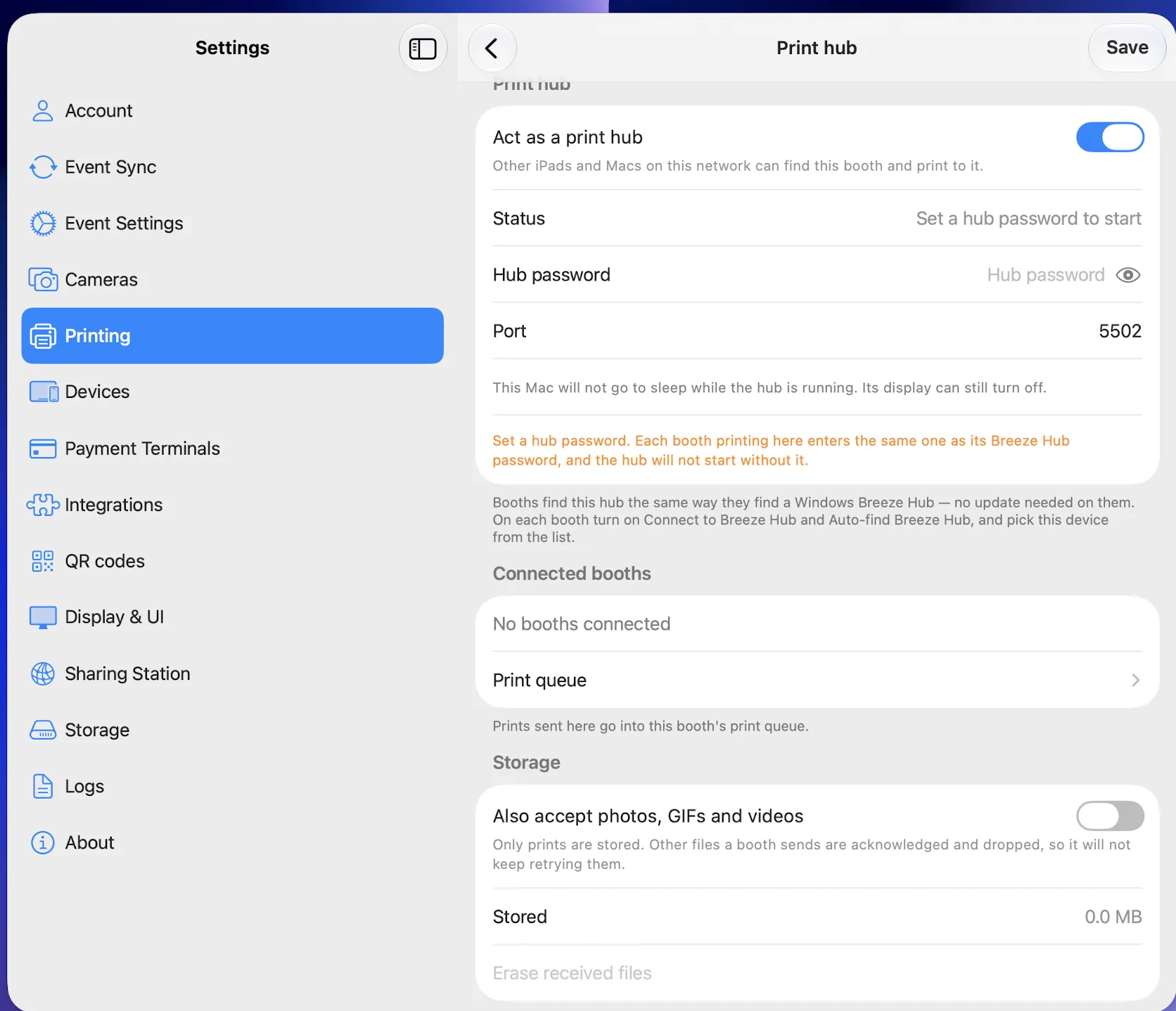
- Open Settings > Printing > Act as a print hub.
- Enable the print hub and configure a Hub password.
- On other booths, enable Connect to Breeze Hub and select the device.
- Enter the same hub password on each connecting booth.
Prints received from other booths are added to the hub's print queue. The hub can also optionally store received photos, GIFs and videos.
Print Queue#
Open Settings > Printing > Print queue to view print jobs and check their status.
Jobs that cannot be printed are held in the queue until a suitable printer becomes available.
ICC color profiles apply to direct USB printing only. AirPrint and macOS printer drivers manage their own colour profiles.
Printer Logging#
If you are troubleshooting direct USB printing, enable printer logging before testing again.
To enable printer logging:
- Open Device Settings.
- Select Logs.
- Enable USB Printer (Citizen/DNP).
- Reconnect the printer.
- Run a test print.
Printer logs can help identify whether the printer disconnected, stopped responding, or failed during a print transfer.
Support Logs#
If requested by Breeze Support, you may also be asked to send iPad logs from the affected time period.
Logs can be found on the iPad under:
Settings > Privacy & Security > Analytics & Improvements > Analytics Logs
Was this page helpful?
Thanks, that helps us improve the guides.