

QR Code Processing
On this page
QR Code Processing enables Breeze Booth to parse QR codes regardless of their format by using Regular Expressions. Data from the QR code can be mapped to Breeze tokens and commands, making it possible to integrate seamlessly with third-party systems that generate non-Breeze QR codes.
You do not need to use QR code Processing if your QR codes are generated in a Breeze compatible format (eg, codes made in Breeze Cloud)
Setup#
Before starting, ensure that your event has QR code String & Command scanning enabled in both the Event Editor (General Tab) and in the Breeze Booth settings. Then from the General Tab in your event, click the QR code Processing... button.
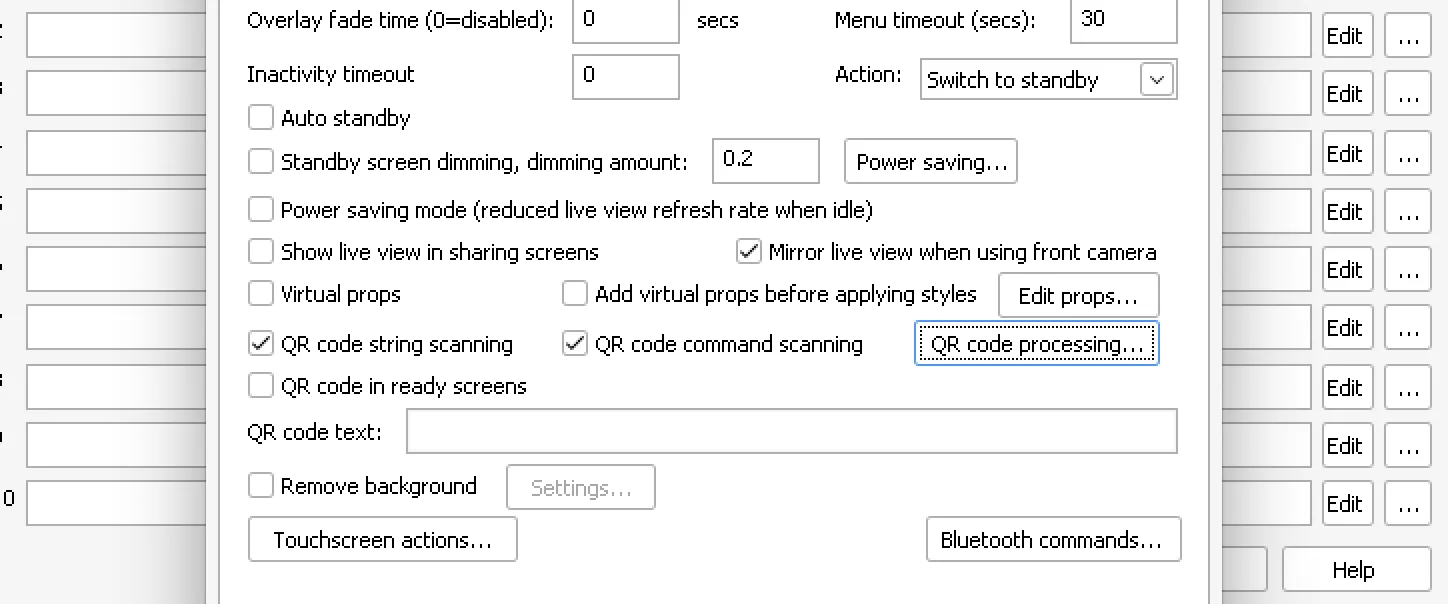
Click the Add Entry button, then select a Type from the Dropdown list (this determines what you will do with the data). Then enter your Regular Expression and assign a Value. You can test your Regular Expression by entering some data in the QR Test String field and pressing Test
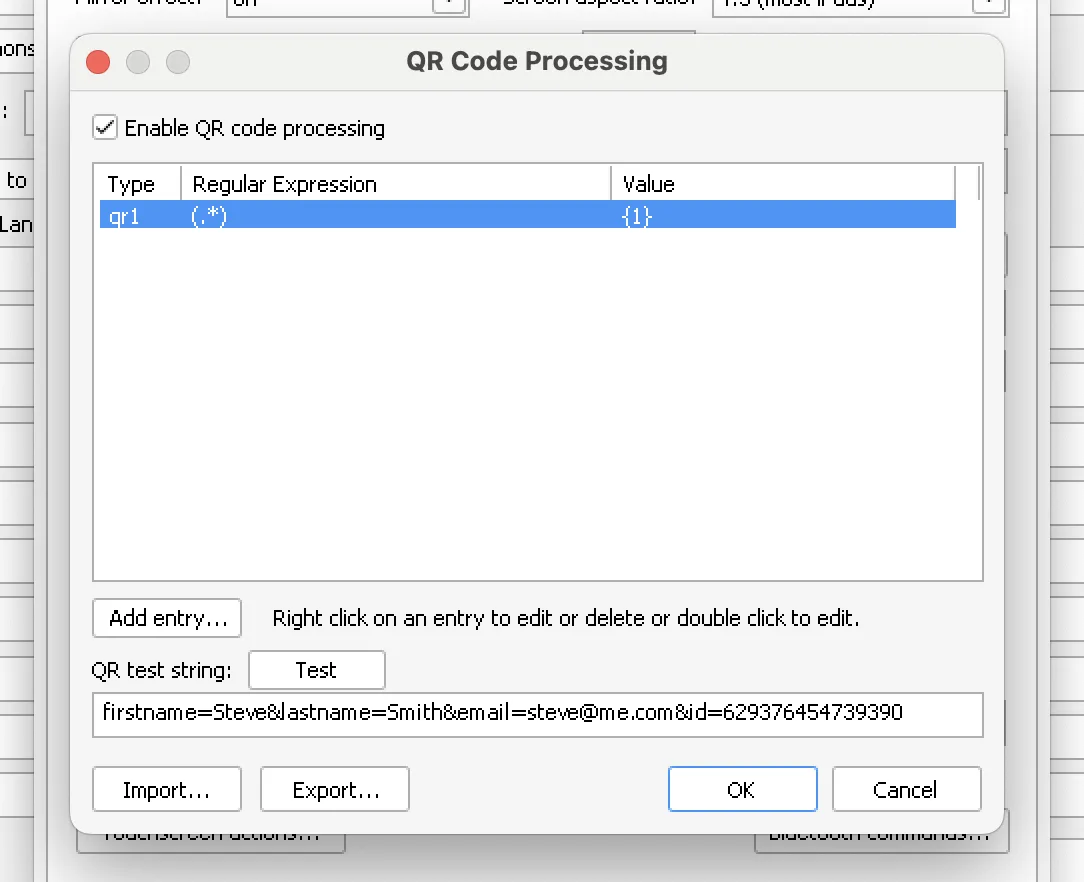
Copy the data that will be in your QR code to the QR Test String field to test
Type#
Extracted data is mapped to a Type. This could be a string (so it can be used as text on a print layout, to set filenames etc), or a command that can trigger a touch screen action or send emails and texts.
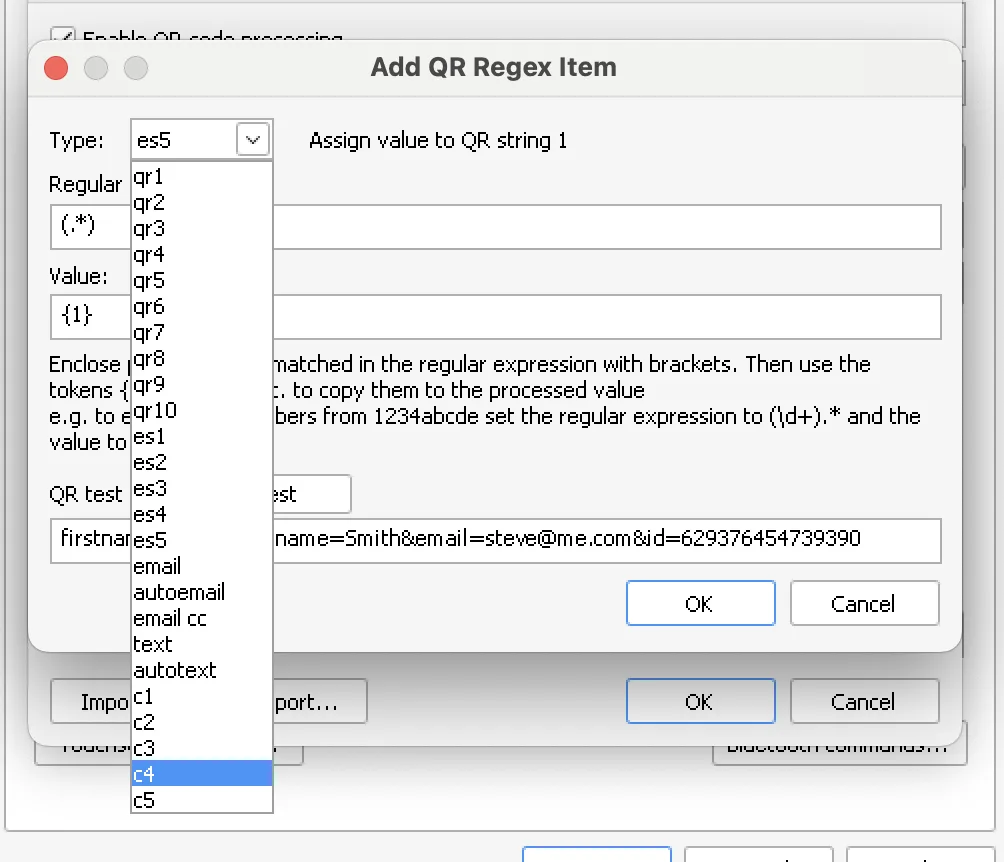
| Type | Description |
|---|---|
{qr1} - {qr10} |
Save data to a string value |
{es1} - {es5} |
Save data to an Event String |
| email, autoEmail, email cc | Save email address and send emails |
| text, autoText | Save phone number and send SMS messages |
| c1 - c5 | Trigger touch screen actions based on data |
Regular Expression#
Set the Regular Expression to extract the data from your QR code. (See examples below)
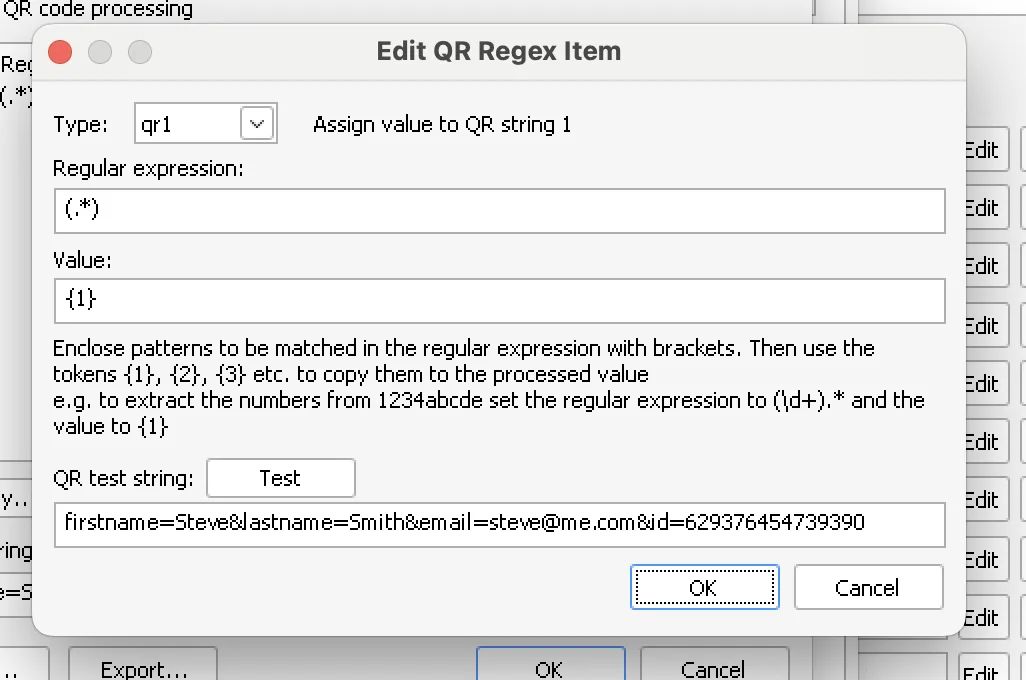
Note: You need to match the whole string. To extract the first character from a string you can use (.).* Since it's matching the whole string you don't need the ^ to anchor it to the start.
Use this GPT for help creating a suitable Regular Expression
Value#
The Value allows you to store the extracted data from the QR code. Additionally, you can use it as a way to set commands. If your QR code contains a First and Last name, you could store the First Name to {1} and Last Name to {2}. If you were using the data to trigger a command, the value could be set as stillsStart to start the photo booth. This gives you great flexibility to evaluate the data in the QR code and then map it to any function you require.
See the examples below for more details
Testing#
Once you have set your Type, Regular Expression and Value, you can enter some test data into the QR Test String field and press the Test button. This dialogue will show you any pattern matches, and the results of the Type
Examples#
Example 1#
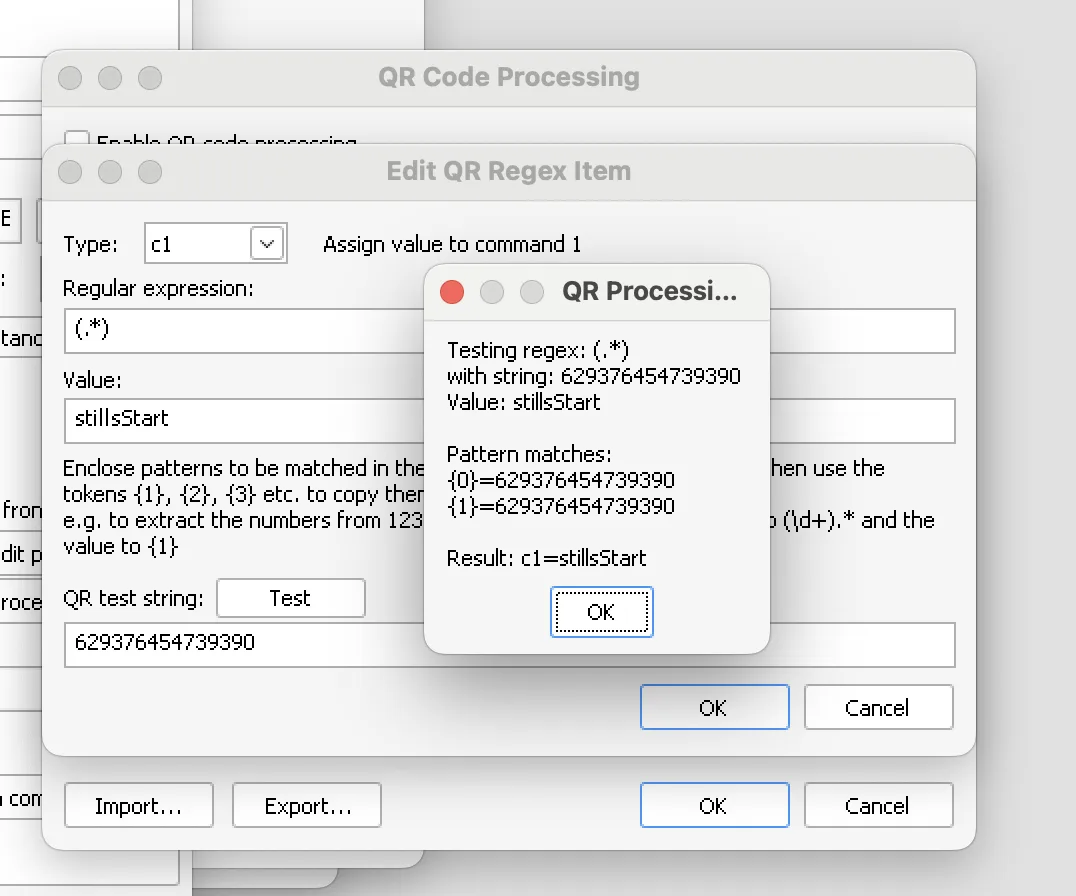
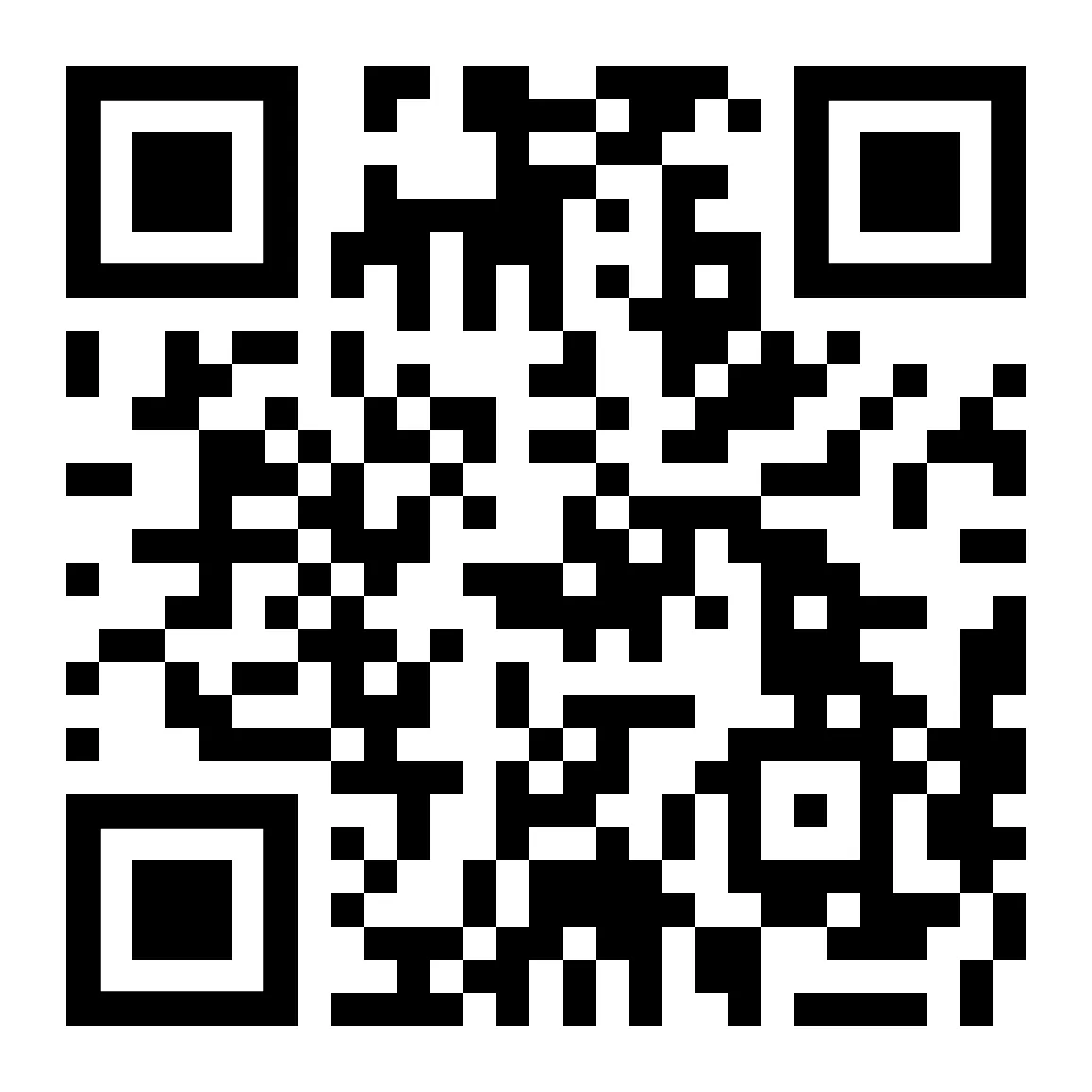
In this example, we are using the QR code to trigger a photo session, regardless of its contents.
QR Data: 629376454739390
Type: c1
Regular Expression: (.*)
Value: stillsStart
Download Example QR code
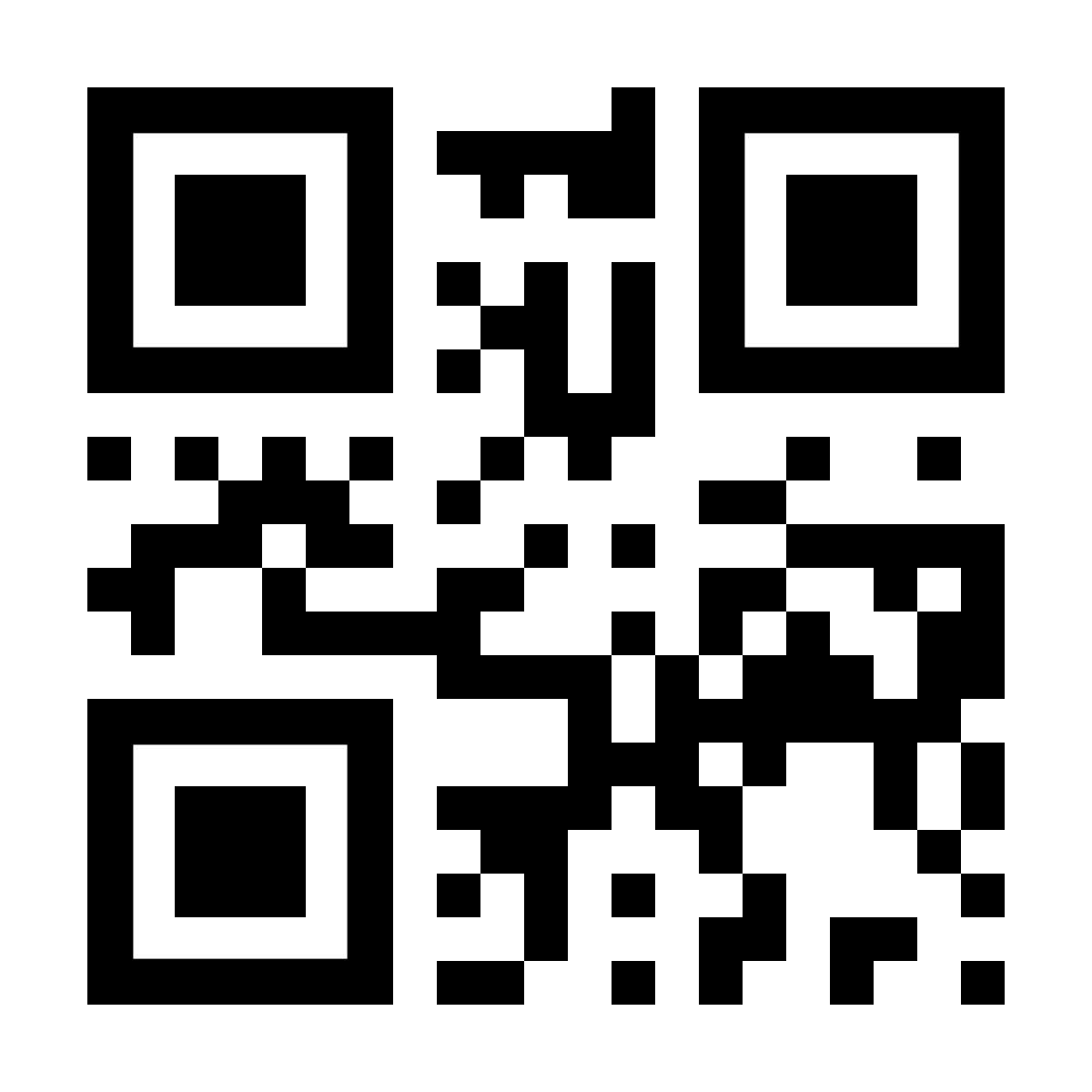
Import the Regular Expression into your event.
Example 2#
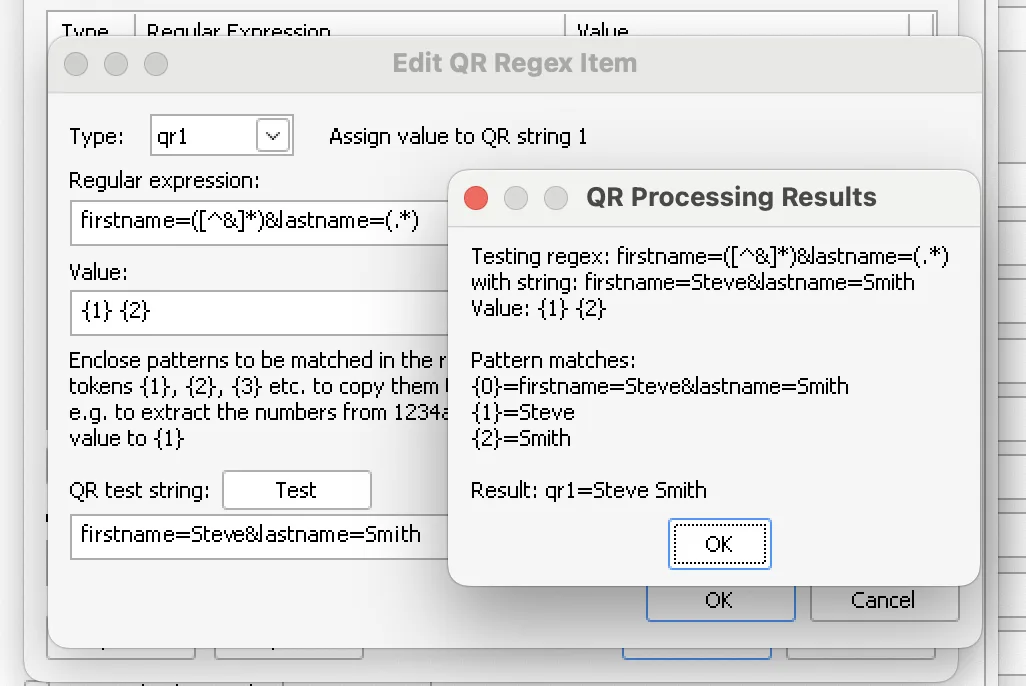
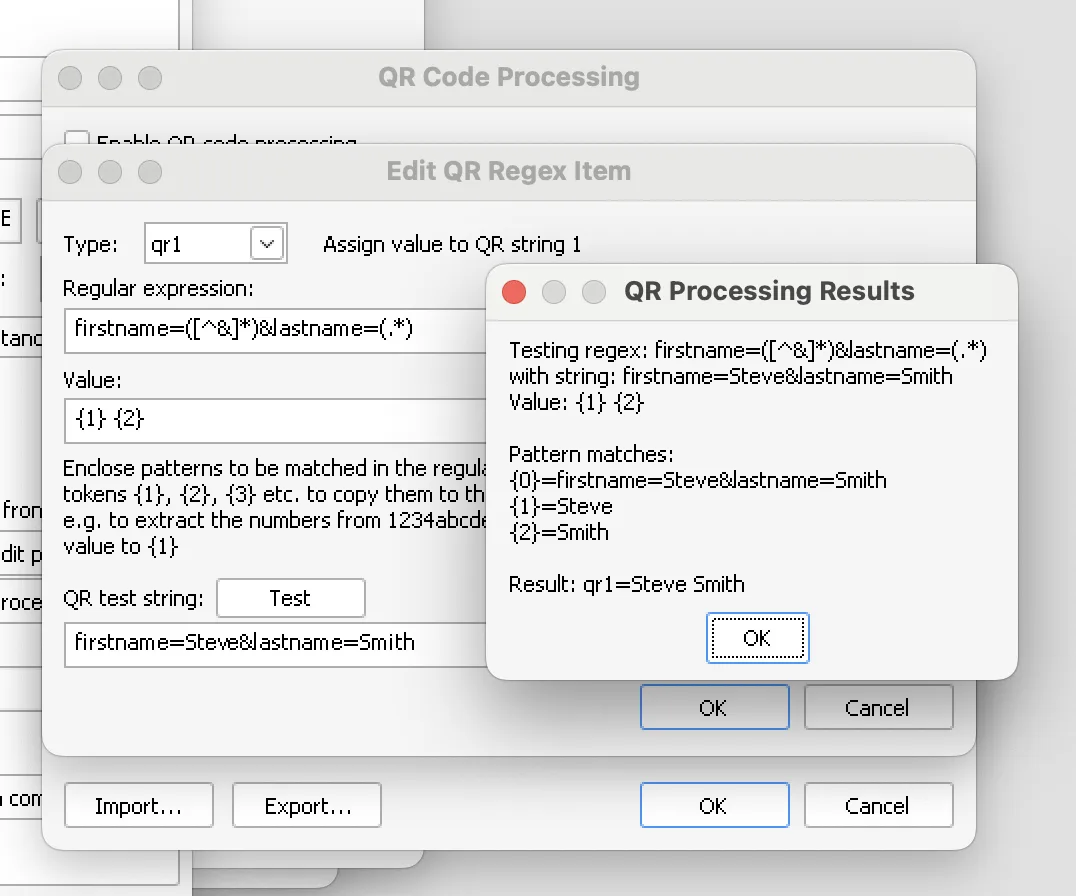
In this example we are looking for the first and last names in the QR data, and then assigning them to {qr1} so the First and Last name can be used as a single field on a Print Layout.
QR Data: firstname=Steve&lastname=Smith
Regular Expression: firstname=([^&]*)&lastname=(.*)
Value: {1} {2}
Download Example QR code
Import the Regular Expression into your event.
Example 3#
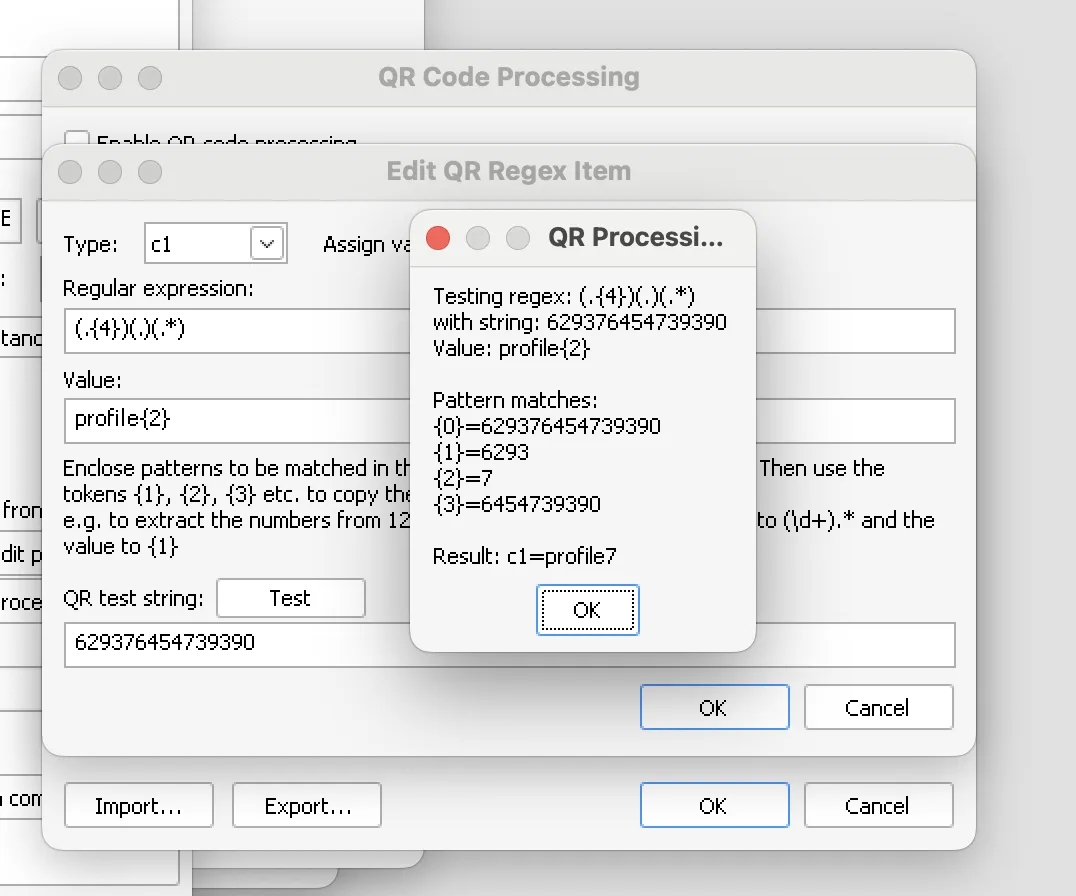
In this example we are extracting the 5th character from the QR code (which will be a number) so we can assign it to a command to switch Profiles. If the 5th character is 7 this will allow us to generate a command that can switch the Booth to Profile 7 when scanned.
QR Data: 629376454739390
Type: c1 (command 1)
Regular Expression: (.{4})(.)(.*)
Value: Profile{2}
Download Example QR code
Import the Regular Expression into your event.
Example 4#
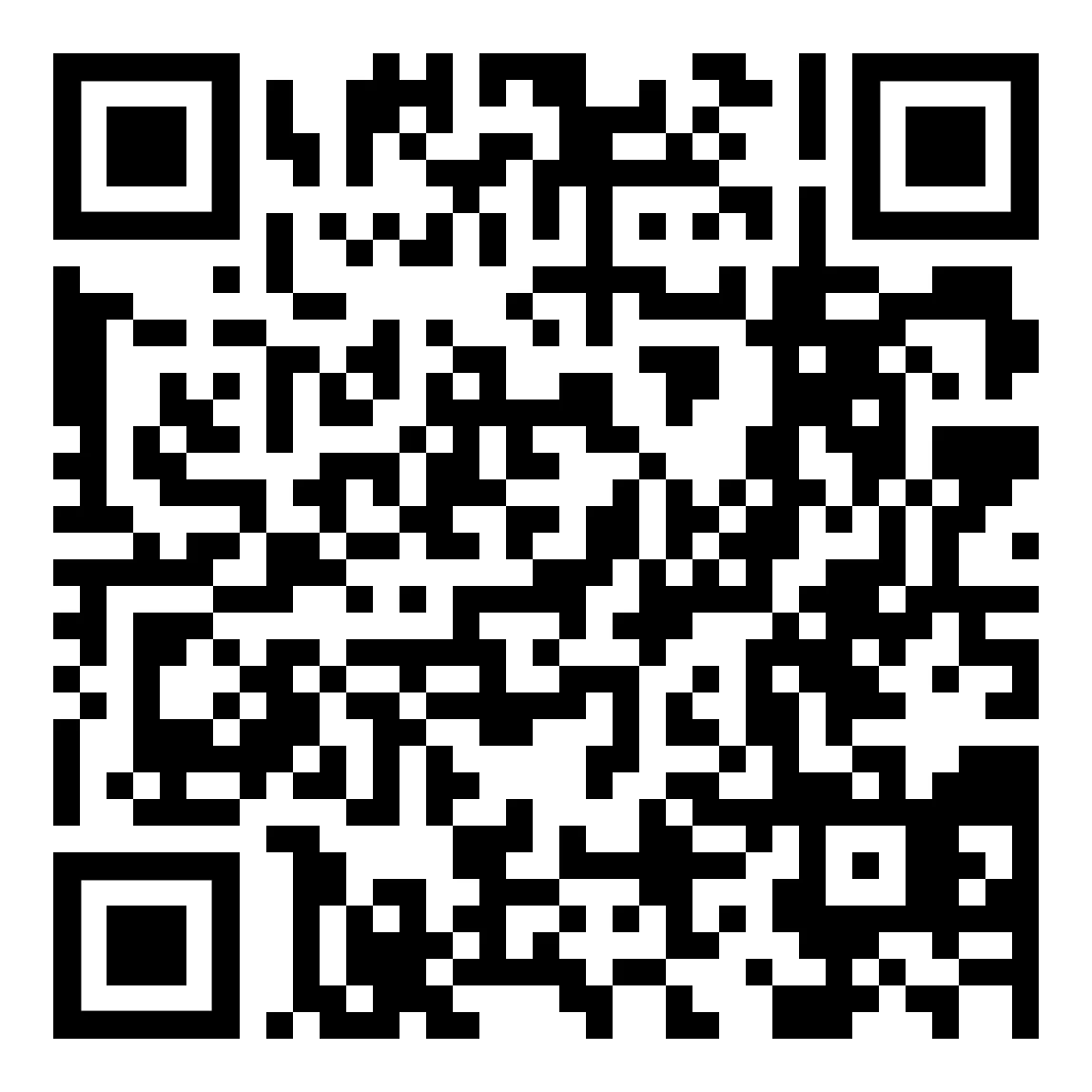
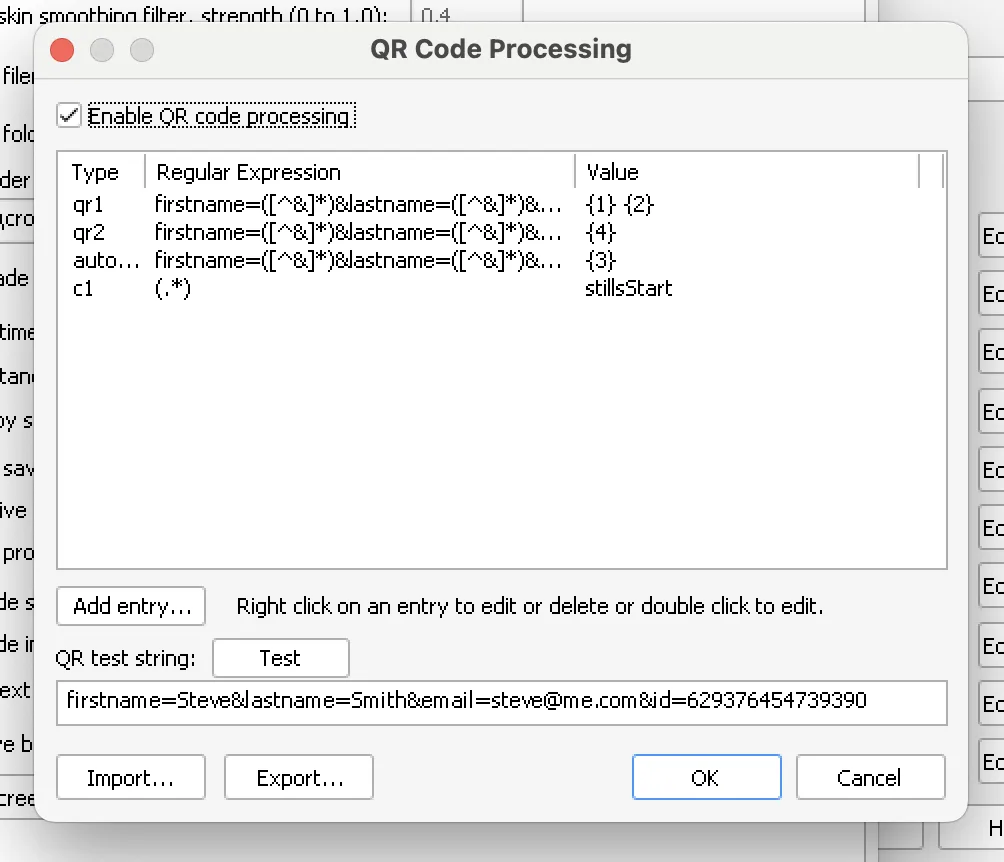
In this example we are extracting the first name, last name, email address and a unique ID so we can trigger a photo session, use the names on a Print Layout, automatically email the image to the user, and set the filename to use the unique ID. This will require multiple entries, as we are assigning different data to different strings and actions.
Download Example QR code
Import the Regular Expression into your event.
QR Data:
firstname=Steve&lastname=Smith&[email protected]&id=629376454739390
Entry 1#
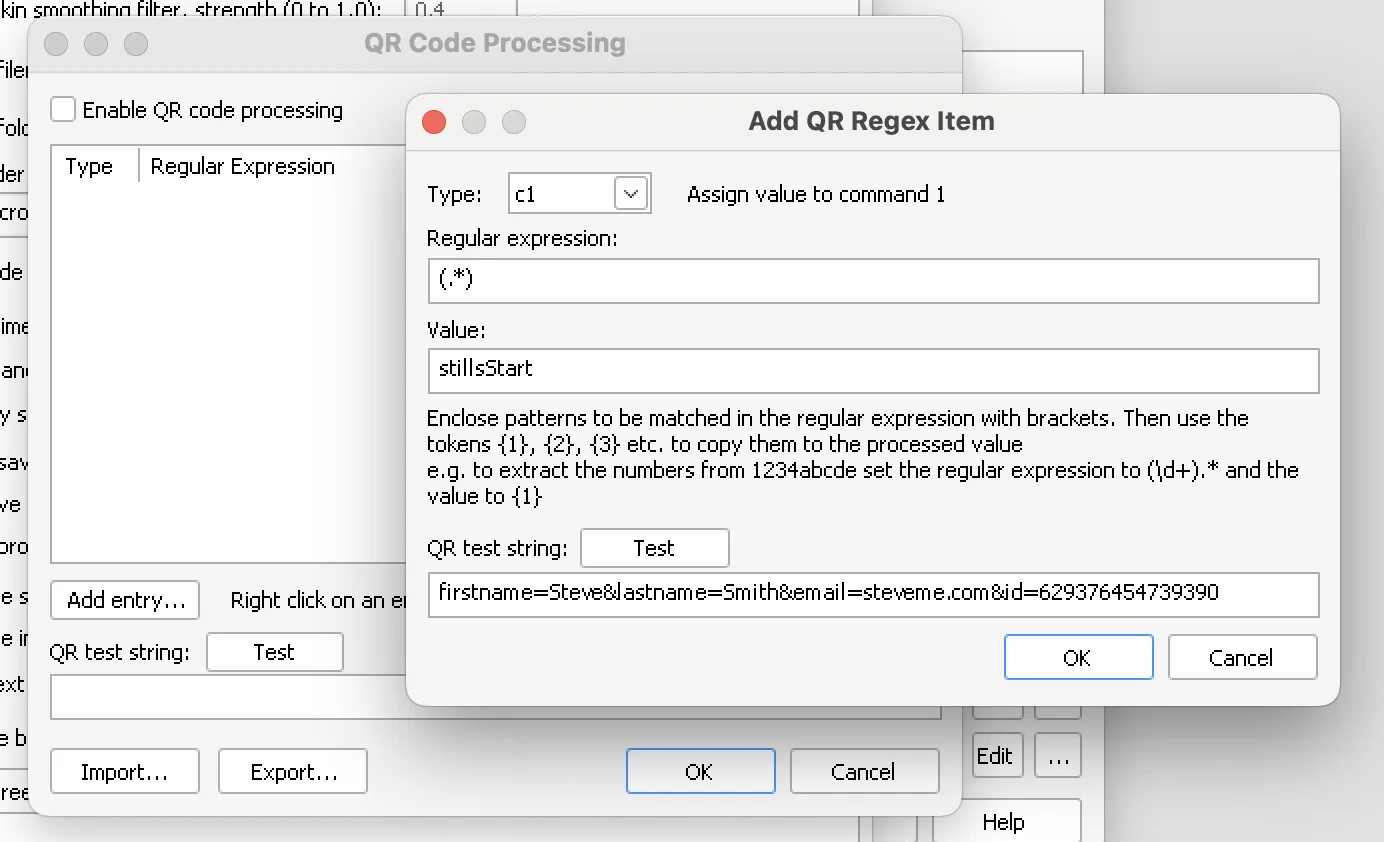
Trigger Photo Session
Type: c1 (command 1)
Regular Expression: (.*)
Value: stillsStart
Entry 2#
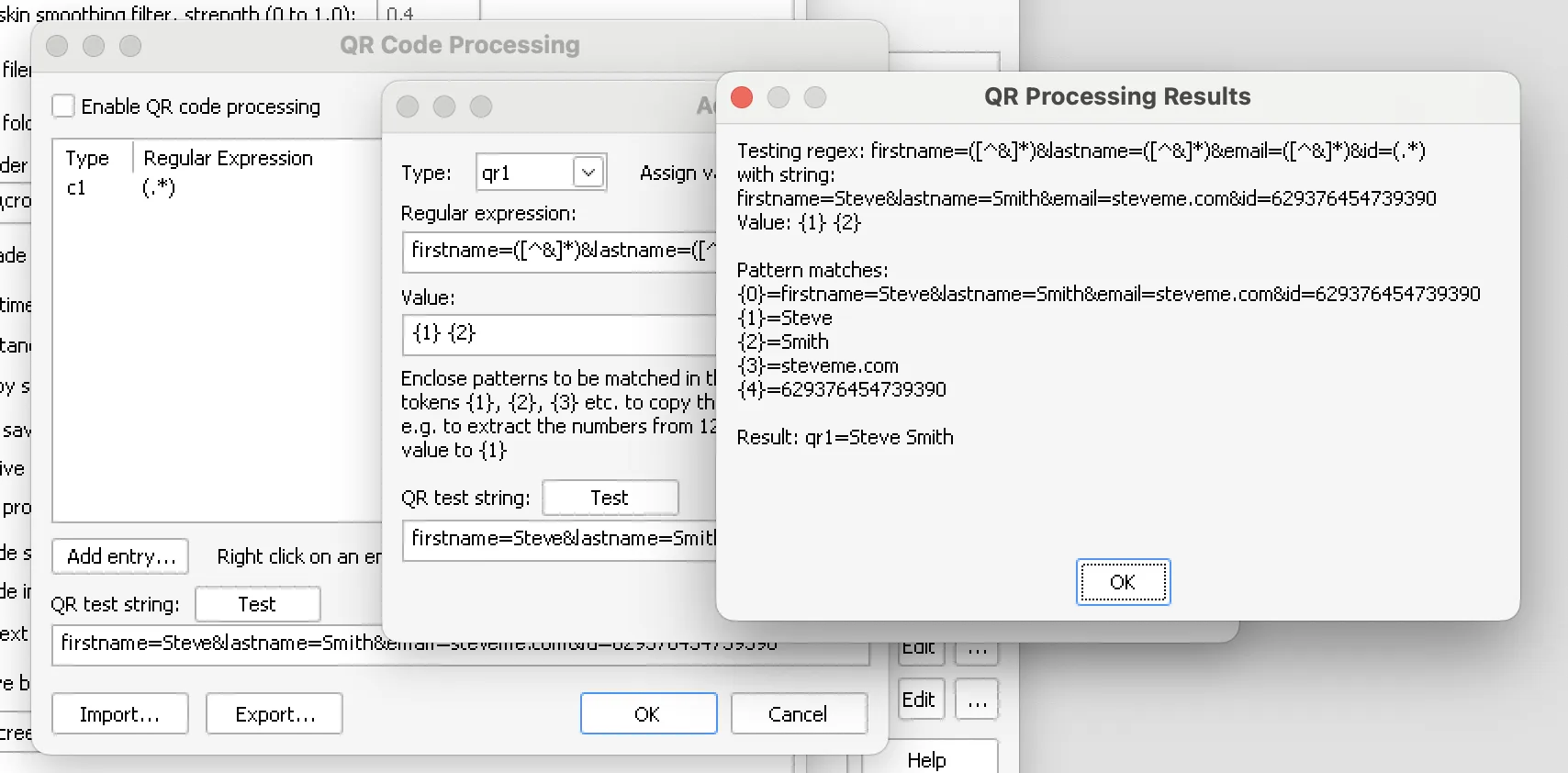
Extract First and Last Name
Type: s1 (string 1)
Regular Expression: firstname=([^&]*)&lastname=([^&]*)&email=([^&]*)&id=(.*)
Value: {1} {2}
Entry 3#
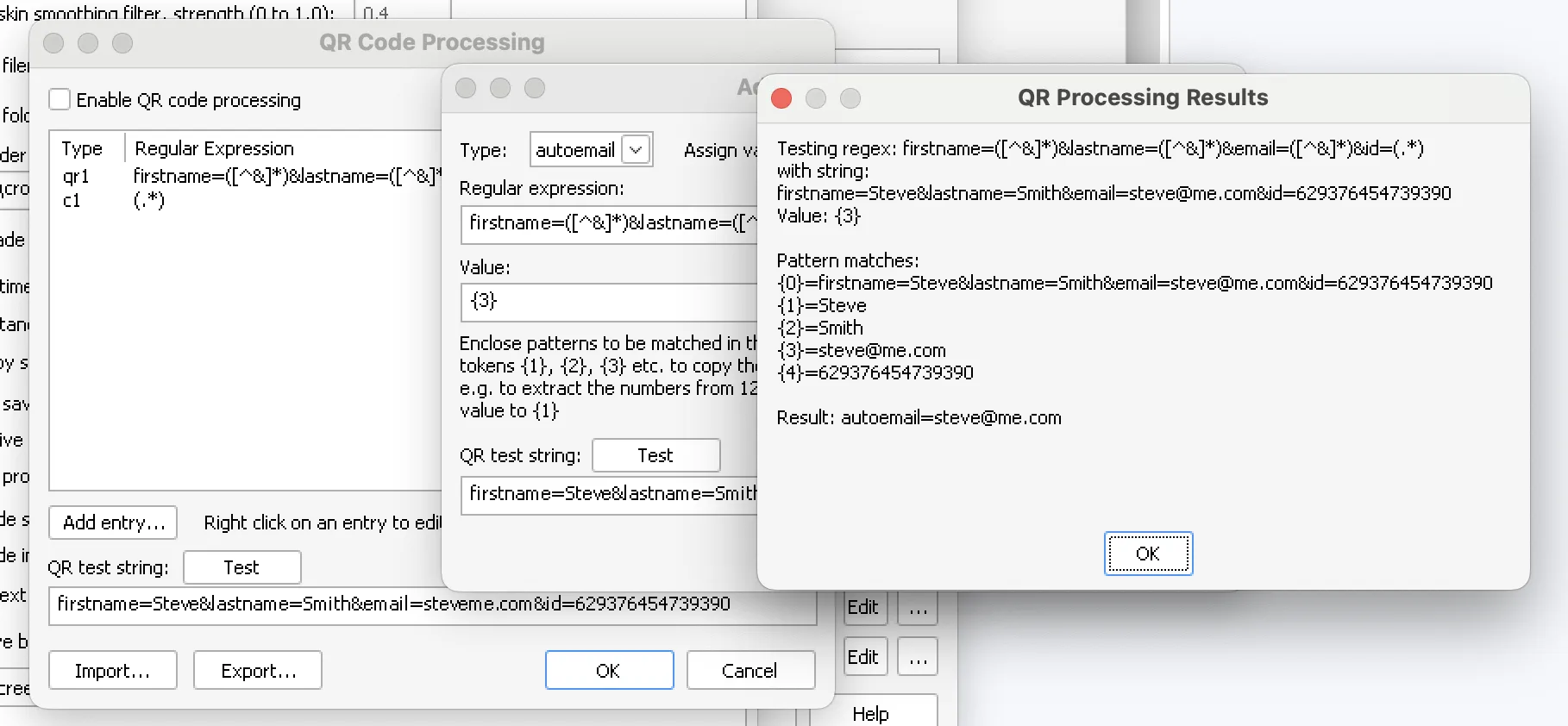
Extract Email Address
Type: autoEmail
Regular Expression: firstname=([^&]*)&lastname=([^&]*)&email=([^&]*)&id=(.*)
Value: {3}
Entry 4#
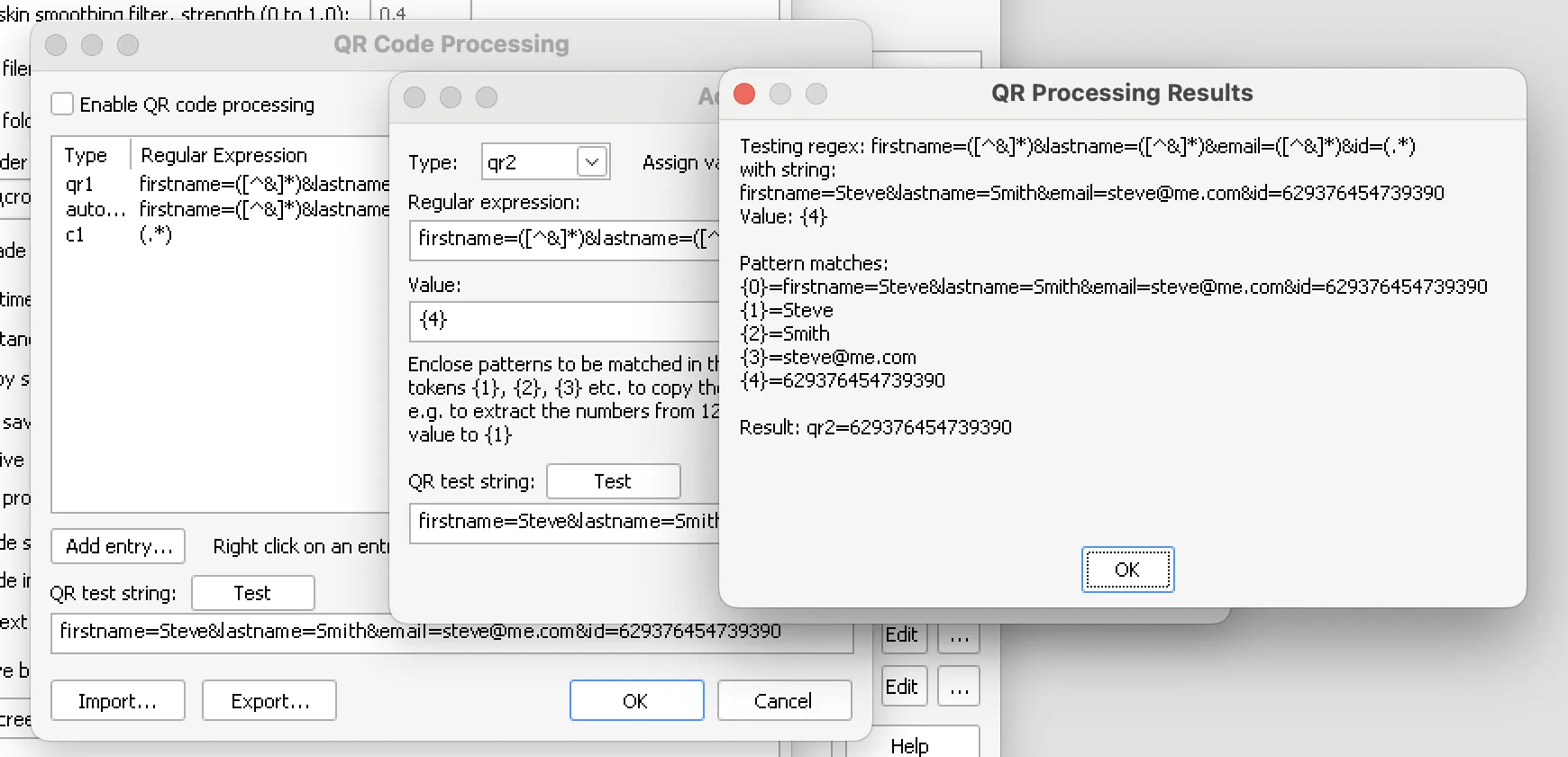
Extract ID
Type: s2 (string 2)
Regular Expression: firstname=([^&]*)&lastname=([^&]*)&email=([^&]*)&id=(.*)
Value: {4}
Final#
The final setup should look similar to the image below.
Importing / Exporting#
You can Import and Export your Regex configurations by pressing the Import or Export button, and then selecting a file, or saving the file.
Was this page helpful?
Thanks, that helps us improve the guides.