

Ready Screen QR Code
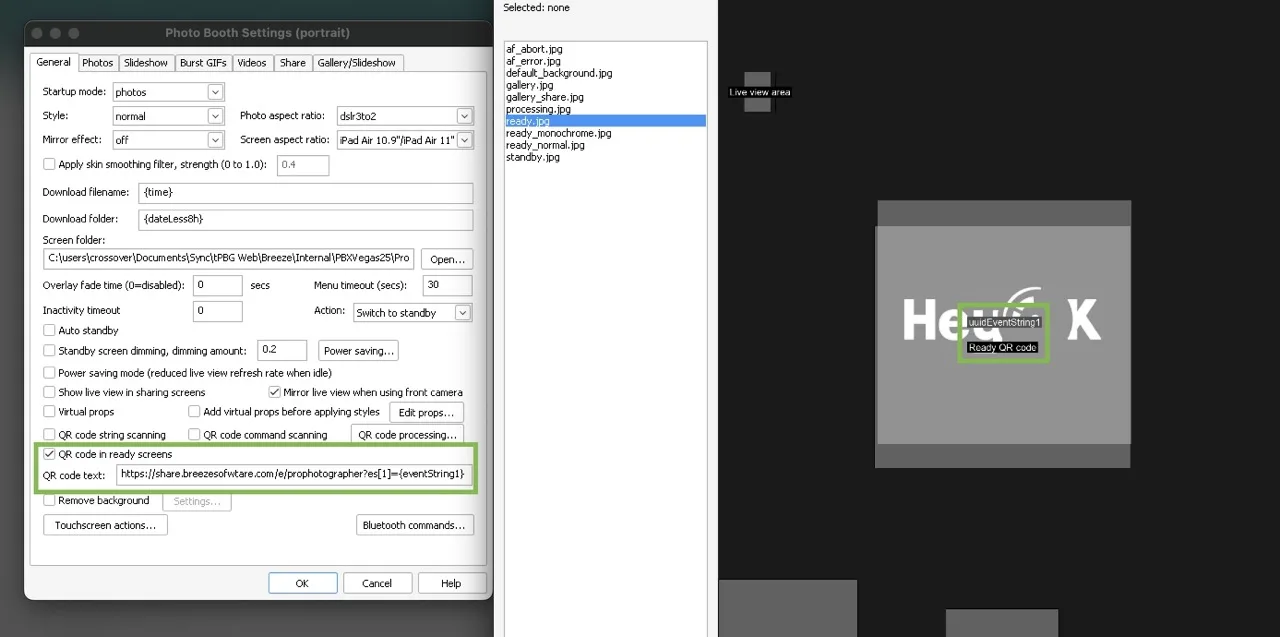
Ready Screen QR codes let you display a QR code directly on your start screen. The value of the QR code is usually a URL, commonly linking to a Breeze Cloud gallery or microsite—but it can also point to other 3rd-party systems (or contain any string you like). Because the value can include tokens, the QR code can update dynamically during the event.
Updating#
When combined with the UUIDEventString touch screen action (which sets the EventString to a Universally Unique ID), the QR code becomes truly unique and can be refreshed instantly from the screen. This allows you to create dynamic URLs, that can be updated with a touch screen action, like this:
https://share.breezesoftware.com/e/prophotographer?es[1]={eventString1}
Example use case#
This feature is designed to link multiple sessions together. For example, in Photographer mode:
- The photographer taps the
UUIDEventStringaction to create a new session. - The Ready Screen QR code is automatically updated with the new unique ID.
- The photographer captures as many photos as needed for that guest.
- At the end of the session, the guest scans the QR code to access their private gallery.
- The photographer taps the screen again to generate a fresh QR code for the next guest.
This creates a smooth workflow where each guest receives their own unique QR code, tied directly to their session.
Linked Session Setup with Breeze Cloud#
Enable QR code in Ready Screens and set the QR code text to:
https://share.thisco/e/EVENT-SLUG?es[1]={eventString1}
or if your event is using a custom domain:
https://your.customdomain.com/e/EVENT-SLUG?es[1]={eventString1}
Learn more about getting started with Breeze Cloud
On your ready screen add the touch screen action UUIDEventString1
When you run the event you will now see a QR code on the Start Screen. When you tap the UUIDEventString action, it will update. Run a few sessions, and then at the end, scan the QR code. It should display a gallery of images linked to that UUID.
Was this page helpful?
Thanks, that helps us improve the guides.