

Activating & Deactivating
Register, activate and deactivate your Hot Folder licence, online or by email, with screenshots of each step.
On this page
Quick answers about licences, trials, moving PCs and activation errors are in the Hot Folder FAQ. This page walks through the dialogs step by step.
Registering Breeze Hotfolder#
To purchase a license for Breeze Hotfolder please visit our website. You will be sent an email containing your registration details when your payment has been received.
To register Breeze Hotfolder run the application and then enter your registration name and code exactly as they appear in your registration email.
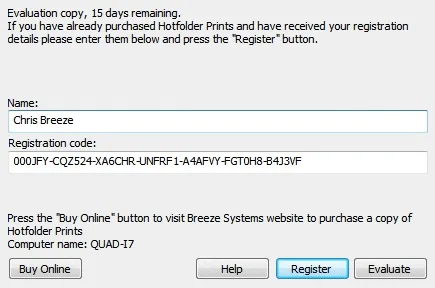
Click on the Register button after entering your name and registration details. If the details are correct the message below will be displayed. An error message will be displayed if the name and registration code are not valid (e.g. they were not entered correctly) or if you need to purchase an upgrade to use this version of the software.
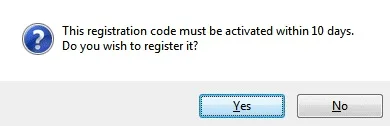
Click on the Yes button to register the software and the following message will be displayed asking you whether you want to activate the software on this computer:
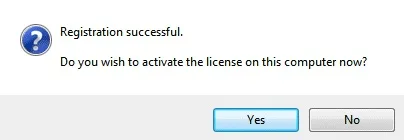
Click on the Yes button to activate the software on this computer (see below).
Activating#
The software must be activated on the computer before it can be used. It can be run without activating for up to 10 days after the date the registration code was issued. After that a watermark is applied to all images until it is activated. Each licence can be activated on one computer at a time.
To activate the software click on the Activate... button in the registration dialog
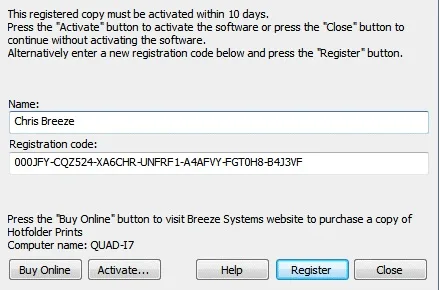
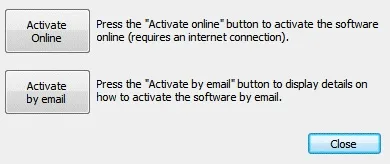
and the activation dialog below will be displayed:
Online Activation#
The quickest way to activate is online, by pressing the Activate Online button. The computer must have an internet connection and the program must be allowed to access the internet.
It may take up to 30 seconds to activate the software online.
Offline Activation#
If the computer is not connected to the internet you can activate the software by email by clicking on the Activate by email button and the dialog below will be displayed:
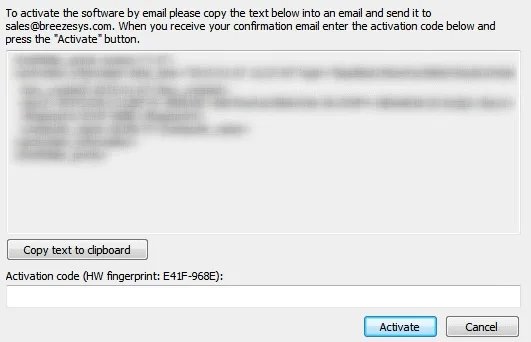
Copy all of the text and send it to us using the contact form. Please do not modify the text otherwise we may not be able to validate it. The simplest way to copy the text is to press the Copy text to clipboard button and then paste it into the form with Ctrl+V. If the computer isn't online you can copy the activation text to a USB memory stick and send it from a computer which does.
You should normally receive an email containing your activation code within 1 business day. Paste your activation code into the Activation code box at the bottom of the activation dialog and click Activate. If you have closed the activation dialog you can display it again by running the software and clicking Activate... in the registration dialog, followed by Activate by email.
Deactivating#
Deactivate Breeze Hotfolder before you:
- move it to a different computer,
- uninstall it,
- upgrade or repair the PC, reinstall or upgrade Windows, or reformat or replace a hard disk.
You can reactivate it once the work is done.
To deactivate, select Register... from the Help menu in the main window to display the registration dialog:
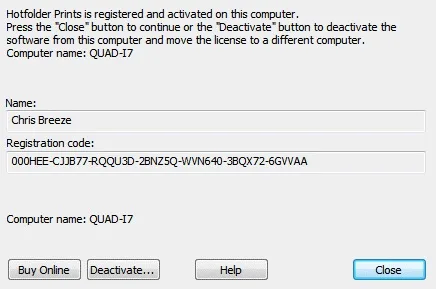
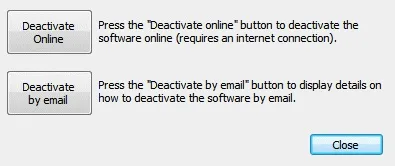
Then click on the Deactivate... button to display the deactivation dialog:
Online Deactivation#
The quickest way to deactivate is online, by pressing the Deactivate Online button. The computer must have an internet connection and the program must be allowed to access the internet. It may take up to 30 seconds.
Offline Deactivation#
If the computer is not connected to the internet, click the Deactivate by email button and the warning dialog below will be displayed:
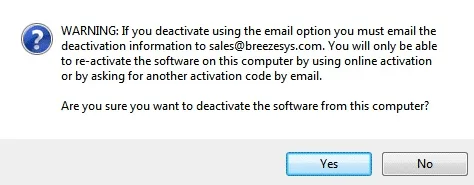
Click on the Yes button to continue and the deactivation dialog below will be displayed:
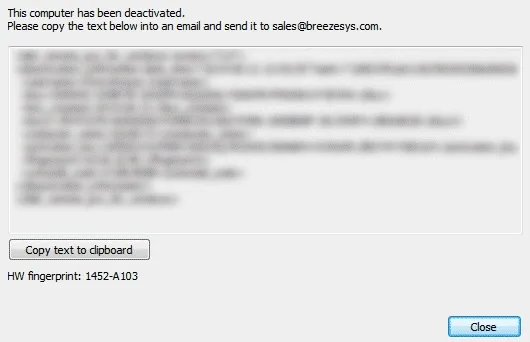
Copy all of the text and send it to us using the contact form without changing it. You should normally receive an acknowledgement within 1 business day. If you forget to send it, select Register... from the Help menu and click Display to show it again. It isn't available once another registration code has been entered.
Decommissioning a PC#
If you are selling or giving away a PC, deactivate Breeze Hotfolder and then remove your registration details, even if you have uninstalled the software. Otherwise the new owner may be able to reinstall it and use your registration details.
After deactivating, enter this special registration code in place of your own:
Name: Uninstall
Code: {uninstall}
Breeze Hotfolder will then display an "Upgrade required" message when it is run. If you keep the computer, you can reinstall the software, enter your own registration details and activate it again.
Was this page helpful?
Thanks, that helps us improve the guides.