

Aligning Elements
Selecting Elements#
All the currently defined photos, captions, and QR codes can be selected by typing ctrl+A (or by right-clicking and selecting Select all).
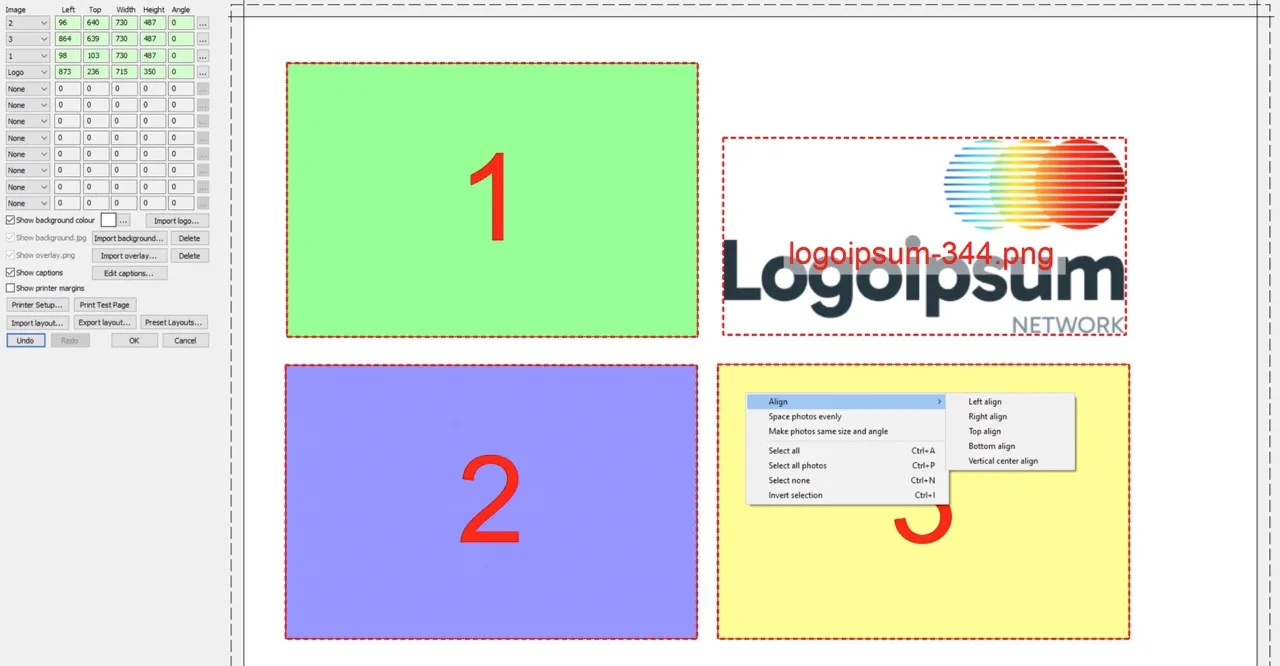
Alternatively, just photos can be selected by typing Ctrl+P (or by right-clicking and selecting Select all photos). You can refine the selection by holding down the ctrl key and clicking on the item to be added or removed from the selection.
A group of selected images can be moved by holding down the left mouse button and dragging them to the new position or by using the keyboard cursor keys.
Aligning Elements#
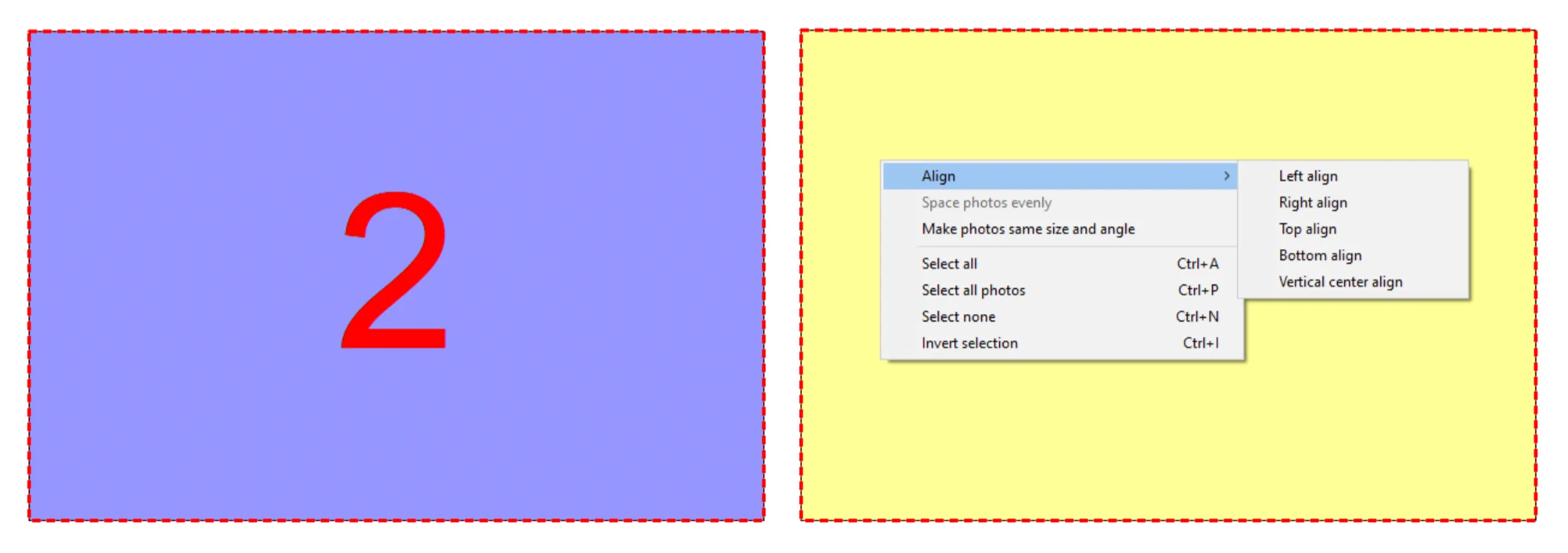
There are various options for aligning a group of selected items (e.g., left-align to arrange a group of images in a column). To align the currently selected elements, right-click the mouse on the reference element and select the required alignment from the Alignment menu of the popup menu. The selected elements will be moved to align them with the reference element.
Spacing Elements#
A group of photos can be spaced evenly by selecting them in order. Then right-click on any of the selected images and select "Space photos evenly."
The order in which the photos are selected is important because the middle photos will be spaced evenly between the positions of the first and last photos in the selection.
Sizing Elements#
A group of photos can be set to the same size and angle as a reference photo by selecting them and then right-clicking on the reference photo and selecting "Make photos same size and angle."
Was this page helpful?
Thanks, that helps us improve the guides.