

AI & Image Processing
Image Processing Overview#
Images can be optionally processed by Breeze FX or other custom scripts before the final layout is created. Optionally, using Hotfolder's Post Processing in conjunction with Breeze Remote Pro and Breeze Booth, allows for a simple way to run background AI Image processing.

Enable Post Processing#
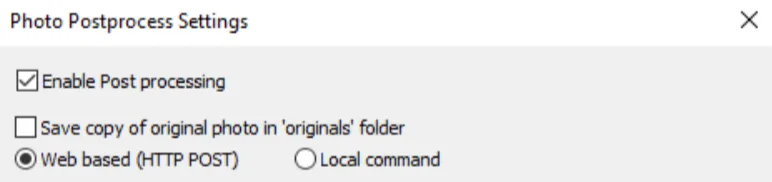
To enable the post processing of photos go to File > Post Processing settings then check the Enable Post processing option. Optionally you can enable the Save copy of original photo checkbox, which will save a copy of the photo before any processing has been applied.
There are two methods of modifying photos before they are added to print layouts:
- Web Based POST Processing (eg, Breeze FX, custom web scripts)
- Local Commands (eg, Photoshop Droplets, custom local scripts)
Images are Post Processed as they are received and after the previous image is processed
h3(#web-based). Web Based Post Processing
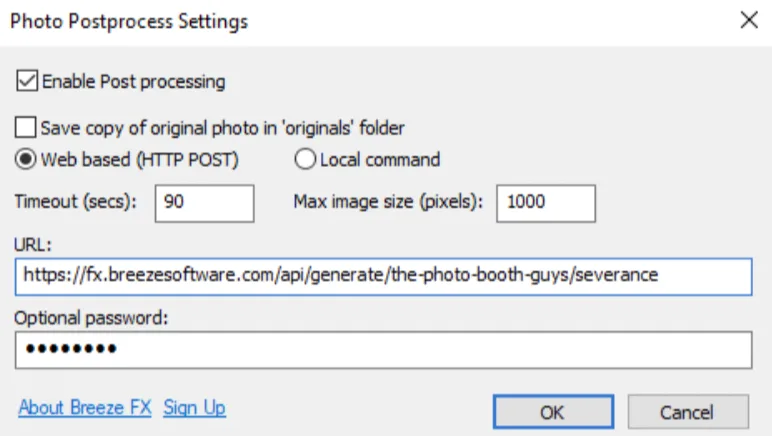
Choose the Web Based option to use web based services such as Breeze Fx to modify photos. This option requires an internet connection and works by uploading the photo to a web based service which applies some processing to the image and returns the modified photo.
Timeout#
Enter a timeout to allow the web based service enough time to process the image and to provide a fallback if there are problems with the internet connection.
If the postprocessing times out the original unmodified photo will be used in the print layout.
Max Size#
Some AI image processing services only accept images up to a certain size. If this is the case set the Max image size (pixels) to the maximum size of the image that is uploaded. The image will be resized so that the height and width do not exceed the max image size setting before uploading the image.
Set the max image size to 0 to disable the resizing of the image.
URL & Password#
Enter the URL of the web service and the optional password or API key.
The URL can contain tokens which allows the URL to be modified e.g. using the results of surveys.
Technical Details#
The photo is sent to the URL together with the any survey inputs and other data as a multi-part form using an HTTP POST. The image will be sent as JPEG data unless AI background removal with a transparent background is selected in which case it will be sent as a PNG image. The image data returned from the web server can be accepted as either and JPEG image or a PNG image.
h3(#local). Local Post Processing
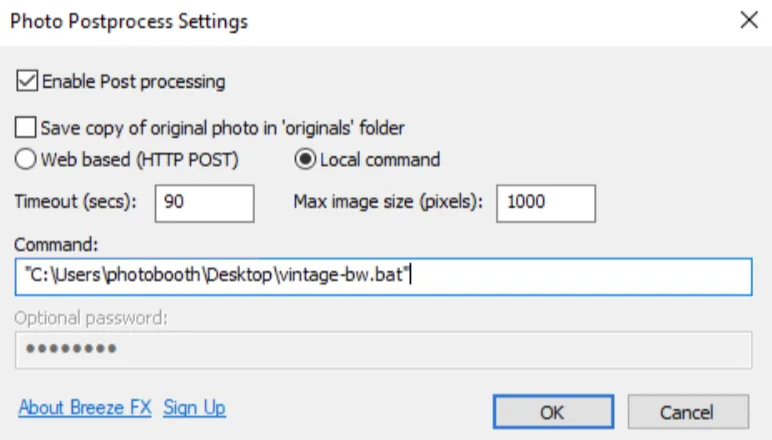
Select Local command to run a local command or a Photoshop droplet to modify the photos.
Timeout#
Enter a timeout to allow the command enough time to process the image and to provide a fallback if there are problems running the command. If the postprocessing times out the original unmodified photo will be used in the print layout.
If the postprocessing times out the original unmodified photo will be used in the print layout.
Max Size#
The image can be resized before running the command by setting the "Max image size (pixels)" alternatively set this to 0 to disable the resizing of the image.
Set the max image size to 0 to disable the resizing of the image.
Command#
Enter the command to be run to process the image. This can be a .exe. file such as a Photoshop droplet, an AutoHotKey script with a .ahk file extension or a batch file with a .bat or .cmd file extension.
The command can contain tokens which allows the URL to be modified e.g. using the results of surveys.
The command can save the images as a JPEG image which overwrites the source image or as a PNG image with the same filename as the source image but with a .png file extension.
Background Processing#
Remote Pro & Breeze Booth#
When using Post Processing in Remote Pro and Breeze Booth, currently you must wait for the image(s) to be processed before you can complete the session and receive the print. Some processing (especially web based AI services) can take a while to process, which can create delays at the Photo Booth whilst people wait.
By disabling Post Processing in Remote Pro and Breeze Booth, you can move the creation of the print layout to Hotfolder, where it can run in the background. Simply set Hotfolder to monitor the folder where Remote Pro or Breeze Booth are saving the original images.
Hotfolder can also read Survey Data from Remote Pro and Breeze Booth, enabling you to use this data for Custom Text Captions, background/overlay suffixes and Post Processing URLs. In this instance, ensure the Processing Mode is set to Wait for XML.
Was this page helpful?
Thanks, that helps us improve the guides.