

Adding QR Codes
On this page
Adding QR Codes#
A QR code can be added to the layout by selecting QR code in one of the spare image dropboxes showing None in the top left corner of the editor window. Alternatively, the QR code can be hidden by setting its dropdown list to None. The size and position of the QR code can then be edited in exactly the same way as a photo (described in the section headed "Editing Photo Positions" above).
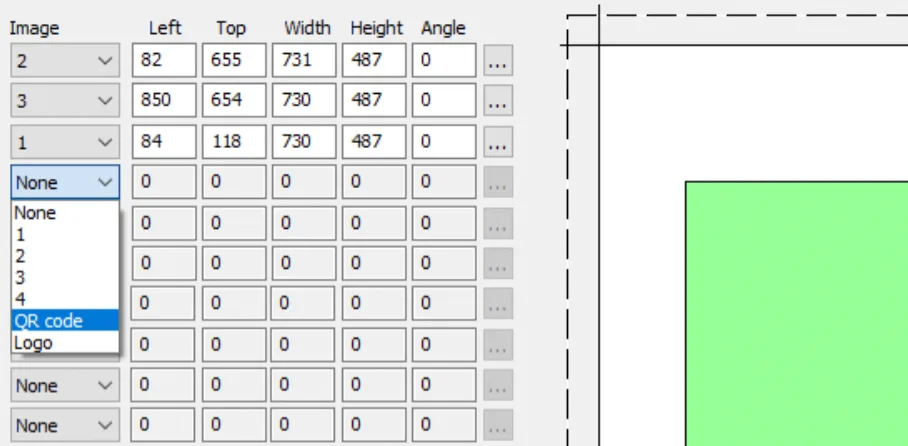
The text encoded in the QR code can be edited by right-clicking on the QR code and selecting Edit QR code from the popup menu. The QR Code dialog shown below will be displayed:
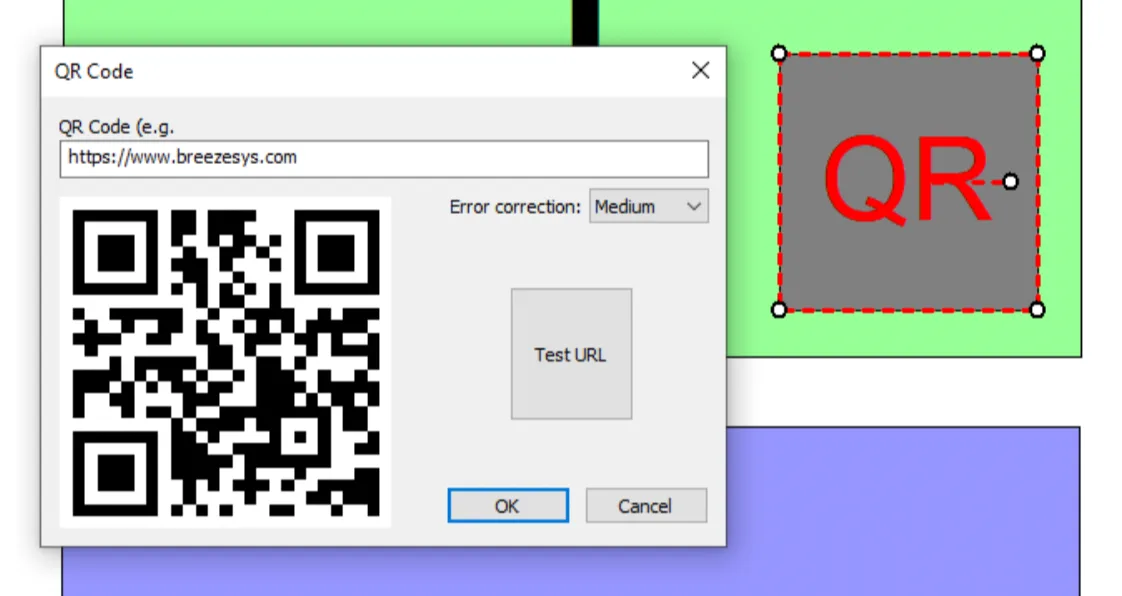
Adding the URL#
Type in the text you want to be encoded in the QR code. Normally, this is a URL which needs to be prefixed with https://.
The QR code display will be updated automatically as you type in the text. You can test the QR code by pressing the Test URL button to open it in a web browser. You can also test the QR code by scanning it with a cell phone.
Error Correction#
The error correction dropdown list specifies the amount of error correction encoded in the QR code. A Medium setting should be suitable for most uses. You may wish to use the Low setting if the URL is very long or the QR code is to be printed very small.
The QR code text can also be edited by selecting File->Edit QR code from the main program window.
Was this page helpful?
Thanks, that helps us improve the guides.