

Uploading to Photobooth Online Galerie
Upload Hotfolder event images live to a WordPress microsite with Breeze Gallery Uploader and the Photobooth Online Galerie plugin.
On this page
Uploading to Photobooth Online Galerie#
This guide explains how to use Breeze Gallery Uploader, which comes with Hotfolder, to upload event images live to a WordPress microsite that uses the Photobooth Online Galerie plugin.
Older version
This guide was written for Breeze Hotfolder 1.8 and Breeze Gallery Uploader 1.0. Some screens may look different in the current versions. To upload to Breeze Cloud galleries and microsites instead, see Watch Folder Upload to Cloud.
You need:
- Breeze Hotfolder (this guide used version 1.8). Breeze Gallery Uploader is included when you download Hotfolder (see Hotfolder downloads).
- The Photobooth Online Galerie WordPress microsite plugin.
Start Breeze Gallery Uploader#
Run Breeze Gallery Uploader.exe.
Set up your preferences#
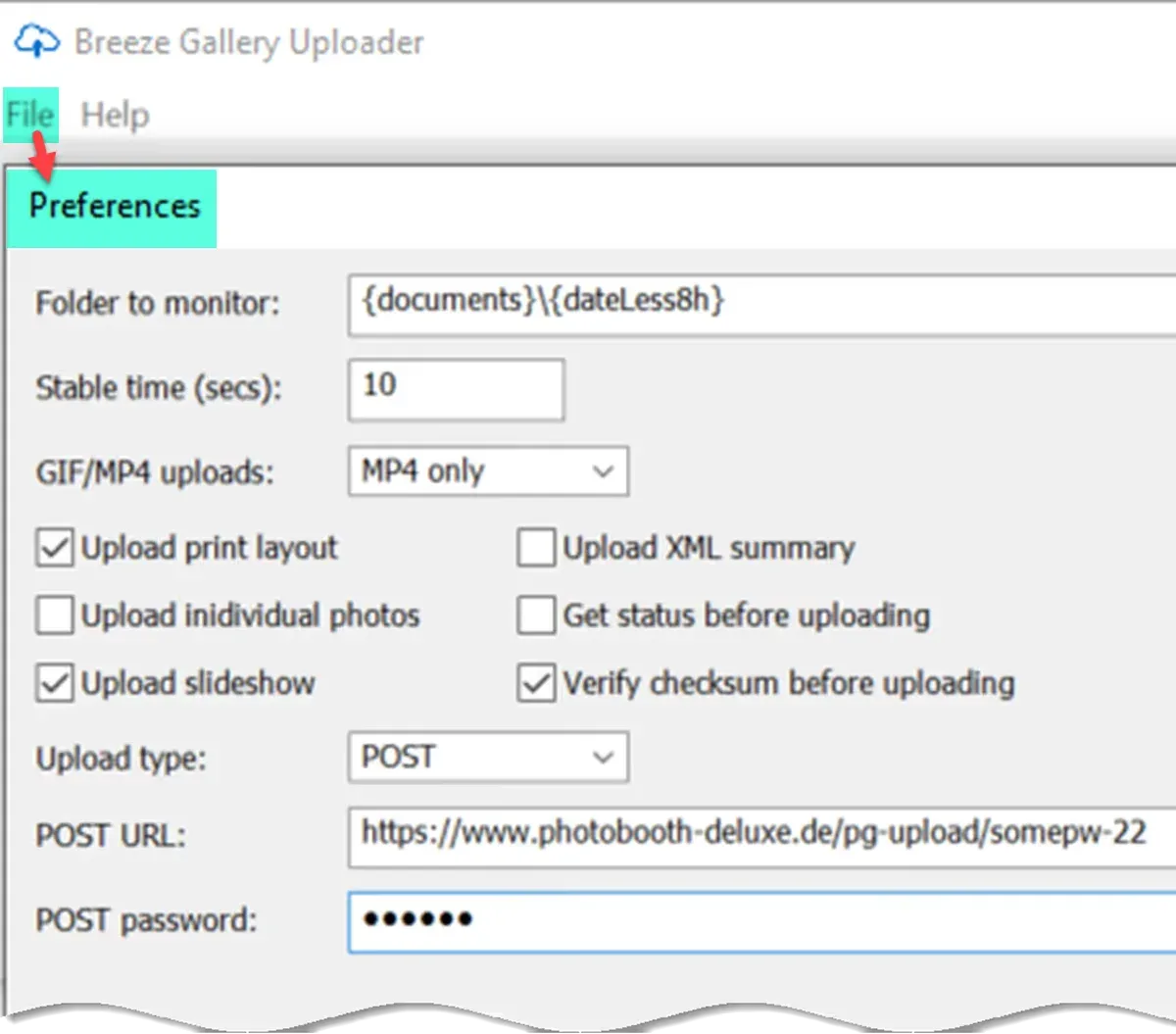
Open File > Preferences and set:
- Get status before uploading: off.
- Upload type: POST.
- POST URL:
https://[domain]/pg-upload/[password]-[settings-id], for examplehttps://www.photobooth-deluxe.de/pg-upload/somepw-22. - POST password:
[password], for examplesomepw.
Information from the Photobooth Online Galerie plugin#
| Value | Where to find it |
|---|---|
[domain] |
The domain name where the microsite is installed |
[password] |
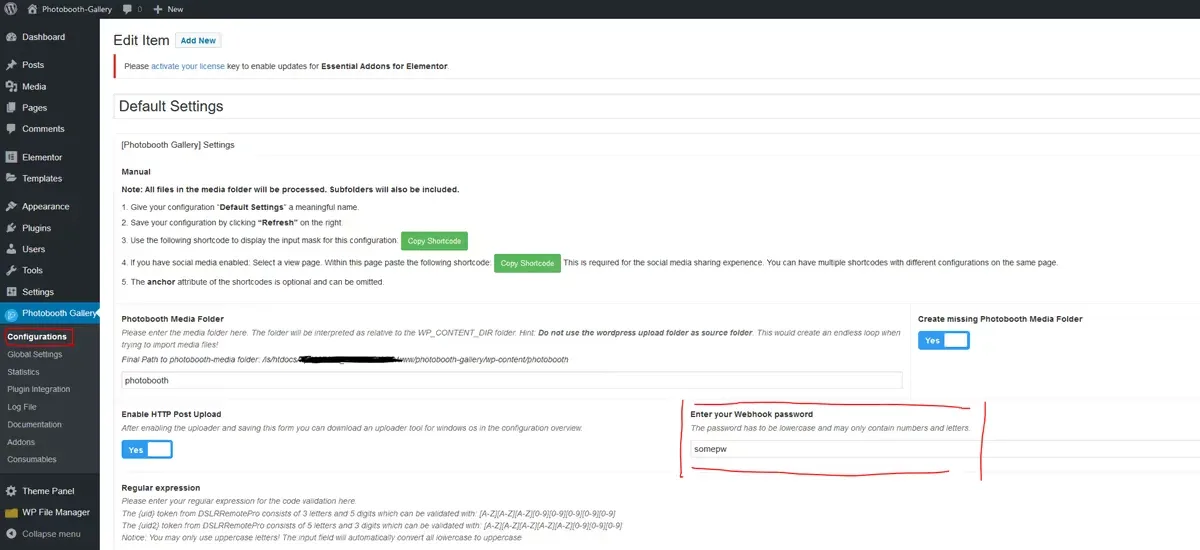
The webhook password you set in WordPress under Photobooth Gallery > Configurations > Edit > Enter your webhook password |
[settings-id] |
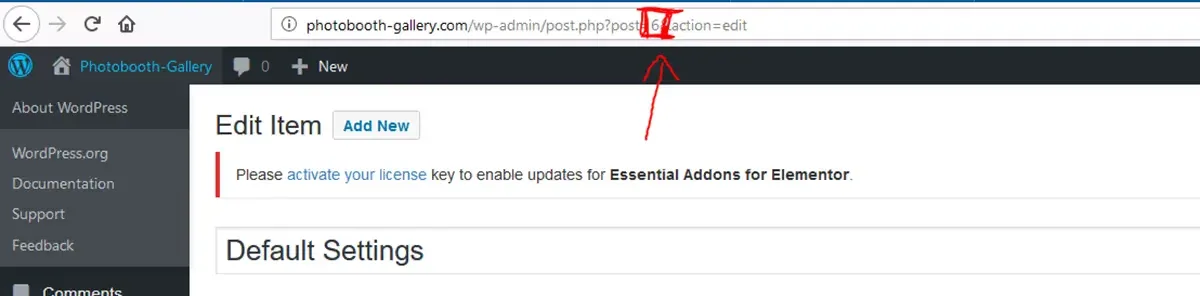
The WordPress page ID of your configuration. It is in the URL when you edit the configuration |
Was this page helpful?
Thanks, that helps us improve the guides.