

Logs
See the activity Breeze Cloud records for your company: uploads, webhooks, AI/FX usage and credit usage.
On this page
The Logs page shows the activity Breeze Cloud records for your company. Use it to check that files from your booths arrived, that webhooks were delivered, and where your credits went. It's also the first place support will ask you to look when troubleshooting.
Open it from the Logs link at the bottom of any Breeze Cloud page, or go to cloud.breezesoftware.com/logs.
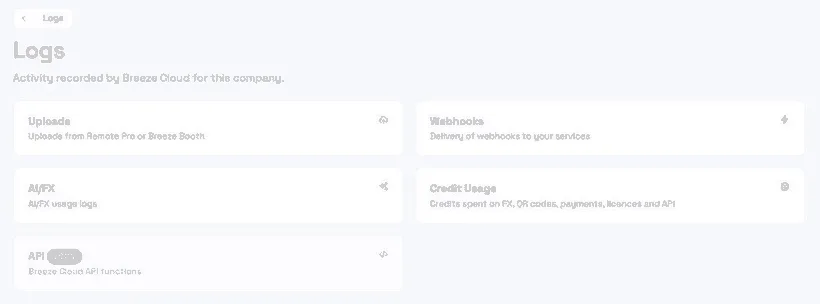
| Log | What it shows |
|---|---|
| Uploads | Files received from Remote Pro or Breeze Booth |
| Webhooks | Webhook calls sent to your services |
| AI/FX | AI/FX requests made by your booths |
| Credit Usage | Credits spent on FX, QR codes, payments, licences and the Booth API |
| API | Breeze Cloud API activity (coming soon) |
Uploads#
Every file received from your booths, and whether each one was processed.
Filter by Date Range, Status and Filename, then click Search.
| Column | Description |
|---|---|
| Date | When the file was received |
| Filename | The uploaded file, e.g. photo, GIF, MP4 or session XML |
| Status | Whether the file was processed, e.g. processing_success |
| Payload | Click the icon to see the data sent with the file |
| Error | The error message if the file wasn't processed |
If support asks for the data from a session, click the Payload icon and copy what it shows.
Webhooks#
Every webhook call sent to your endpoints, and the response each one returned. You can also switch between Uploads and Webhooks using the tabs at the top of either log.
Filter by Date Range, Status and URL, then click Search.
| Column | Description |
|---|---|
| Date | When the webhook was sent |
| URL | The endpoint it was sent to |
| Status | The HTTP response code your service returned (200 means it was received) |
| Payload | Click the icon to see the data that was sent |
| Error | The error message if delivery failed |
AI/FX#
Opens the FX Usage history: every AI/FX request made by your booths, with the request and response for each.
- Processing stats charts successful and failed requests over the last 24 hours, 7 days or 30 days.
- Activity lists each request with the original and processed images, ID, FX feature, configuration name, date, credits used and status. Use the action buttons to view or download the results.
Credit Usage#
Every credit spent on FX, QR codes, payments, licences and the Booth API.
- Current balance shows your remaining credits. Click Buy credits to top up.
- Filter by date range and type, sort newest or oldest first, or search the description.
- Totals show the credits used in the selected period, broken down by type (e.g. FX, Booth API).
| Column | Description |
|---|---|
| Date | When the credits were used |
| Type | What used them, e.g. FX or Booth API |
| Description | Details such as the FX used, or the booth and Stripe payment ID for payment booths |
| Credits | Number of credits used |
Was this page helpful?
Thanks, that helps us improve the guides.