

QR Code Sharing
Breeze Booth for Apple Setup
First copy the Gallery or Microsite URL from the Breeze Cloud Settings.

Then copy the Gallery or Microsite URL in to the Display QR Code in sharing screens field:
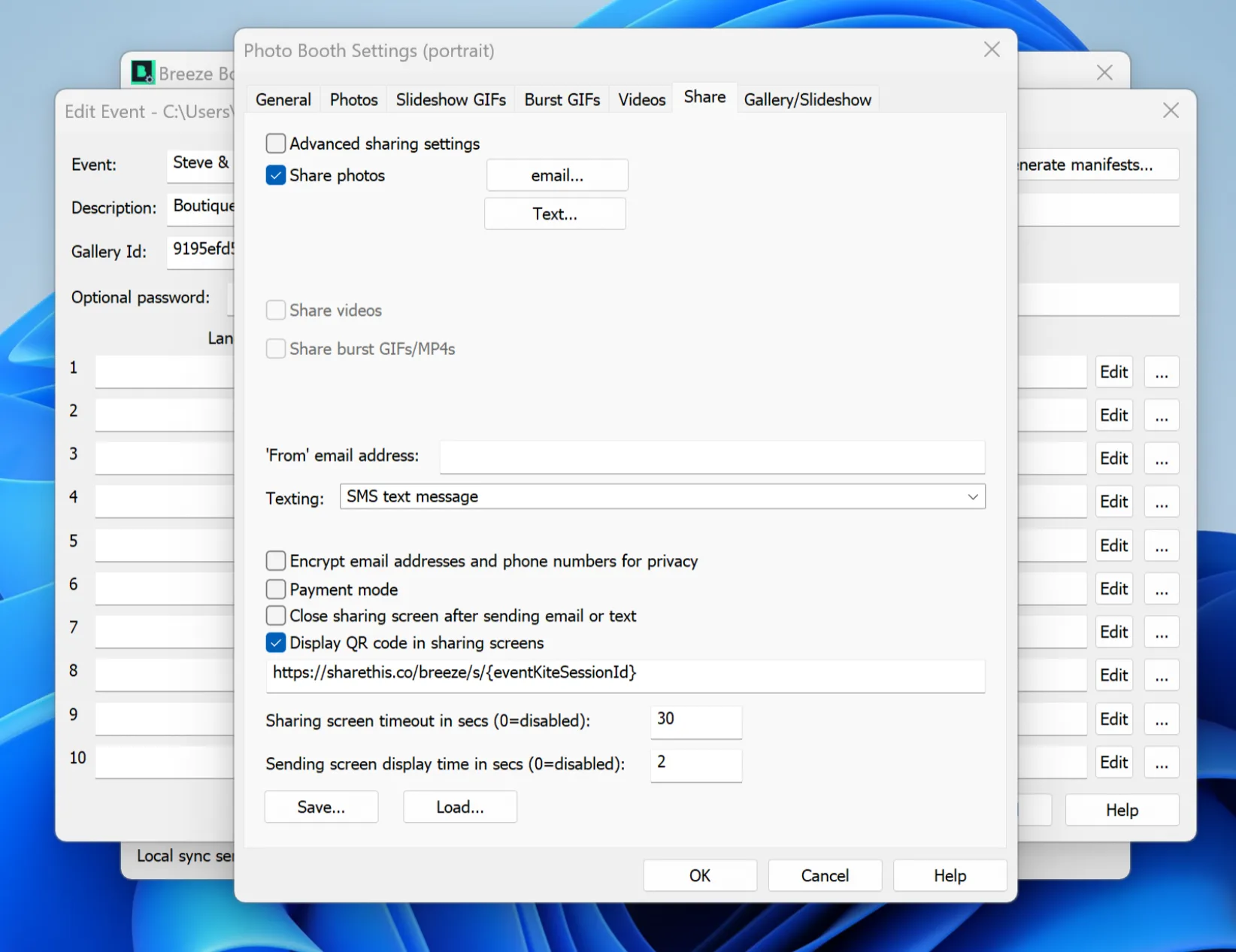
- Edit your Event in the Event Editor
- Go to the Share tab and enable Display QR code in sharing screens
- Add the EventKite URL to the QR Code field
- Next we need to adjust the position of the QR Code that is displayed on the screen
Next you need to enable the QR Code on the sharing screen.
This assumes you already have sharing enabled with the required share.jpg or share.png screen
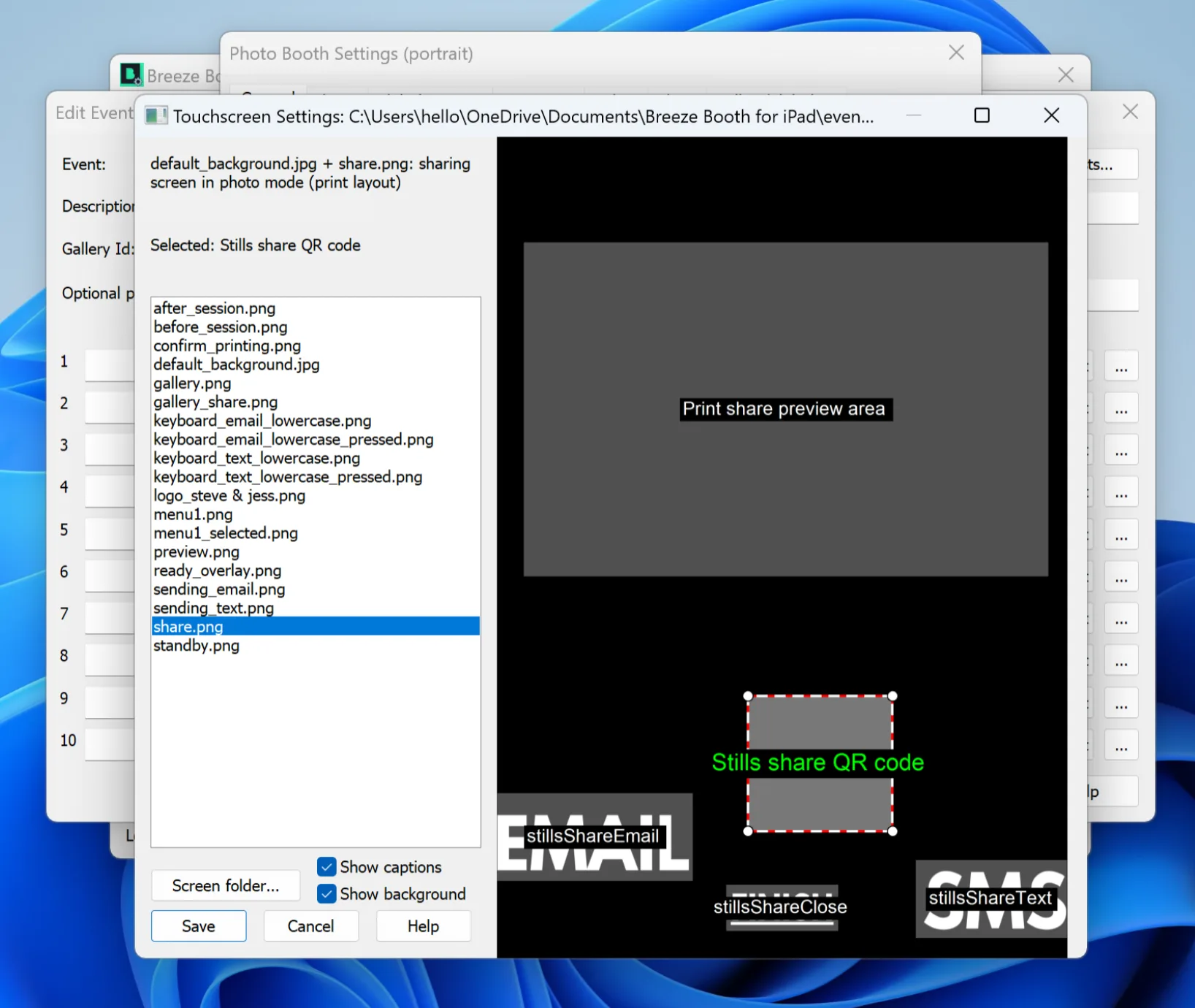
- Go to General > Touchscreen Actions
- Grab the Share QR code area action, and move it to your preferred location
- Grab the corners of the action to scale it up to your preferred size
- Save your settings
- Run a test session, and you should now see on the sharing screen a QR code that can be scanned.

Was this page helpful?
Thanks, that helps us improve the guides.