

Send to Dropbox
On this page
Images processed by Breeze FX can be saved to Dropbox automatically. Once enabled, you will be able to access images in your Dropbox account: Dropbox > Apps > Breeze FX > FX Slug.
This is useful if you want to use Breeze Hotfolder Prints or other desktop software/scripts to print images after they have been processed.
Link your Dropbox Account#
To link your Dropbox account, go to your FX account settings: https://fx.breezesoftware.com/settings and press the Connect button.

You will then be prompted to sign in to your Dropbox account. Follow these steps.
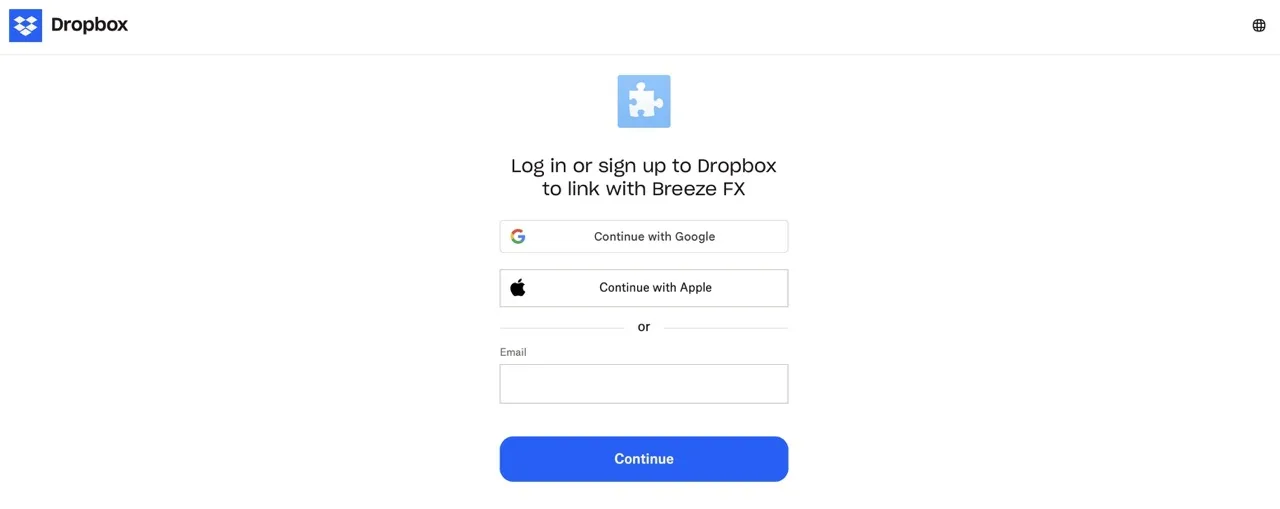
Once connected, you will be redirected back to FX, and you will now see a Disconnect button.

Enable in the FX Configuration#
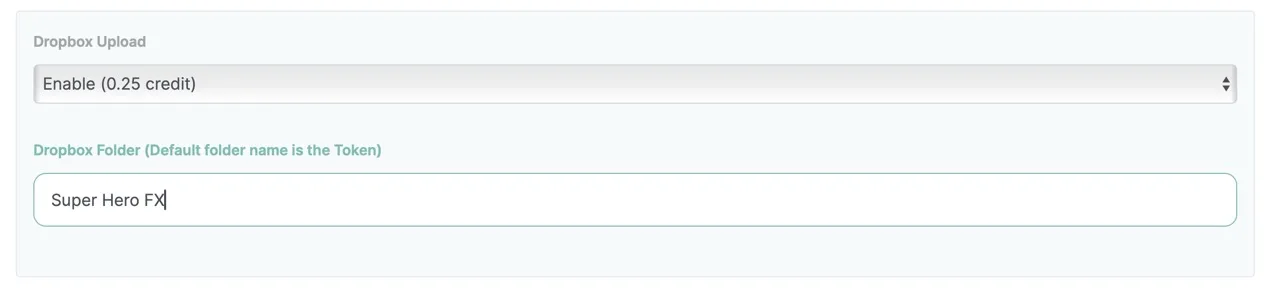
Saving to Dropbox needs to be enabled per FX configuration. In the Extras > Dropbox section of the config. By default, the folder name will be the Slug of the FX configuration. You can use your own folder name by setting the Dropbox folder name option.
Was this page helpful?
Thanks, that helps us improve the guides.