

FX Options
On this page
Every FX configuration has an Extras section below its FX settings. These options can be added to any FX type, and some use extra credits (shown in the drop down).
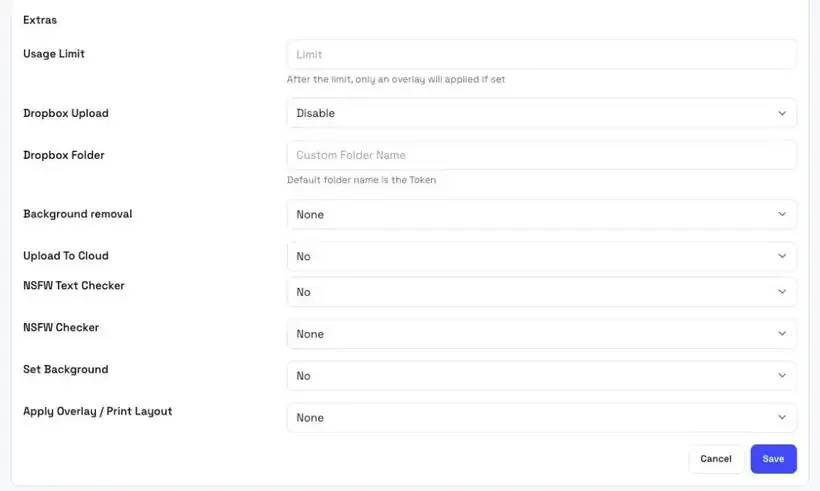
| Option | What it does |
|---|---|
| Usage Limit | The maximum number of images the configuration will process. See Setting Usage Limits. |
| Dropbox Upload / Dropbox Folder | Saves processed images to your Dropbox. See Send to Dropbox. |
| Background removal | Removes the background before or after the FX is applied. See Background Removal. |
| Upload To Cloud | Uploads the processed image to Breeze Cloud. |
| NSFW Text Checker | Checks text, such as survey answers used in a prompt, for inappropriate content. |
| NSFW Checker | Checks the image before or after processing for nudity and sexual content. See NSFW Check. |
| Set Background | Places a new background behind the guest, including one generated from a prompt. |
| Apply Overlay / Print Layout | Adds an overlay, or places the result into a print layout, before it is returned to the booth. |
Background Removal#
The Background Removal option uses the remove.bg configuration to remove the background of the uploaded or final processed image. This is useful if you need to ensure that GPT Image is not influenced by the background of the original image, or, if you need to send back a transparent version of the image to Breeze with the background removed.

This uses the remove.bg configuration. Credit usage applies.
NSFW Check#
The NSFW (Not Safe for Work) option checks the uploaded (before), or processed image (after) for nudity, sexual content etc. This is useful to ensure that images uploaded meet client expectations, and acts as a fail safe if the AI goes rogue and attempts to return an inappropriate image. See the NSFW configuration for more details.
This uses the NSFW configuration. Credit usage applies.
Was this page helpful?
Thanks, that helps us improve the guides.