

Getting Started
On this page
Create an FX Configuration#
When you create an FX Configuration you end up with a unique URL that is used in Breeze. This URL tells Breeze which configuration to use when processing the image. The URL can optionally contain tokens, which means the URLs can be dynamic and based on (for example) survey data.
Create configs via FX > New configuration in Breeze Cloud
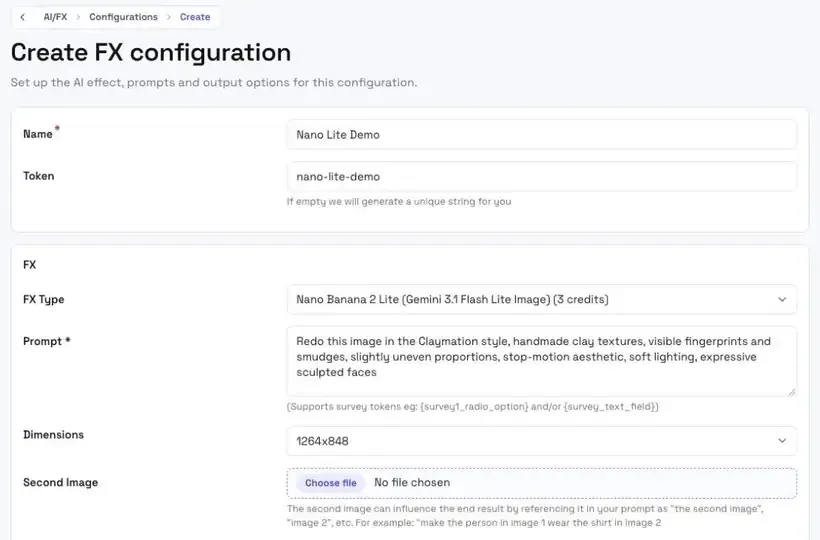
FX Name#
Give the FX Configuration a memorable name (eg, Astronaut Face Swap). The name is only used for the purpose of identifying the configuration.
FX Token#
The FX Token is the last part of the URL and will follow this format:
https://fx.breezesoftware.com/api/generate/YOUR-COMPANY/TOKEN
If you do not specify a token, one will be automatically created for you. Otherwise you can enter your own token.
https://fx.breezesoftware.com/api/generate/YOUR-COMPANY/astronaut
Setting your own token is important if you are using FX in conjunction with surveys done on the photo booth.
Tokens do not support spaces and special characters
FX Types#
Select the type of FX Configuration from the FX Type drop down list. Each type has its own settings (for example a prompt and output dimensions for Nano Banana) and is billed at a different number of credits, shown next to its name.
See the available FX Types and their options.
Below the FX settings you'll find Extras, such as usage limits, Dropbox upload and NSFW checks. See FX Options.
FX URL#
Once you have filled in the required fields, press Save. You will be taken back to the list of FX configurations, where you can copy the URL with the Copy URL button.
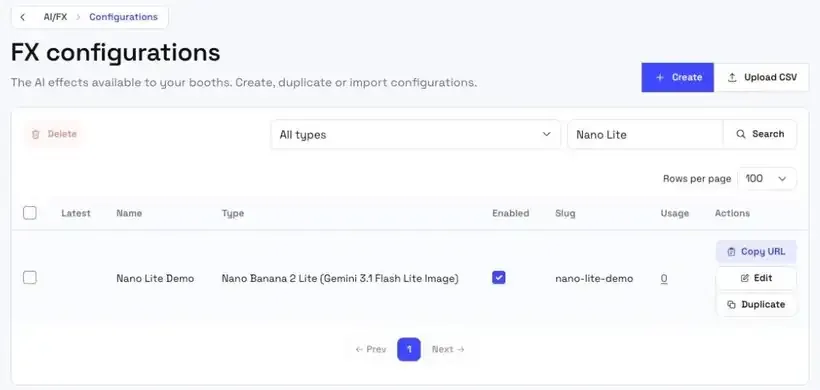
Use Duplicate to make a variation of an existing configuration, or Upload CSV to create many configurations at once.
The next step is to add the URL to Breeze Booth.
Was this page helpful?
Thanks, that helps us improve the guides.