

Set Up FX in Breeze Booth
Add an FX Configuration URL to your Breeze Booth event so photos are processed by Breeze FX.
On this page
Linking to Breeze Booth#
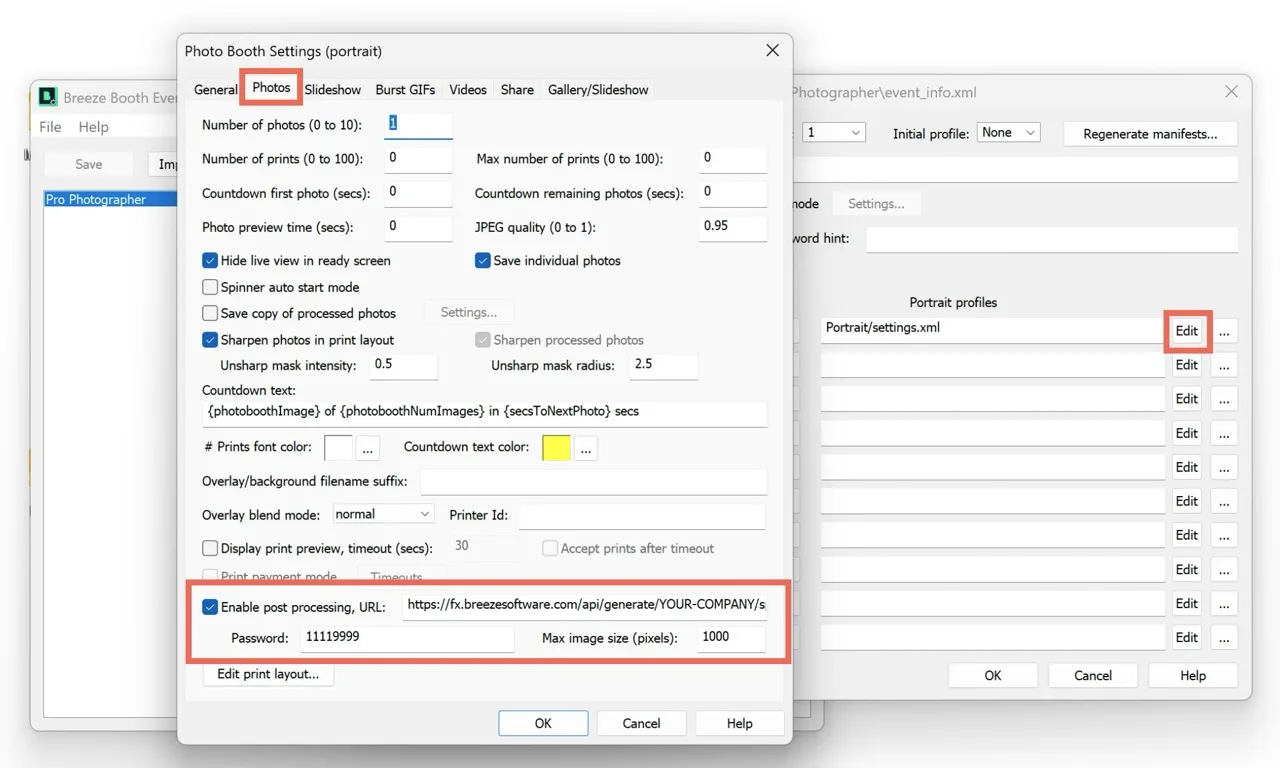
To get started with FX and Breeze Booth, you first need to create an FX Configuration and then copy its URL to the POST Processing URL field.
- Add FX Config to Breeze Booth
- FX Integrations Password
- Time Out
- Max Width
- Original Photos
- Token Support
Add FX Config to Breeze Booth#
Once you have created your FX Configuration, copy the URL and paste it into the POST Processing URL in the Event Editor. This can be found in:
Event Editor > Event Name > Profile Settings > Photo Tab
FX Integrations Password#
Breeze Booth also needs your FX Integrations Password. Find it in Breeze Cloud under FX > Settings. Use the copy button next to the password, or set your own (6 characters minimum) and press Update.
The Account Slug on the same page is the company part of your FX URLs.
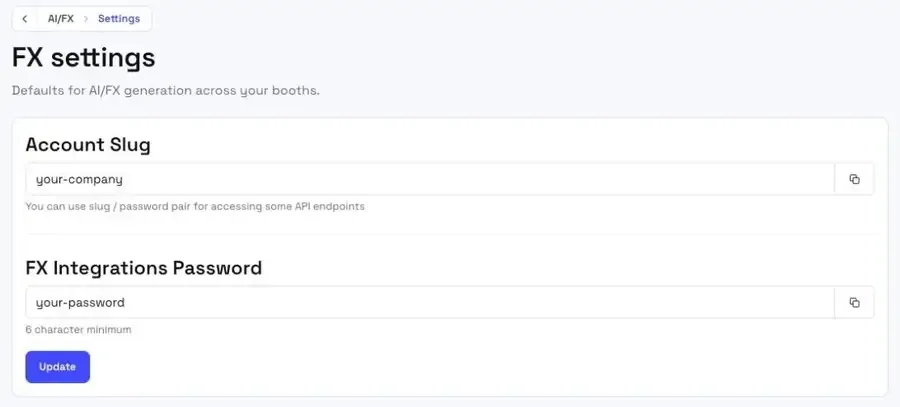
If you change the password, update it on every booth that uses FX, or their photos will stop being processed.
Time Out#
You can set a Time Out period, after which Breeze Booth will stop waiting for the image to process. The default period is 60 seconds, but this can be increased to allow more processing time. This is most useful for GPT Image, where processing time can sometimes exceed 60 seconds.
Max Width#
You can resize the image that gets uploaded to FX by setting its maximum width. A smaller image means a faster upload. In many cases, it is not necessary to upload the full resolution, because the FX Configuration will only be returning a lower resolution image. For example GPT Image only generates an image that is a max of 1500px wide.
Original Photos#
When an image is uploaded to FX and processed, the returned image (if a JPG) will overwrite the original captured image. If you need to save a copy of the original, enable the Save copy of Original photo option. This also allows you to use the original image on print layouts.
Tokens#
POST Processing URLs support tokens. This allows you to dynamically link to FX configurations based on token data, such as Survey Results.
See Do Nothing for an example of choosing a different FX configuration for each photo in a session.
Was this page helpful?
Thanks, that helps us improve the guides.