

Preferences
On this page
Preferences#
Select File > Preferences to open the Preferences dialog.
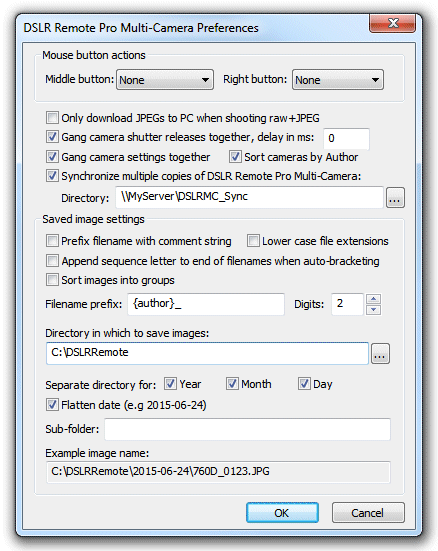
Mouse Button Actions#
Assign the middle and right mouse buttons to release the shutter or take preview shots — useful for using the mouse as a simple cable release. This only works when the mouse pointer is over the main window and not over a control.
Multi-Camera Options#
-
Only download JPEGs to PC when shooting raw+JPEG — useful for reducing download time while keeping raw files on the card. Use the Download Photos dialog to download raw files later. Requires memory cards in all cameras with save to both camera and PC selected (Camera > Save to camera & PC)
-
Gang camera shutter releases together — when enabled, pressing Release fires all connected cameras in succession (approx. 1/6 sec between each). When disabled, only the currently selected camera fires. Use Shift+F8 to fire only the selected camera when this option is enabled
-
Gang camera settings together — when enabled, settings changes in the main window apply to all connected cameras
-
Synchronize multiple copies of Multi-Camera — synchronizes settings across multiple copies running on different PCs by monitoring a file called
settings.xmlin thestatussubfolder of the main download directory. When settings change in one copy, all others update accordingly. PCs must share the same download folder, or specify a separate synchronization folder using the Directory: text box. Placeupdated.wavin the Multi-Camera installation folder for an audible confirmation when settings sync -
Sort cameras by Author — sorts cameras by the "Artist" string stored in the camera rather than the "Owner" string. Author strings can be set on the camera without a PC connection; owner strings require PC connection
-
Sort images into groups — sorts images alphabetically so next/prev image buttons display them in camera order rather than download order
Output Directory#
The base directory for saved images. Can be typed directly or browsed with the ... button. The directory is created automatically if it does not exist.
Checkboxes for Year, Month and Day automatically create date-based subdirectories. Select Flatten date to combine into a single subdirectory, e.g.:
- Unchecked:
C:\DSLRRemote\2004\01\14 - Checked:
C:\DSLRRemote\2004-01-14
IPTC tokens can also be used in the output directory path, e.g. C:\%Y\%T gives year followed by camera model.
Image Filenames#
Multi-Camera numbers images sequentially, scanning the output directory for the next available number. It continues from the last used number even if images are removed while it is running (prevents duplicate filenames when images are immediately transferred by FTP).
- JPEG:
.JPGextension (e.g.0001.JPG) - Raw:
.CR2extension - Raw+JPEG: same number, e.g.
0001.CR2and0001.JPG
Set an optional prefix in Filename prefix:, e.g. studio shoot gives studio shoot 0001.JPG. IPTC tokens can be used in the prefix too.
When Append sequence letter to end of filenames when auto-bracketing is enabled, auto-bracketed shots share the same image number with a letter suffix, e.g. 0001a.JPG, 0001b.JPG, 0001c.JPG.
When saving to both the memory card and the PC, the filenames will differ — Multi-Camera cannot read the camera's filename and generates its own.
Use the %# token in the prefix to control where the image number is placed, e.g. %#_test gives 0001_test.JPG.
Select Lower case file extensions to save files with lowercase extensions, e.g. IMG_0001.jpg.
Use Legacy App Name#
Sets the program title to the old name "DSLR Remote Pro Multi-Camera" instead of "Multi-Camera".
This option must be selected if you are using DSLRRemoteLib.dll to control Multi-Camera from another application.
Was this page helpful?
Thanks, that helps us improve the guides.