

Multi Live View and Multi-View
Multi Live View and Multi-View#
Multi Live View#
Select Camera > Multi Live View to display live view images from all cameras simultaneously in a single window. Live view images are downloaded from each camera in turn, so the refresh rate per camera decreases as more cameras are connected.
Anaglyph Stereo Display#
When exactly two cameras are connected, Multi Live View shows a checkbox to enable a stereo anaglyph display. The red channel from the first camera and the green/blue channels from the second are combined into a red/cyan stereo image for viewing with red/cyan glasses.
Multi-View#
Multi-View displays photos and previews from each connected camera in a grid with a caption identifying the camera. Enable via View > Multi-view mode...:
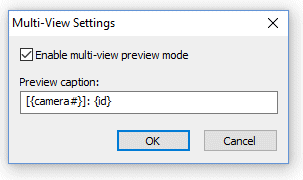
Set the caption text using the Preview caption: field. Tokens can be used:
{camera#}— camera number in the array{id}— camera ID (author string if Sort cameras by author is enabled in Preferences)
When Multi-View is active, the preview area in the main window is divided into a grid, one area per camera. Cameras without a current preview show a red rectangle with the camera number. Press F3 to clear all previews. Previews are also cleared when pressing Release.
Was this page helpful?
Thanks, that helps us improve the guides.