

Connecting to Multiple Cameras
On this page
Connecting to Multiple Cameras#
Multi-Camera supports several configurations depending on the number of cameras and PCs available.
Single PC, Multiple Cameras (Recommended up to 32 cameras)#
Connect all cameras via USB and turn them on before launching Multi-Camera. The software connects automatically (up to the license limit). With large numbers of cameras, connection may take several seconds.
Cameras are sorted by author string then serial number, ensuring consistent numbering across sessions. Edit the author string via Camera > Edit camera id.
Select individual cameras using the Camera: dropdown list. With Gang camera settings together enabled in Preferences, changes to camera settings in the main window apply to all connected cameras.
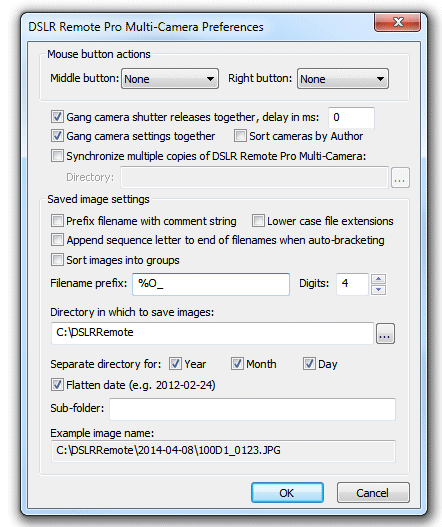
With Auto Reconnect selected in the Camera menu, Multi-Camera automatically connects to new cameras as they are detected and disconnects cameras that go offline.
Multiple PCs, Multiple Cameras (Recommended for 32+ cameras)#
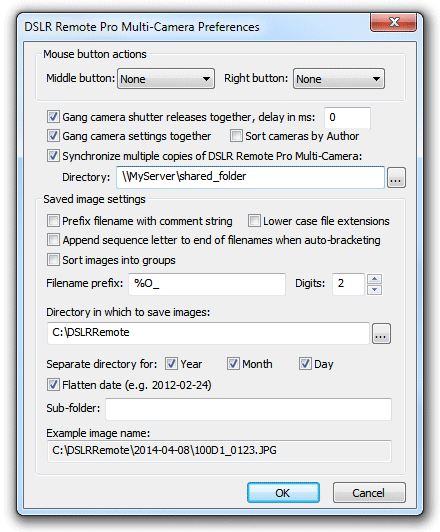
This extends the single-PC configuration by using a shared folder to synchronize camera settings across PCs. Changes saved to settings.xml in the shared folder are detected and applied by all copies of Multi-Camera on the network.
Multiple Copies, One Camera Each#
Multi-Camera can run in "single camera per instance" mode where each copy controls exactly one camera. Multiple copies run simultaneously on the same PC or across multiple PCs.
Advantages: each copy is isolated — one camera going offline does not affect others. Combined with Auto Reconnect, each copy reconnects to its camera independently.
An AutoHotKey script DslrRemoteProMultiCamera.ahk is provided to automate launching multiple copies. Install AutoHotKey first, then double-click the script. It runs ConnectedCameraList.exe to detect connected cameras and launches one copy of Multi-Camera per camera, arranges the windows, and shows a summary window at the top of the screen. Closing the summary window closes all Multi-Camera instances.
The DslrRemoteProMultiCamera.ahk script is provided as-is. It can be modified freely or Breeze Systems can customise it at their normal consultancy rate.
When using this mode, camera settings can be synchronized using Synchronize multiple copies of Multi-Camera with a shared folder — the shared folder does not need to be a network share if all cameras are on one PC.
Multiple PCs, One Camera Each#
Similar to the above, but uses a shared folder to synchronize settings across PCs. Changes are saved to status.xml in the shared folder and detected by all running copies.
Was this page helpful?
Thanks, that helps us improve the guides.