

Network Requirements
On this page
Network Requirements & Firewall#
All devices must be on the same local network for Breeze Hub to communicate with Apple devices running Breeze Booth.
Ports#
Breeze Hub uses three ports for communication:
| Port | Protocol | Direction | Purpose |
|---|---|---|---|
| 5500 (default) | UDP | Outbound | Broadcast — Breeze Hub announces itself on the network |
| 5501 (default) | UDP | Inbound | Status updates from connected devices |
| 5502 (default) | TCP | Inbound | File transfers |
Ports can be changed in File > Preferences > Sync Server if the defaults conflict with your network setup.
Windows Firewall#
When running Breeze Hub for the first time, Windows may display a security alert. Select Private networks, such as my home or work network and click Allow access. This is sufficient for most setups.
Manual Firewall Configuration#
If the automatic prompt does not resolve connectivity, rules may need to be added manually via Windows Defender Firewall Advanced Settings.
To find the correct local address range for your network, open a Windows PowerShell window and run: ipconfig
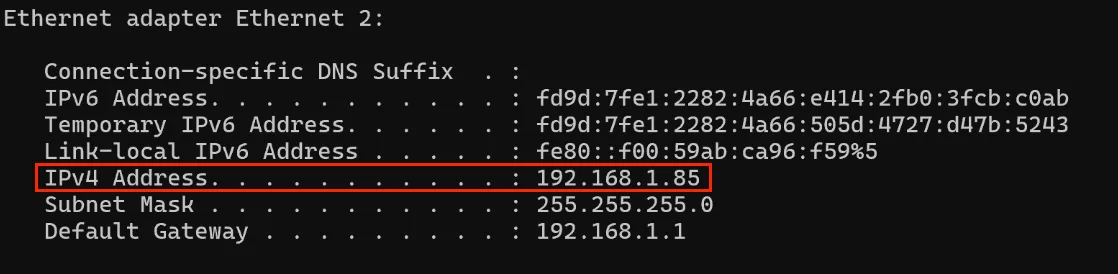
Use the first three octets of the IPv4 Address when defining local address ranges in your firewall rules.
Some firewall software (e.g. AVG) requires the network connection type to be set to Private rather than Public before connections will be permitted.
Troubleshooting#
| Symptom | Resolution |
|---|---|
| Breeze Hub does not appear in Breeze Booth App Settings | Enable outgoing UDP on port 5500 |
| iPad/iPhone not listed in Connected Devices | Enable incoming UDP on port 5501 |
| Files are not transferred to Breeze Hub | Enable incoming TCP on port 5502 |
Was this page helpful?
Thanks, that helps us improve the guides.