

Printer Setup
On this page
Printer Setup#
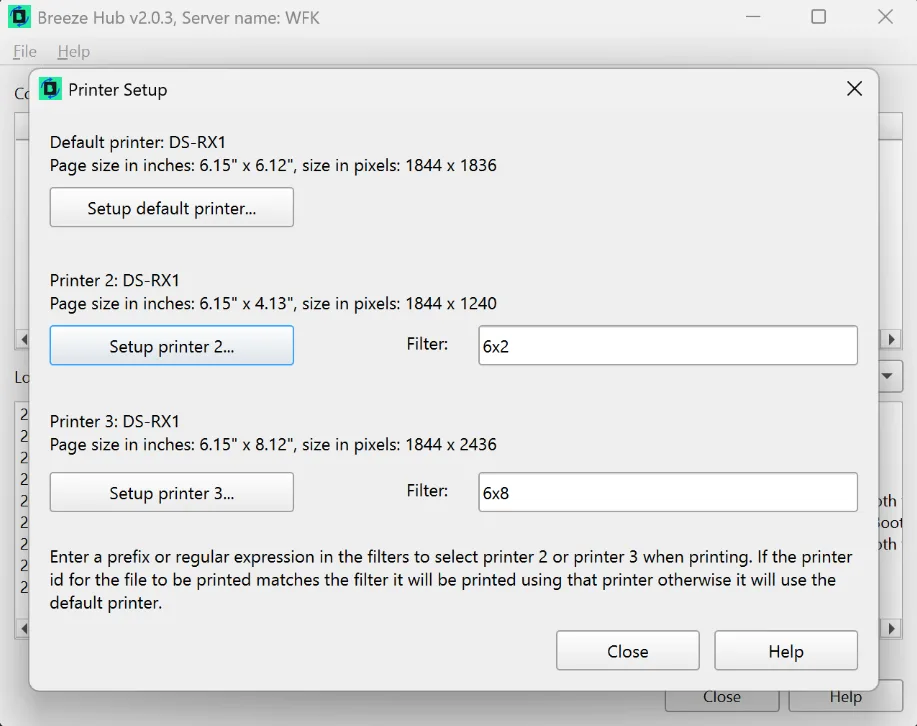
Configure printers via File > Printer Setup. This must be done before printing will work. Breeze Hub supports up to three printers — a default printer plus two additional printers.
The current default printer name and page size are displayed at the top of the dialog.
Default Printer#
Click Setup default printer... to select and configure the printer used for all standard print jobs. At minimum the default printer must be set for printing to function.
Multiple Printers#
Printer 2 and Printer 3 can be configured to route jobs to different printers based on output size or printer type — for example, routing 6x2 strip jobs to one printer and 6x8 large prints to another.
Each additional printer has a Filter field. The filter is compared against the Printer ID set in Breeze Booth or Breeze Remote Pro on a per profile basis. Filters can be a simple text prefix or a regular expression.
Breeze Hub checks Printer 2 first. If the filter does not match, it checks Printer 3. If neither matches, the job is sent to the default printer.
Example:
| Printer | Filter | Output |
|---|---|---|
| Default printer | (none) | 6x4" photo prints |
| Printer 2 | 6x2 | 6x2" strip prints |
| Printer 3 | 6x8 | 6x8" large prints |
A regular expression example: 6x2.*DNP would match only 6x2 jobs directed to a DNP printer.
Filter values must match the Printer ID set in Breeze Booth or Breeze Remote Pro exactly.
Was this page helpful?
Thanks, that helps us improve the guides.