

Saving Settings and using Profiles
On this page
Saving and Loading Settings#
Save the current settings via File > "Save Settings..." and reload via File > "Load Settings...". This lets you define multiple layouts, screen designs, or green screen configurations to switch between.
You can use the tokens {photoboothDir} and {photoboothSubdir} to specify a different folder per profile:
{photoboothDir}— full path of the screen images folder, e.g.C:\Users\Chris\Documents\FlipBookImages{photoboothSubdir}— name of the screen images subfolder, e.g.FlipBookImages
Profiles#
Profiles allow keyboard shortcuts to switch between saved settings files. Select File > "Profiles..." to open the profiles dialog:
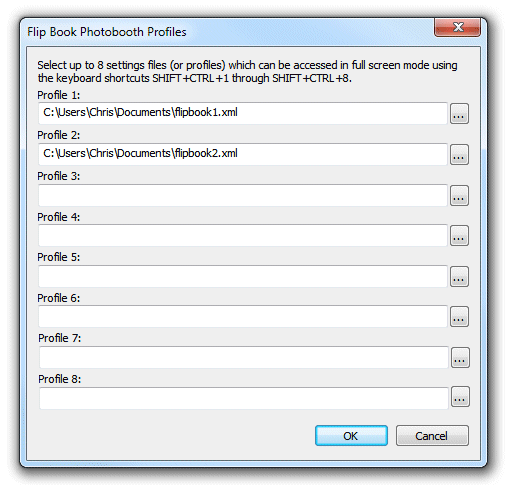
Click "..." next to each profile to assign a saved settings file. Keyboard shortcuts when the ready screen is displayed:
Shift+Ctrl+1throughShift+Ctrl+8— select profiles 1–8Shift+Ctrl+N— select next profileShift+Ctrl+P— select previous profile
The tokens {photoboothDir} and {photoboothSubDir} can also be used in the profile file path to allow more than 8 profiles by referencing files relative to the current screen images folder.
Was this page helpful?
Thanks, that helps us improve the guides.