

Backgrounds and Overlays
On this page
Backgrounds and Overlays on Printer Pages#
An optional background and overlay image can be added to each printed page (note each printer page may contain multiple flip book pages).
Background images must be JPEG files named background.jpg. To use a different background per page, name them background1.jpg, background2.jpg, etc. This can create simple animations across pages, or highlight the last page with a bold border for easy stacking.
To print a title page as the cover, select "Print front cover" and create background1.jpg with the cover artwork in the position of the first image slot.
Overlay images must be PNG files with transparency in the alpha channel (256 levels, fully transparent to fully opaque). Name them overlay.png, or overlay1.png, overlay2.png, etc. for per-page overlays.
Both background and overlay images must match the printed output size and be placed in the screen images folder.
Rendering order: background first → images and page numbers → overlay on top.
Examples of overlays in use:
Original image:

Round corners using overlay:

Drop shadow (via overlay or background):
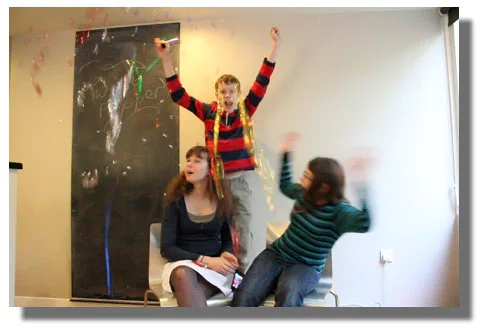
Vignette overlay (with alpha channel):


Adding a background increases ink/toner usage on inkjet and laser printers and may slow printing. It has no effect on dye sublimation printers.
Overlays on Flip Book Pages#
An optional overlay PNG can be added to each individual flip book page. Name them flipbook_page_1_overlay.png (or flipbook_page_01_overlay.png), flipbook_page_2_overlay.png, etc. Overlays larger than the page are resized to fit and centered. Check the page size in pixels by clicking "Display test page" in Output settings.
Adding a Cover Image#
See Output Options for details on adding a front cover page.
Creating PNG Images with Photoshop#
Create a new image with a transparent background. Add a layer mask via "Add layer mask" in the Layers palette. Add your graphics (text, frames, etc.) to the image layer and use the layer mask to control transparency (white = opaque, black = transparent, grey = partial). Save a PSD for reference, then export as overlay.png.
Was this page helpful?
Thanks, that helps us improve the guides.