

Setup and Pooling
On this page
Suggested Printers#
Fast dyesub printers capable of 6"×2" printing (ideal):
- DNP DS40 — prints a 28-page flip book in ~70 secs
- Mitsubishi CP-D70DW — prints a 28-page flip book in ~70 secs
- Mitsubishi CP-D707DW — twin-deck; prints two 28-page books in ~86 secs or one in ~70 secs
Also capable of 6"×2" printing (slower):
- DNP DS-RX1 — ~130 secs per 28-page book
- HiTi P510L — ~130 secs per 28-page book
Selecting the Printer#
Click "Setup..." in the main window:
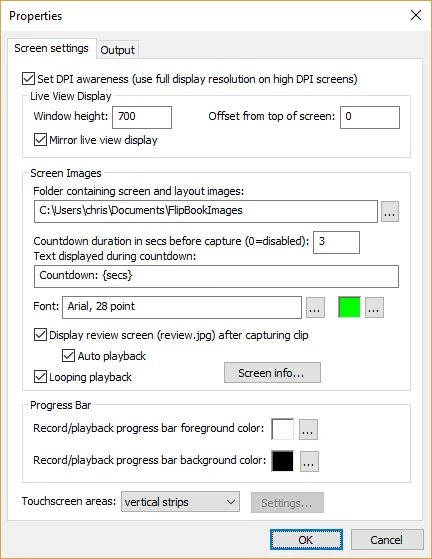
Click the "Output" tab:
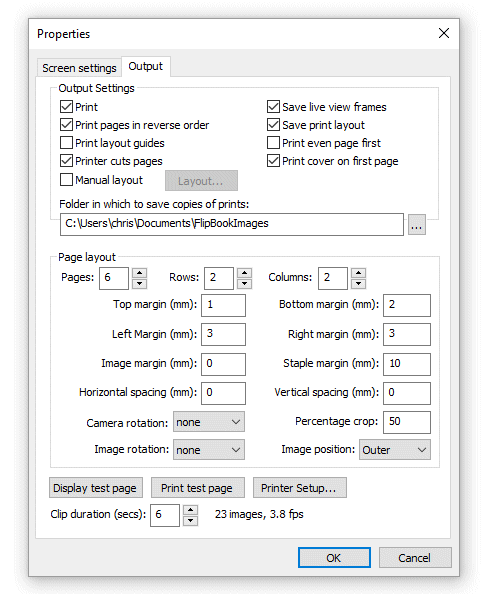
Click "Printer Setup..." to display the printer and pooling dialog:
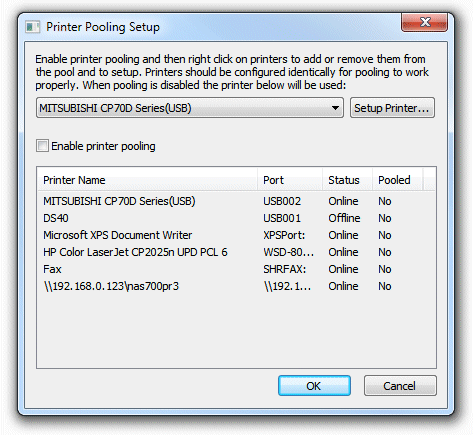
If using only one printer, uncheck "Enable printer pooling" and select the printer from the dropdown.
Printer Pooling#
Flip Book Photobooth can share printing across two or more printers, sending each new book to the next available printer in the pool. Offline printers are skipped automatically.
To add a printer: enable pooling, right-click a printer in the list and select "Add to pool". To remove: right-click and select "Remove from pool".
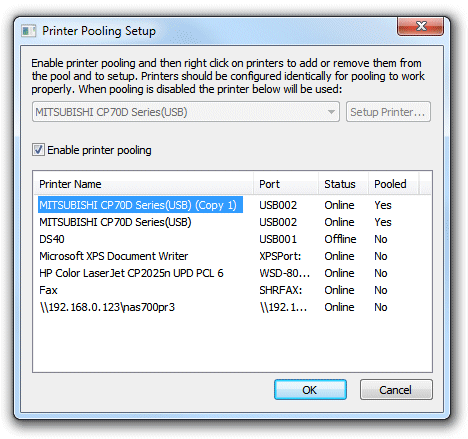
All printers in the pool must be the same type with the same settings and paper.
Mitsubishi CP-D707DW / CP-D70DW Setup#
The CP-D707DW is loaded with 6"×4" paper and prints 6"×2" strips — ideal for flip books. Due to driver limitations, to use both decks you must create a duplicate printer and use printer pooling:
Step 1: Note the port used (shown in the port column in the pooling window — e.g. USB002):
Step 2: Open Devices and Printers from the Start menu and click "Add a printer":
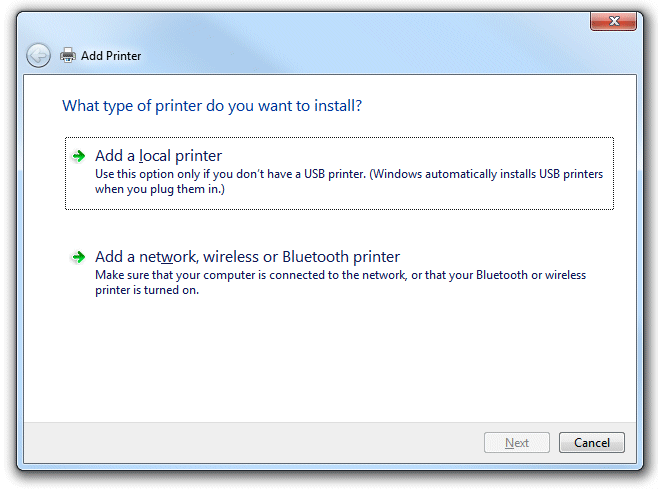
Step 3: Click "Add a local printer":
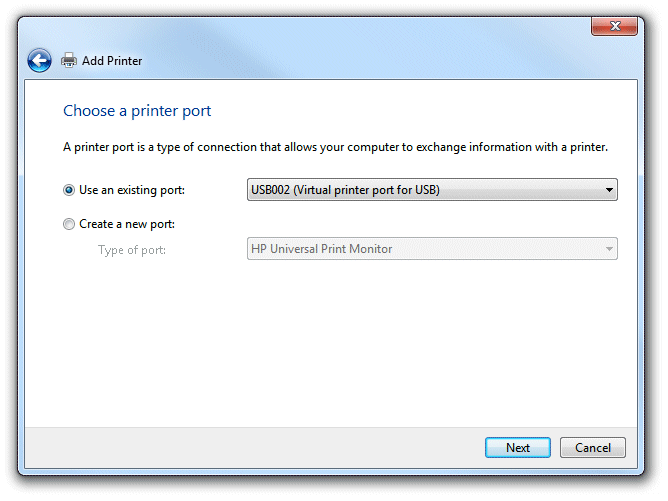
Step 4: Select "Use an existing port:" and choose the port noted in Step 1:
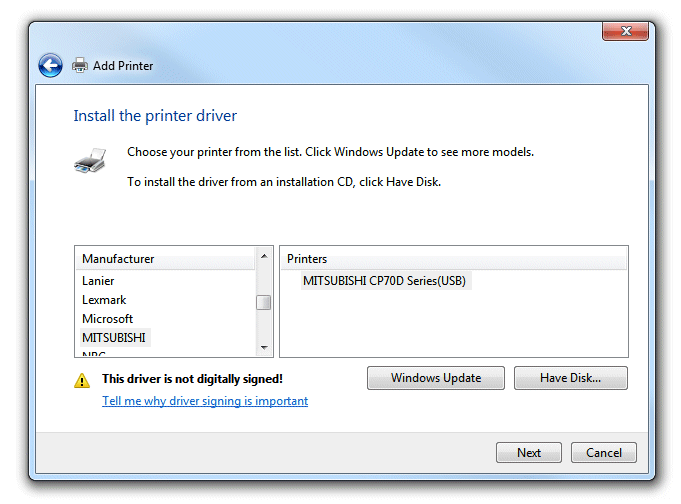
Step 5: Select the printer manufacturer and model:
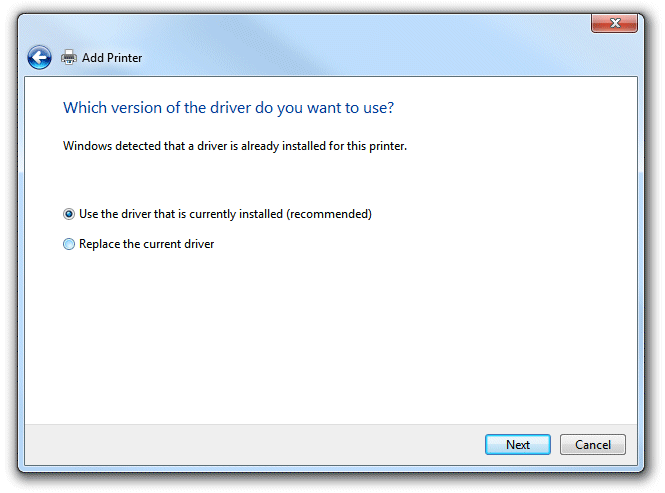
Step 6: Select "Use the driver that is already installed":
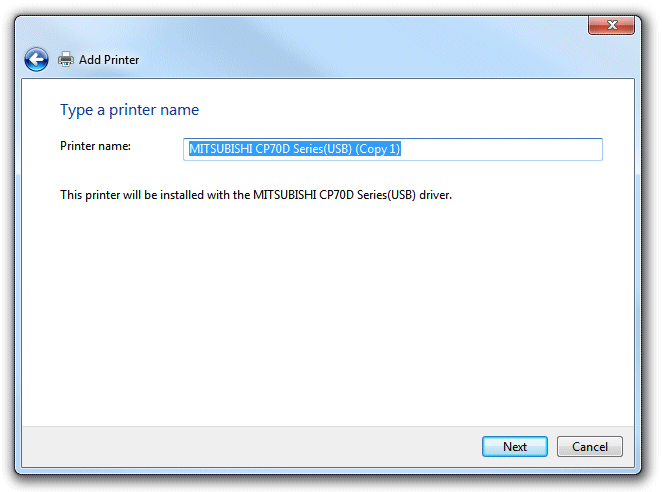
Step 7: Edit the printer name if required:
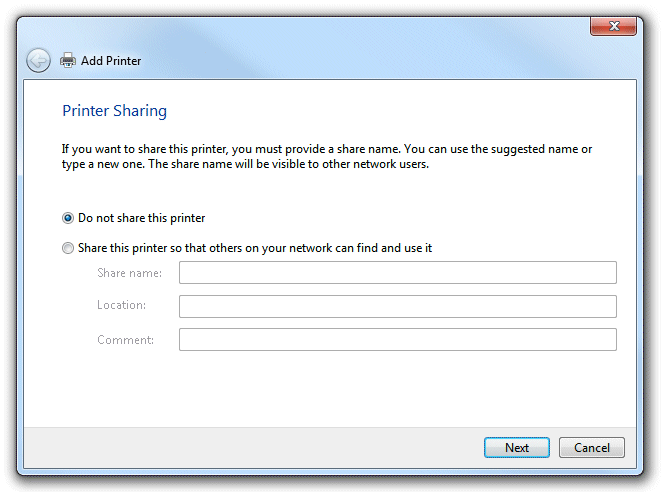
Step 8: Click "Next" then "Finish". The pooling window should now show both printers:
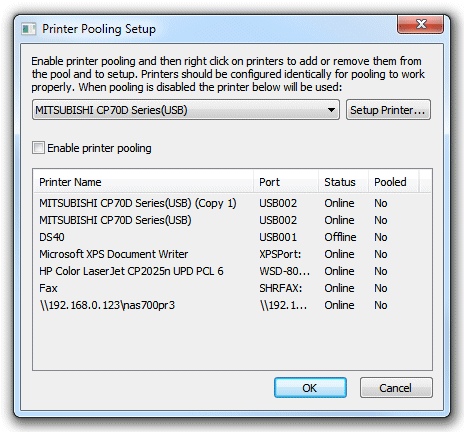
Step 9: Enable pooling and right-click each MITSUBISHI CP70D entry to "Add to pool":
Step 10: Right-click each printer entry and select "Setup printer". Use identical page settings but set "Output place:" to "The upper printer" for one and "The lower printer" for the other.
Approx. timing for two 26-page books using both decks: ~86 secs.
DNP DS40 Settings#
Use 300×300dpi for fastest printing. 300×600dpi is not suitable (different resolutions cause layout issues). 600×600dpi gives better quality but is significantly slower.
Current DS40 printers support 2" cuts from 6"×4" media. Older DS40 printers require a hardware and firmware upgrade — contact your supplier or DNP.
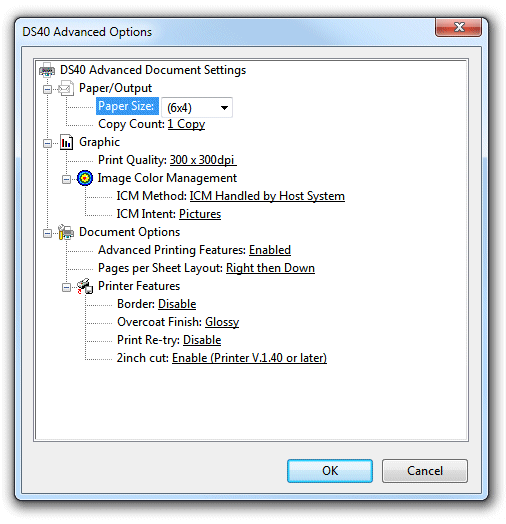
Suggested output settings:
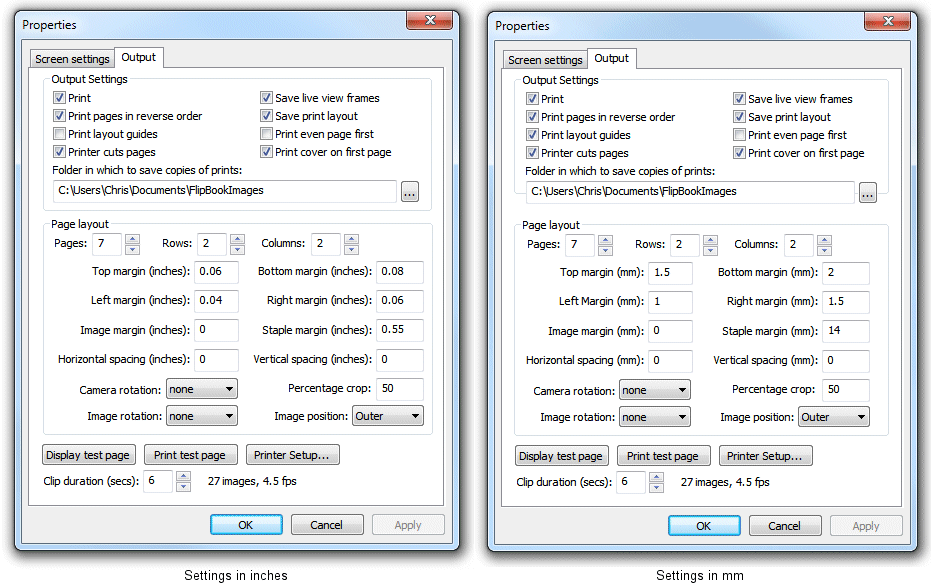
Approx. timing for a 28-page book (seven 6"×4" pages cut to 6"×2"): ~70 secs.
DNP DS-RX1 Settings#
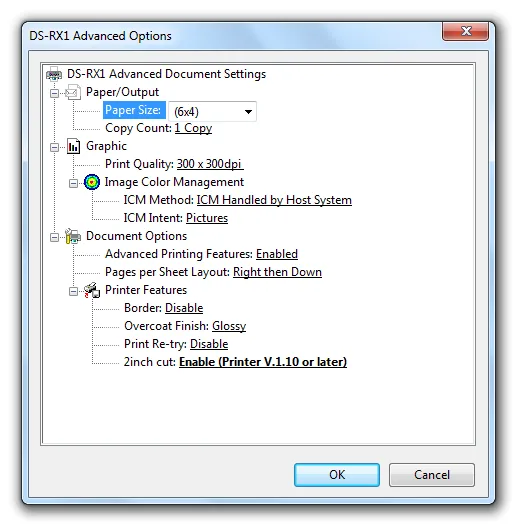
Suggested output settings:
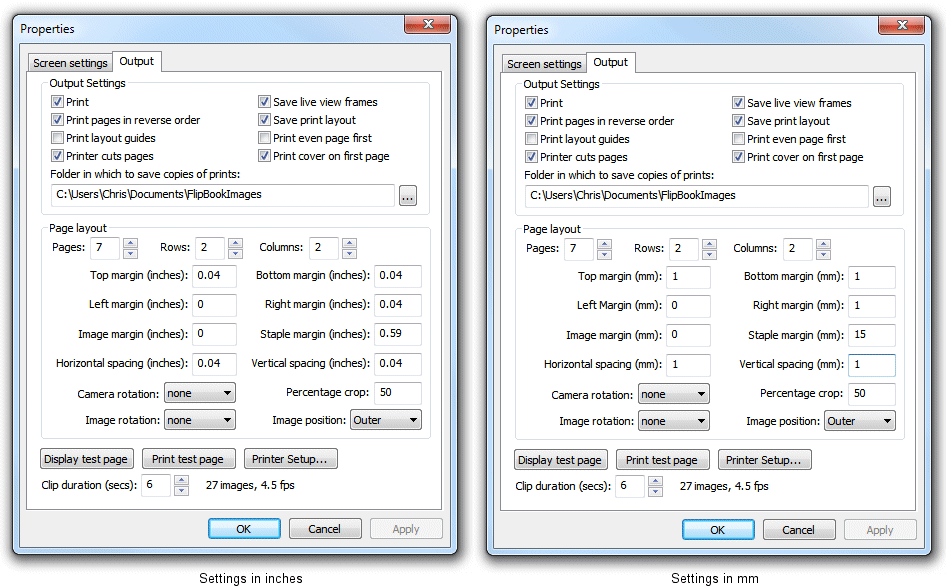
Approx. timing for a 28-page book: ~130 secs.
Sony UP-DR200#
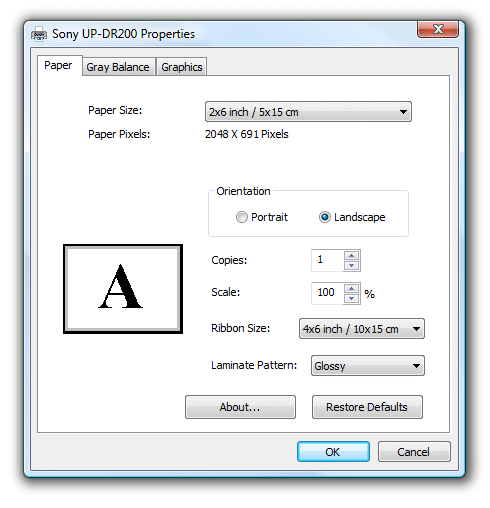
Set paper size to 2x6 inch and ribbon size to 4x6 inch. Set laminate pattern to glossy (not matte) for faster printing.
Was this page helpful?
Thanks, that helps us improve the guides.