

Installing & Registering
On this page
From Flip Book Photobooth v2.0 onward, each license must be activated on each PC. Online activation is quick and simple — we recommend activating at least 48 hours before an event. Offline activation is possible by sending your activation details through our contact form, but takes longer. Each license can be activated on up to two computers (only one used at a time).
Installing#
Download the latest version from www.breezesoftware.com and run the setup program, following the on-screen instructions.
Uninstalling#
Use the standard Windows "Uninstall a program" option in the Control Panel.
Deactivate Flip Book Photobooth BEFORE uninstalling, otherwise you may not be able to activate on another computer. If you forget, reinstall, deactivate, then uninstall.
Evaluation Version#
The trial version is fully functional for 15 days. Each launch shows the registration dialog — press "Evaluate" to continue. After 15 days a license must be purchased.
Registering#
Purchase a license at http://www.breezesys.com/purchase_flipbook.htm. You will receive your registration details by email.
Run the application, enter your registration name and code exactly as they appear in the email (copy-paste recommended to avoid errors). Click "Register".
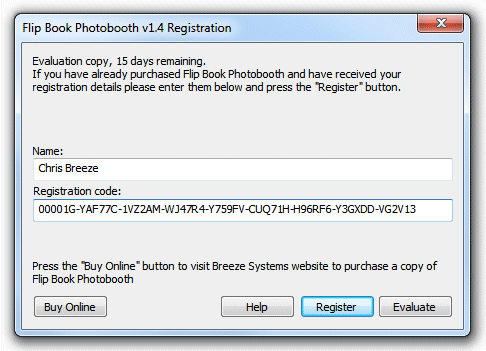
If correct, you will be prompted to activate the software on this computer.
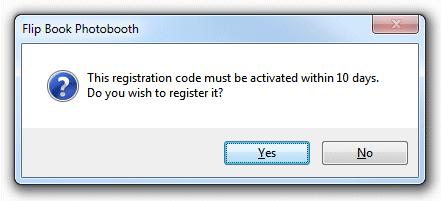
Activating#
The software must be activated before use and can run unactivated for up to 10 days after the registration code was issued. Click "Activate..." in the registration dialog:
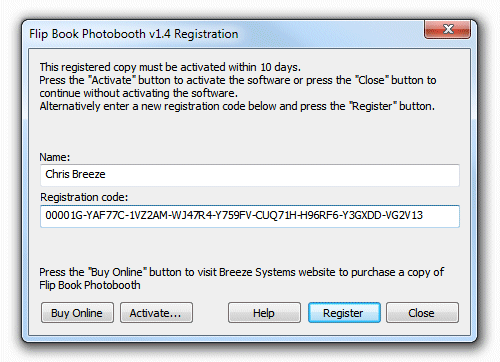
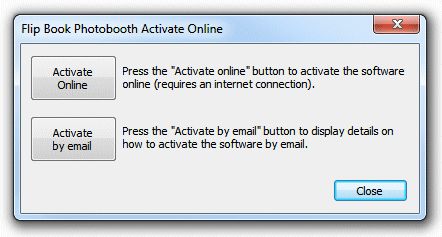
Online activation: Click "Activate Online" (requires internet access). May take up to 30 seconds.
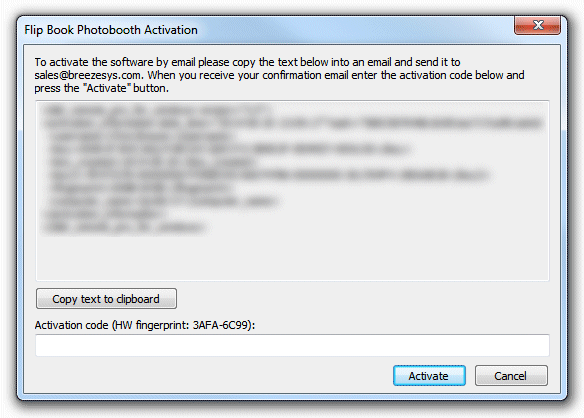
Email activation: Click "Activate by email", copy all the text and send it to us using the contact form. Do not modify the text. Use "Copy text to clipboard" and paste it into the form. You will normally receive an activation code within 12 hours — paste it into the "Activation code" field and click "Activate".
Deactivating#
If you wish to move the software to a different computer, deactivate it first. Also deactivate before upgrading hardware, reinstalling Windows, or reformatting a hard disk.
Go to Help > Register... to display the registration dialog:
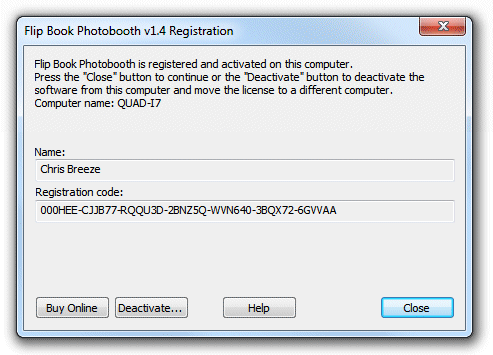
Click "Deactivate..." then choose online or email deactivation.
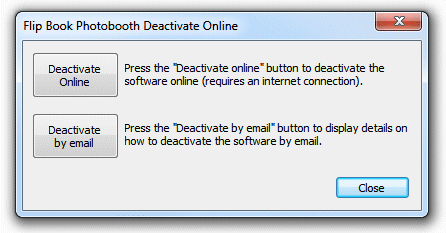
Online deactivation: Click "Deactivate Online" (requires internet). May take up to 30 seconds.
Email deactivation: Click "Deactivate by email" and follow the prompts. Send the copied text to us using the contact form. Do not modify the text.
If you forget to copy and email the deactivation text, go to Help > Register... and click "Display" to retrieve it. This is not available once another registration code has been entered.
Moving to a Different PC#
Deactivate from the old PC first, then install, register and activate on the new PC. For permanent moves, follow the decommissioning steps below.
Making Changes to Your PC#
Deactivate before: upgrading hardware, reformatting, reinstalling Windows, upgrading Windows, or having the PC repaired. Reactivate after. If Windows was reinstalled you may need to re-install the software, re-enter your registration details and reactivate.
Keep a copy of your registration name and code before making changes to your PC.
Decommissioning a PC#
Deactivate the software and remove your registration details before selling or giving away the PC — even if you have uninstalled the software. Someone with access to your registration details could activate the software on their computer and prevent you from using yours.
After deactivating, remove your registration details by entering this special code:
Name: Uninstall
Code: 00000G-MGVKUC-G5XYU9-60M48V-QRGK68-FRKHQT-G133DM-RV5G8P-XWGD4M
This installs a placeholder code that displays "Upgrade required" if the software is run. Your original details can be re-entered if you ever reuse the computer.
Checking for Updates#
Select "Check for updates online" to view the latest version details in your browser, or visit http://www.breezesys.com/Flipbook.
Activation Problems#
If you see "The server name or address could not be resolved", the PC cannot access the internet. Check the internet connection and firewall settings — ensure Flip Book Photobooth.exe is allowed internet access. If still unable to activate online, use email activation instead.
For other errors, follow the on-screen instructions or contact our support team with your registration name, code, and the error message. See also the Breeze Systems support page.
Was this page helpful?
Thanks, that helps us improve the guides.